
Anchorage
This guide provides step-by-step instructions for generating an Anchorage Digital API key and connecting it to your Integral.
1. Accessing the Anchorage Digital API Section
Log in to the Anchorage Digital Dashboard.
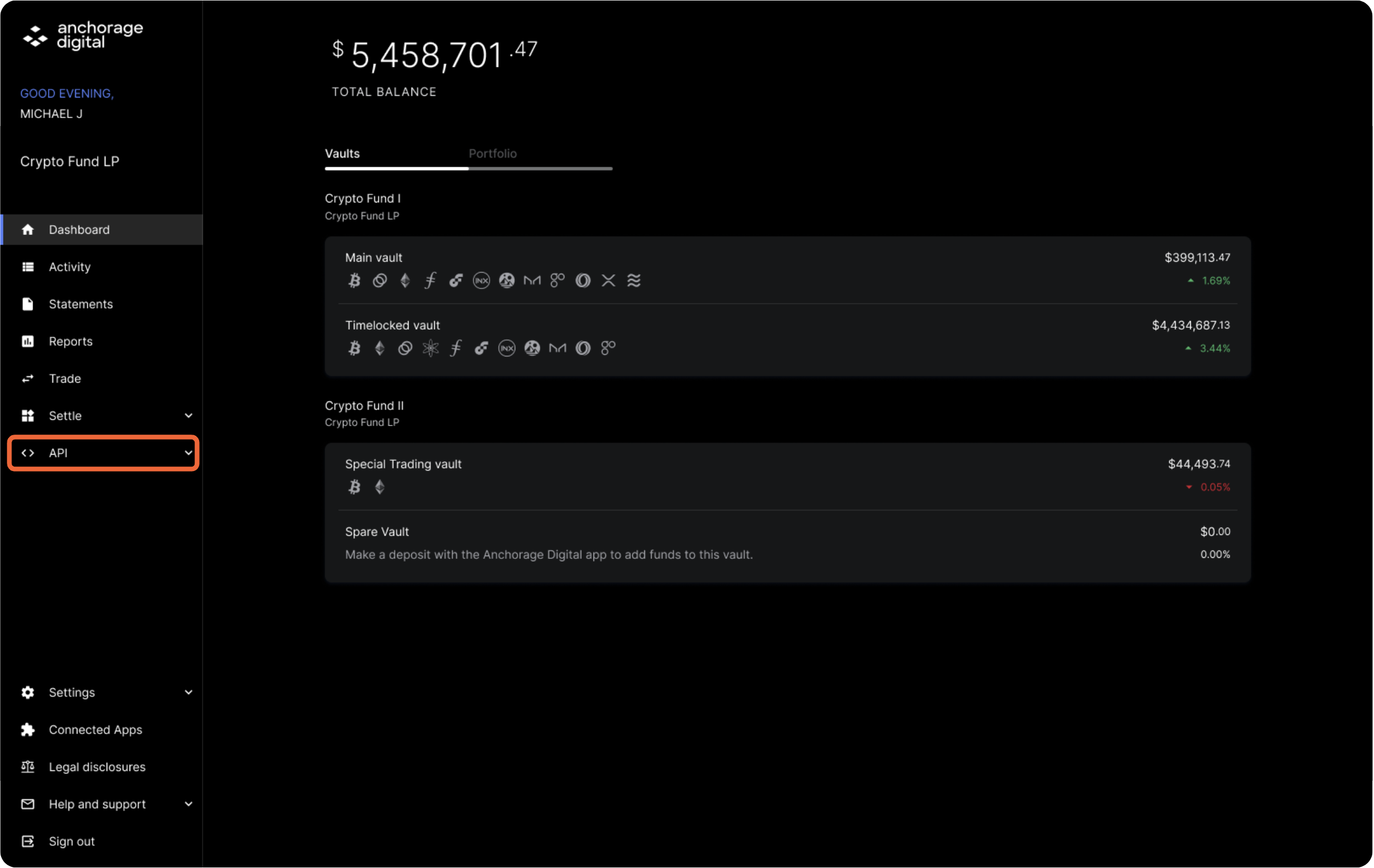
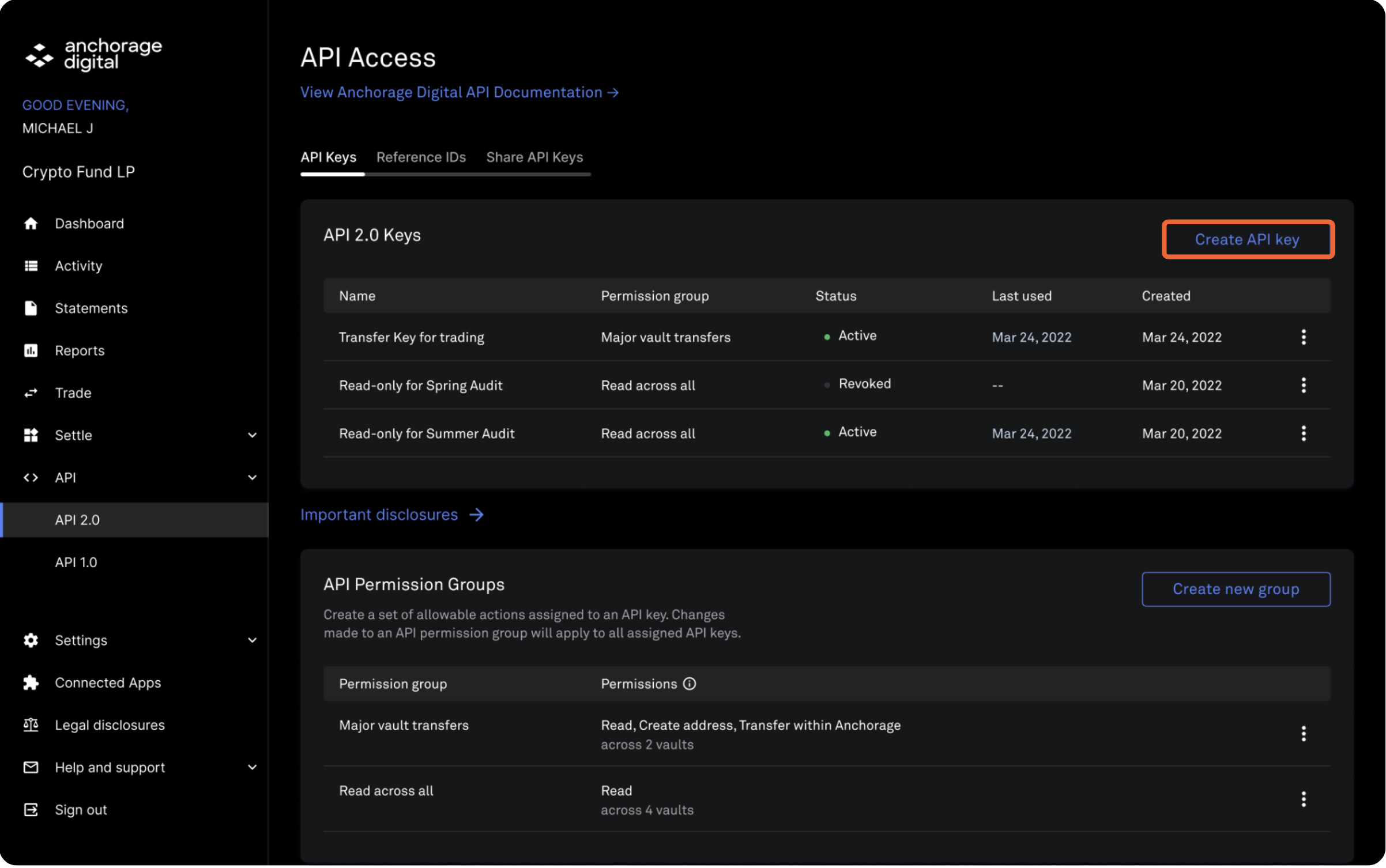
On the homepage, click API in the web dashboard menu.
2. Creating a Permission Group
Permission groups define which permissions are available to your API key.
Click Create new group in the dashboard.
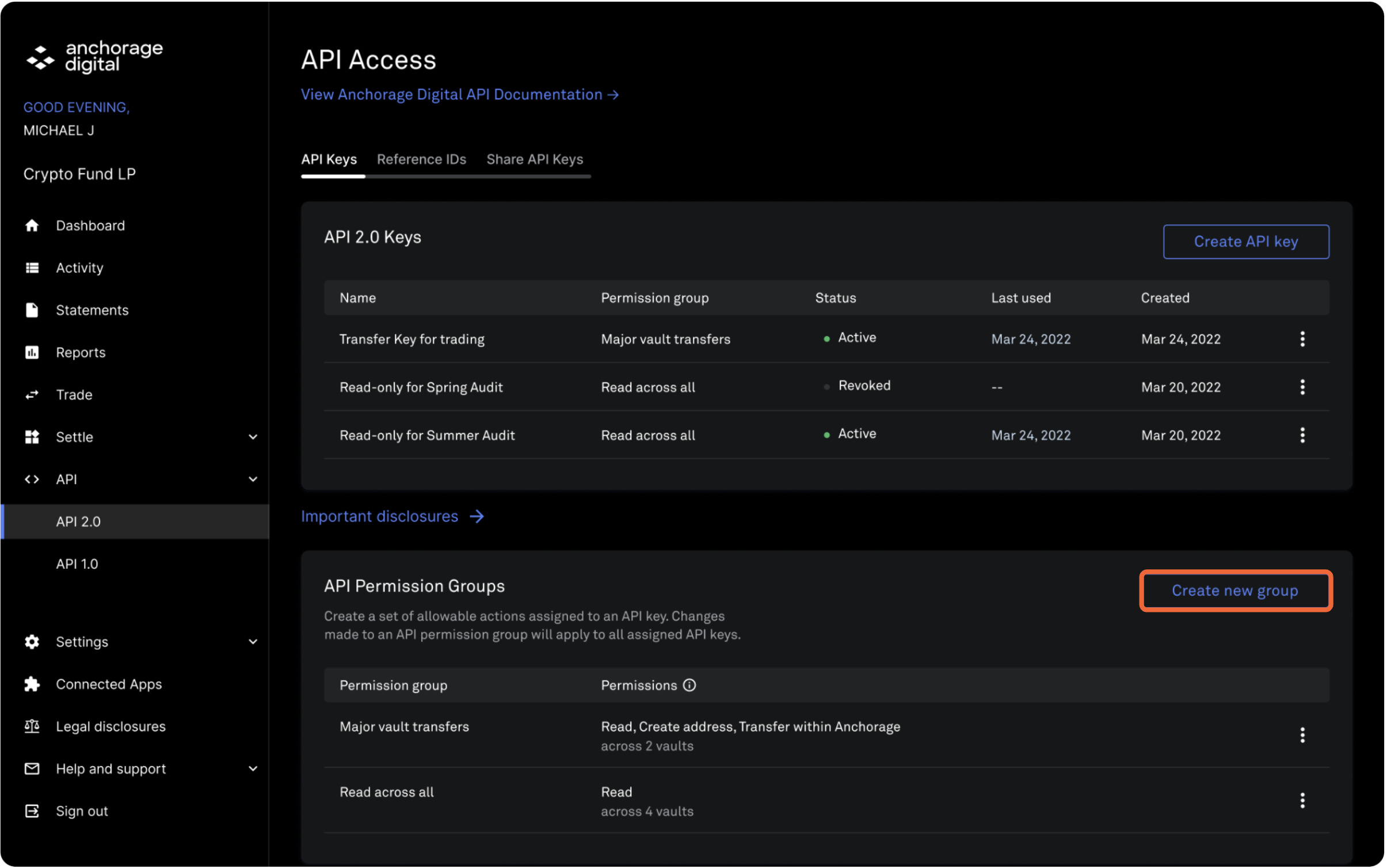
Note: Only administrators can create and manage permission groups.
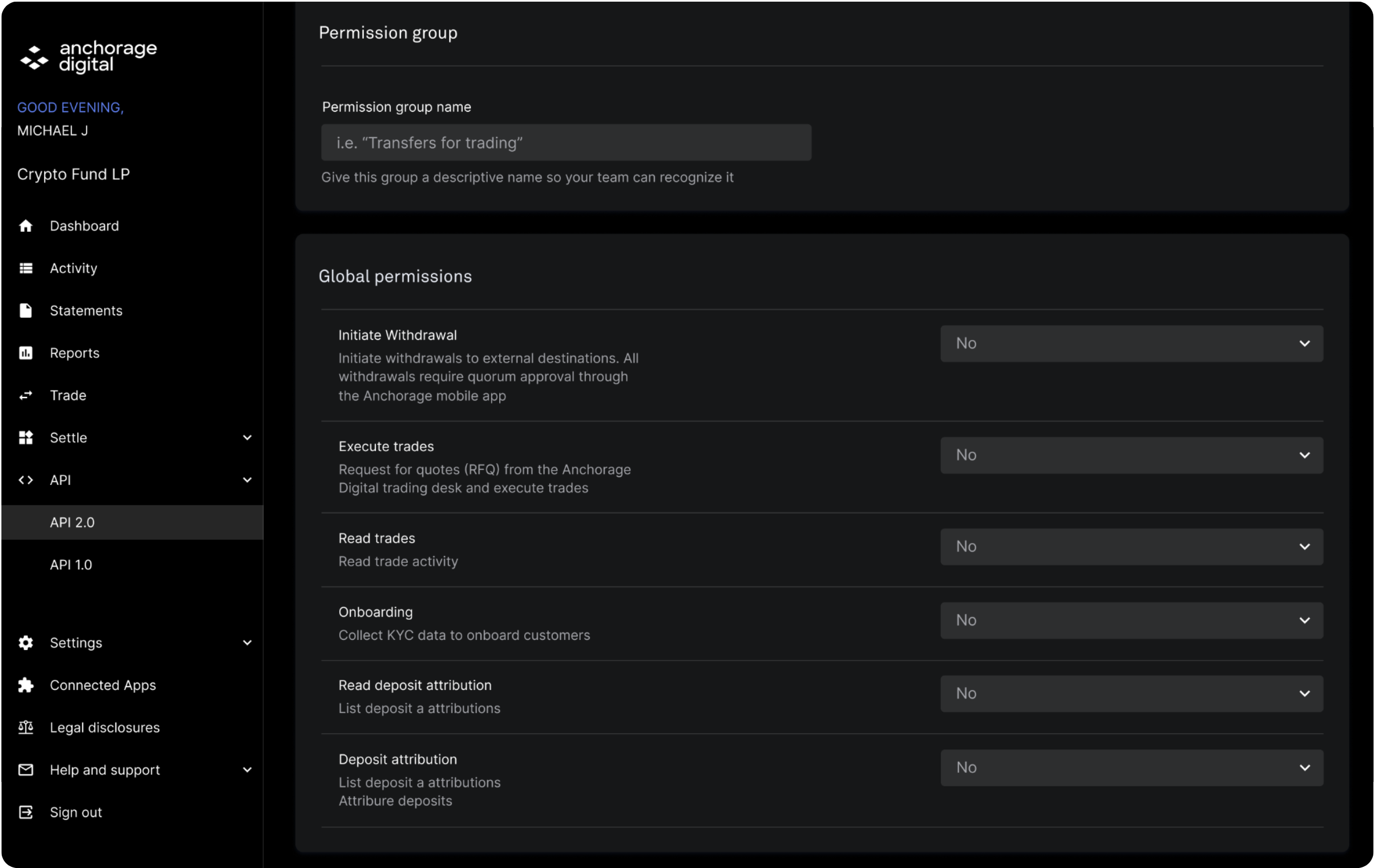
Assign a name to your permission group.
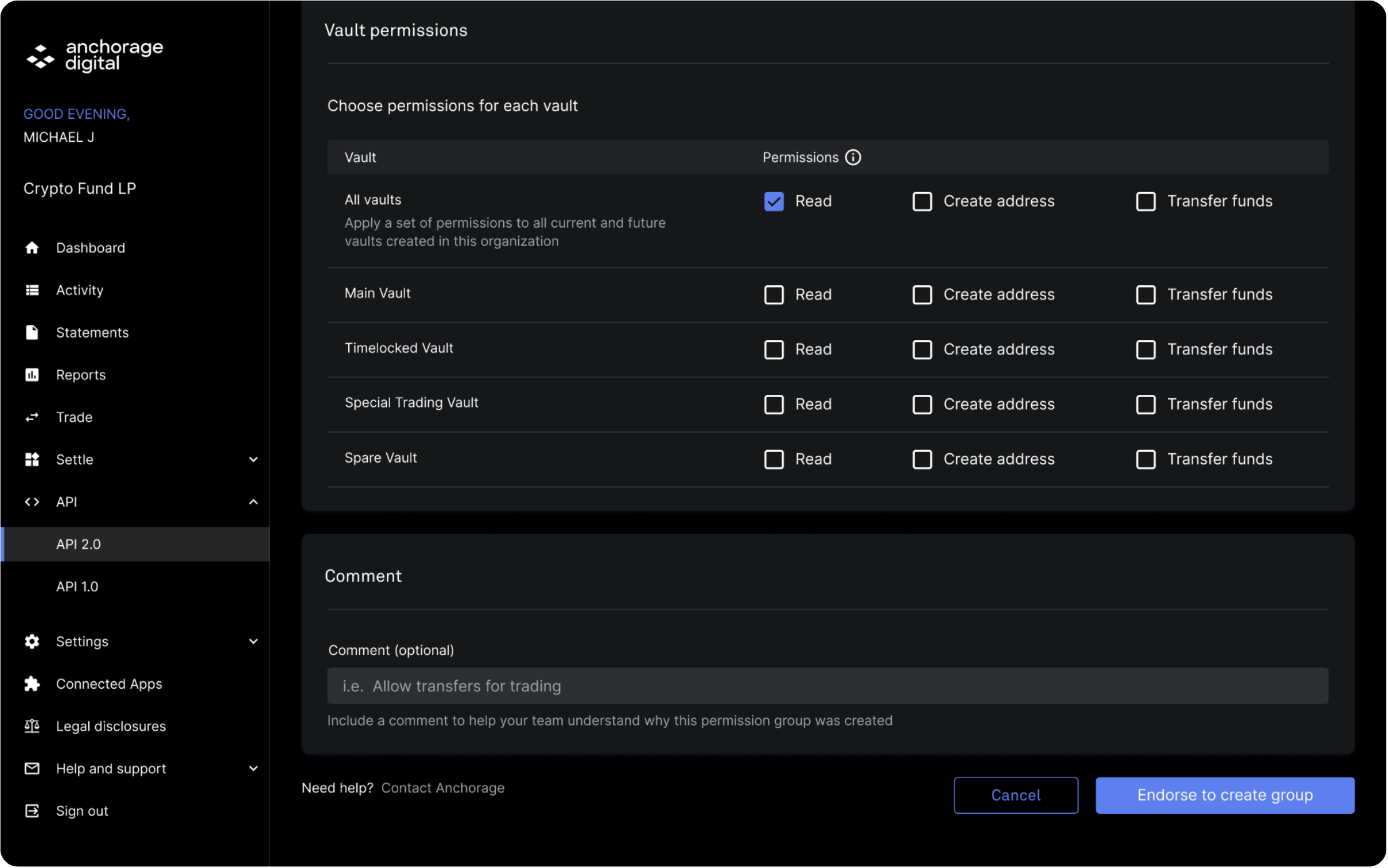
Select the necessary global and vault-level permissions from the available list.
You may add an optional comment describing the group’s purpose.
Click Endorse to Create Group to initiate group creation.
Wait for the quorum (the necessary number of endorsements) to be met. Anchorage Digital will review and approve the group.
3. Creating an API Key
In the API area, click Create API key.
Provide the key name.
Select the appropriate permission group you just created.
Once all necessary fields are completed, click Create key to generate the API key.
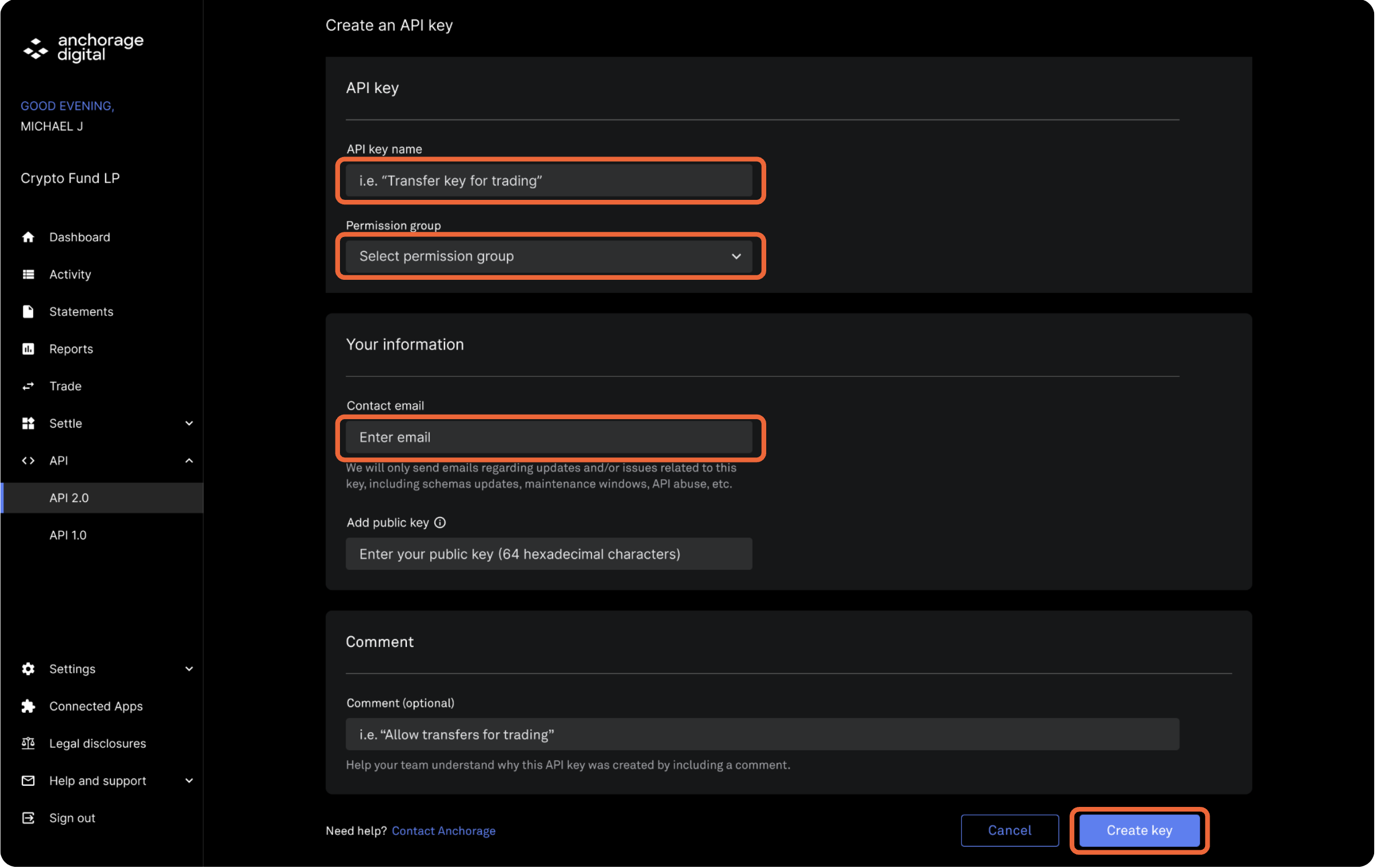
Note: If you selected certain sensitive permission groups, the key creation might require additional approval.
4. Email Confirmation
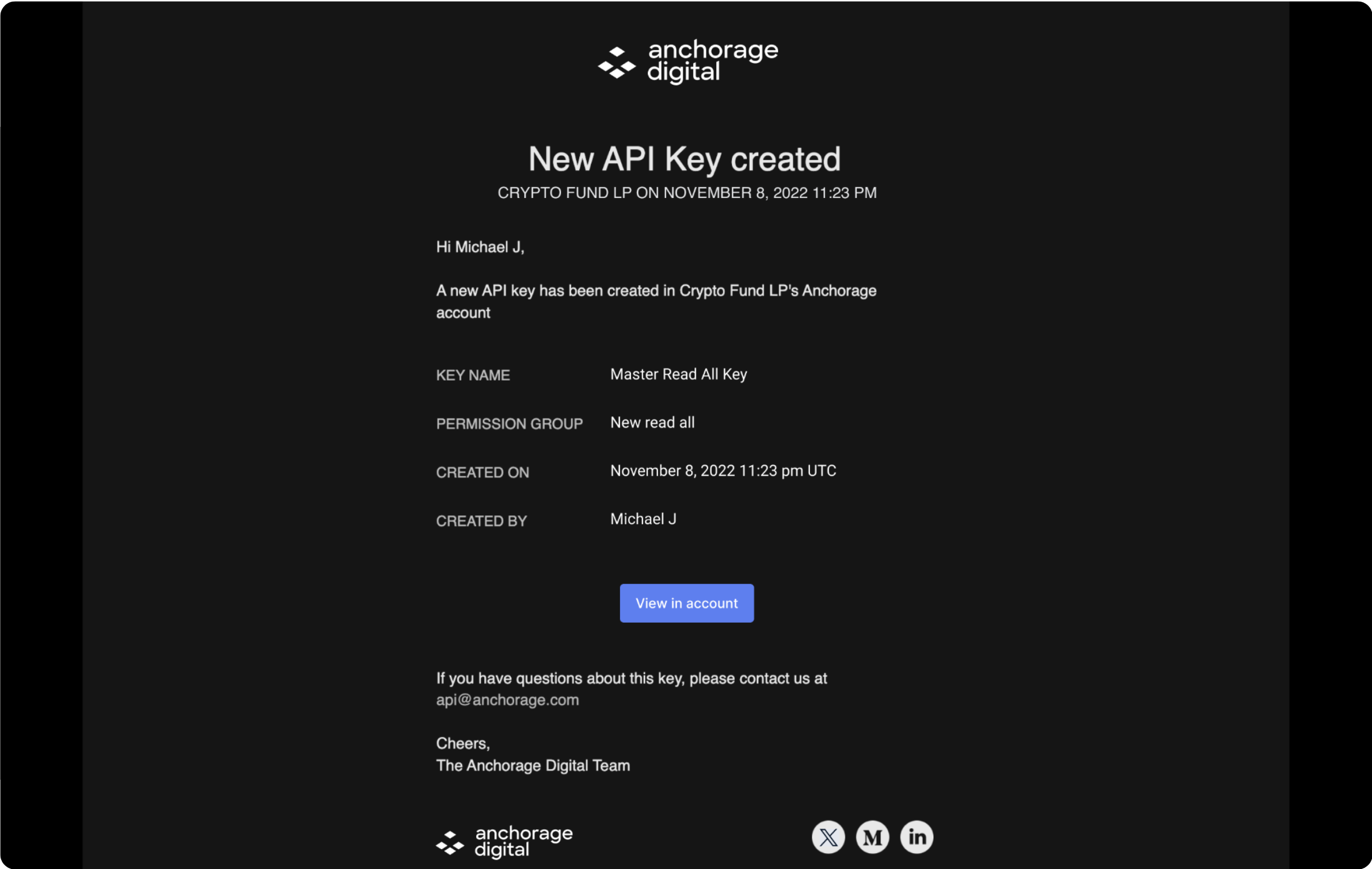
After generating an API key, you will receive a confirmation email.
Follow the instructions in the email to confirm the new API key has been created and is active.
5. Adding the API Key to Integral
Log in to your Integral dashboard.
Navigate to the integrations section for Anchorage Digital.
Paste the generated API key into the requested field.
Follow any prompts to authenticate or verify the connection.
Once verified, Integral will start syncing data from Anchorage Digital using your API key.
6. Managing API Key Access
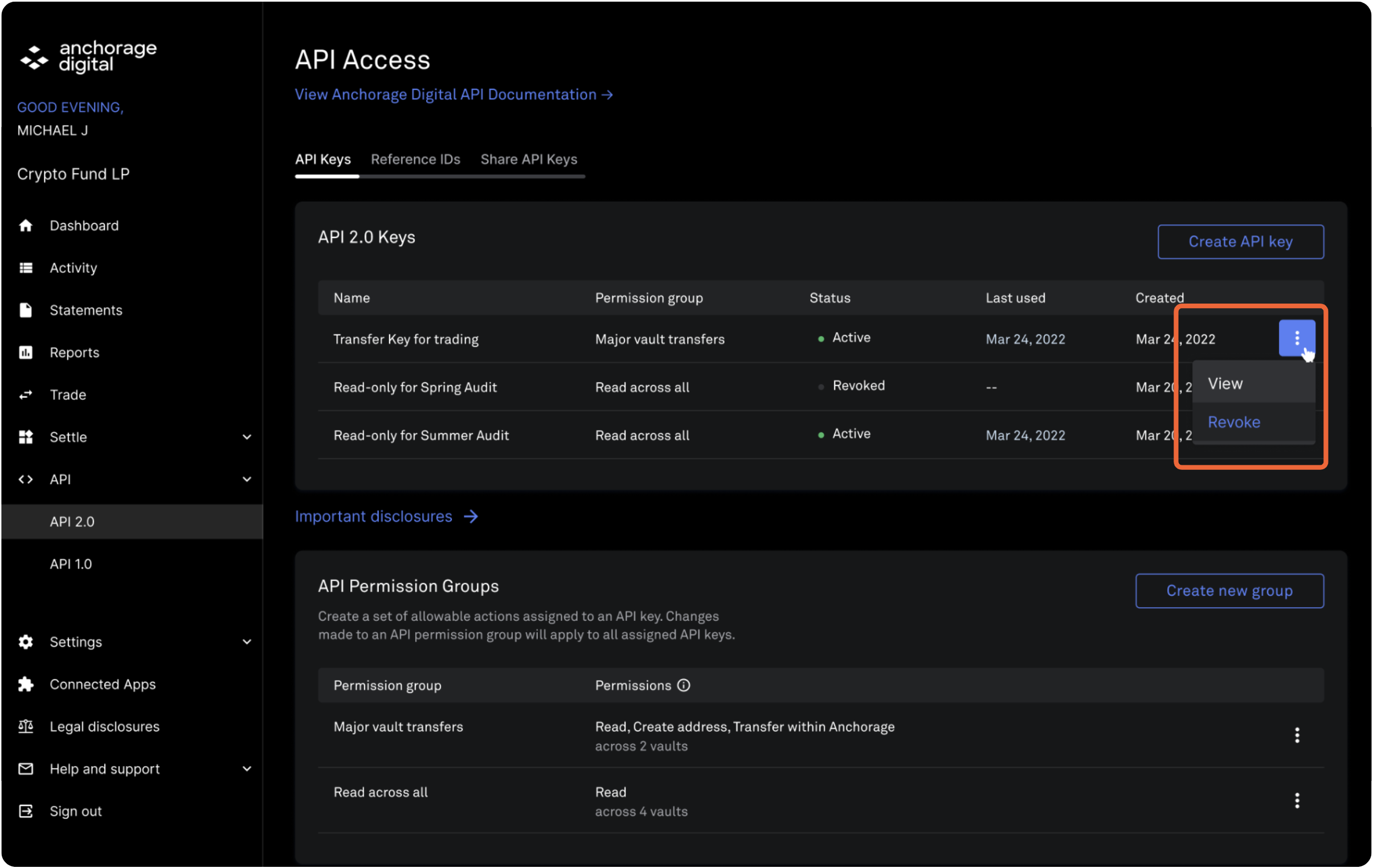
To revoke an API key, locate it in the API section and click Revoke next to the key details.
To edit or delete a permission group, click the three dots next to the group’s details.
All approvals and endorsements, including revocation or group changes, can also be completed within the Anchorage iOS app.
Best Practices & Tips
Store your API key securely. Treat it as a sensitive credential.
Assign permissions conservatively. Only enable the permissions your use case requires (Integral can only read, not write)
Monitor access regularly. Revoke unused or compromised keys immediately.
By following these steps, you’ll successfully create an Anchorage API key and add it to your Integral account, enabling secure, compliant connectivity between platforms! Please reach out to help@integral.xyz if you run into any issues.