Gemini
This page provides step-by-step instructions on creating and using a read-only API key for integrating your Gemini account with Integral.
Connect your Gemini data to Integral using a read-only API key. Create your API key in Gemini here. Add your new Gemini API key to Integral here.
Step 1: Create a read-only API key in Gemini
Log into your Gemini account
In the top-right corner, click on Account > Settings
In the Settings page, find "API" in the menu bar on the left side
Click on Create API Key
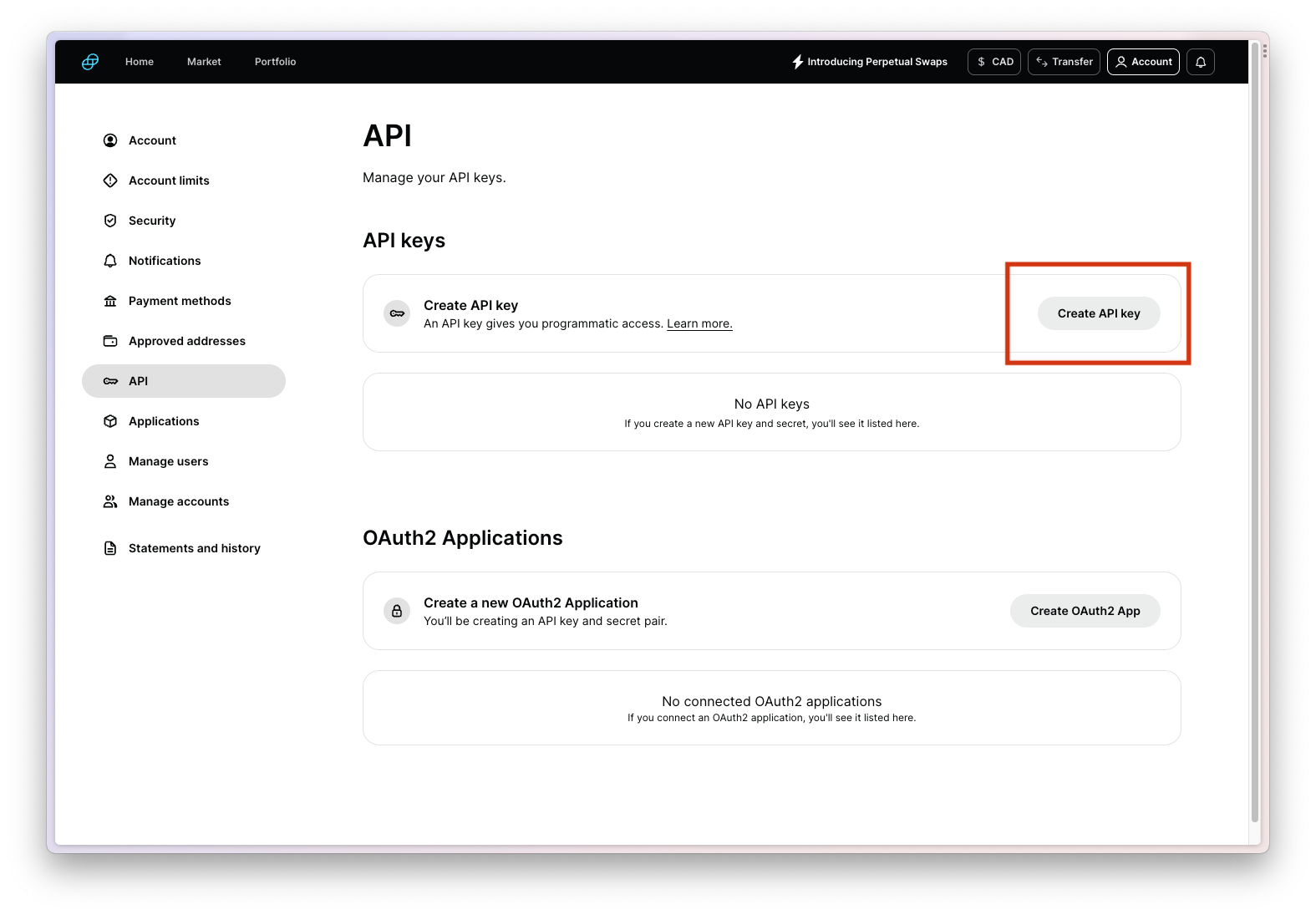
Click on "Create API Key" from the Accounts > Settings > API page
Step 2: Configure your API key permissions to read-only
Click on "Create API Key"
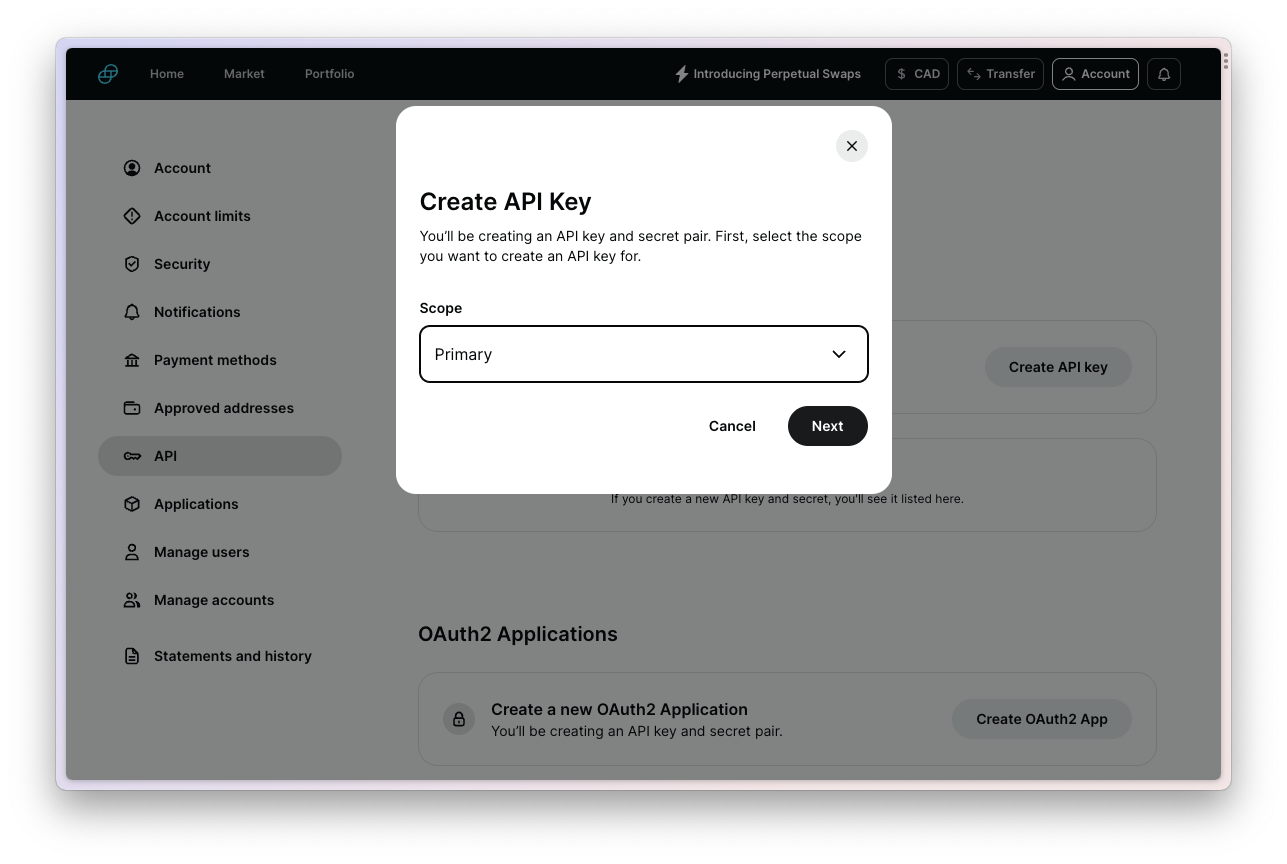
Select "Primary" in the scope. This reduces the permissions given to Integral and constrains to read-only.
Give your API key a name you can recognize, for example "Integral Gemini read-only"
⚠️Copy and store your API Key and API Secret in a secure place, as you will not be able to access these again. Do not share these over email, text message, or any non-secure communication channels.
Select "Auditor" only in the settings below.
Double check you have copied and stored your API key information, and check the confirmation box.
Click on "Create API Key".
Your API key will appear in the main API Settings page. You can manage the API key from here (rename, delete).
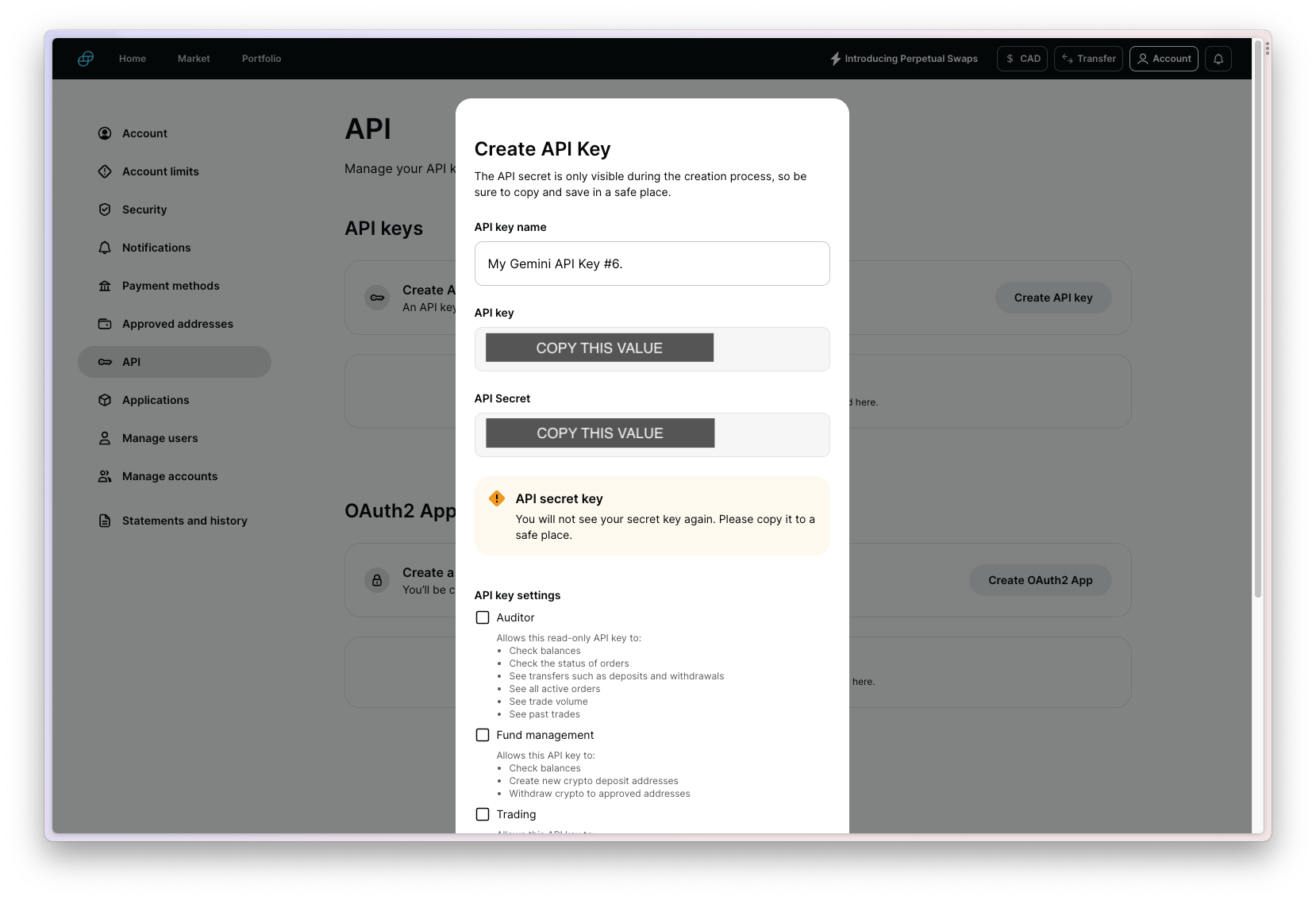
Copy your API Key and API Secret (hidden in screenshot), and store in a secure place
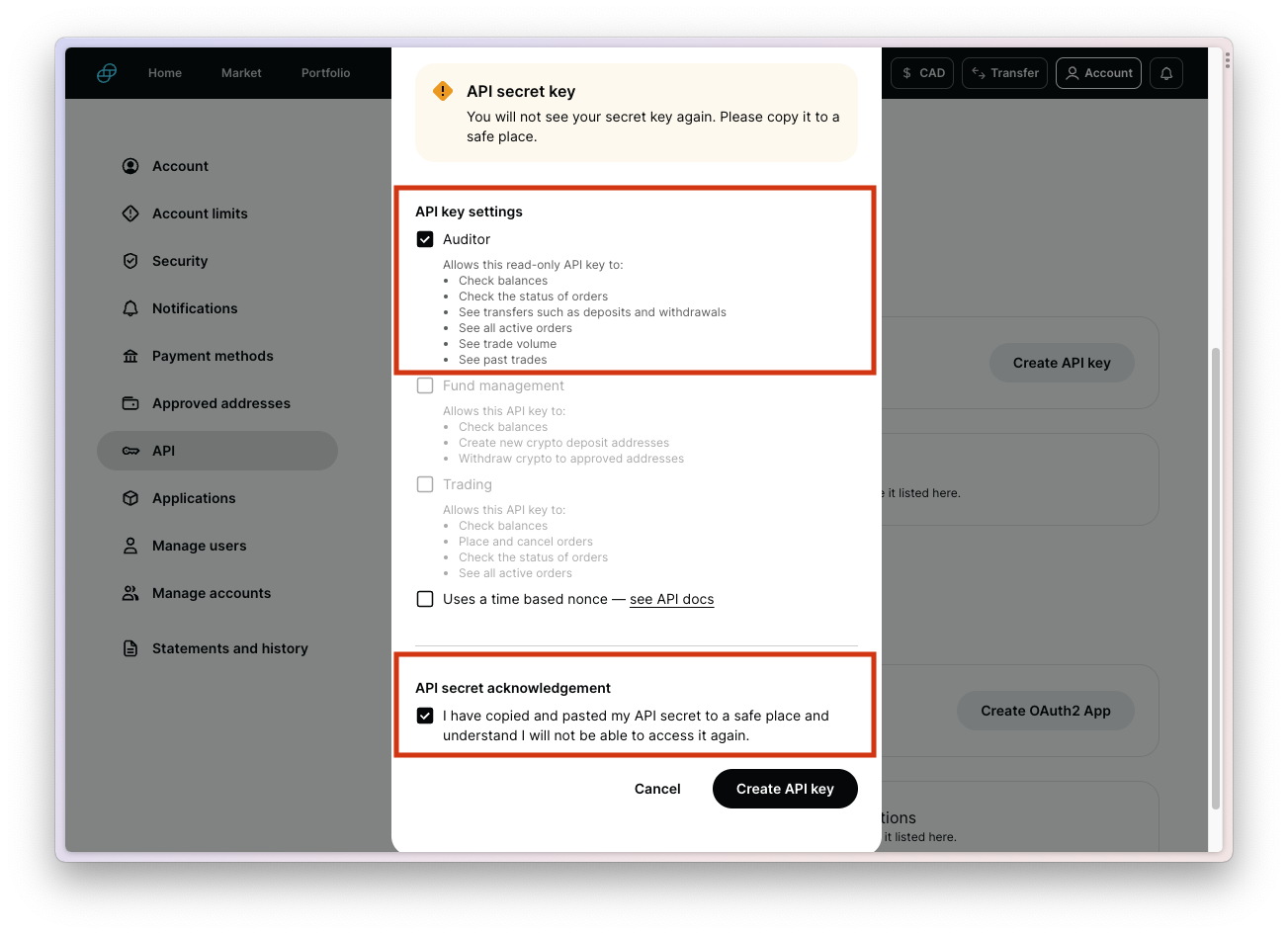
Select the "Auditor" settings to give Integral read-only permissions
Step 3: Add your Gemini account to Integral
Log into Integral
In the side panel, navigate to Wallets >
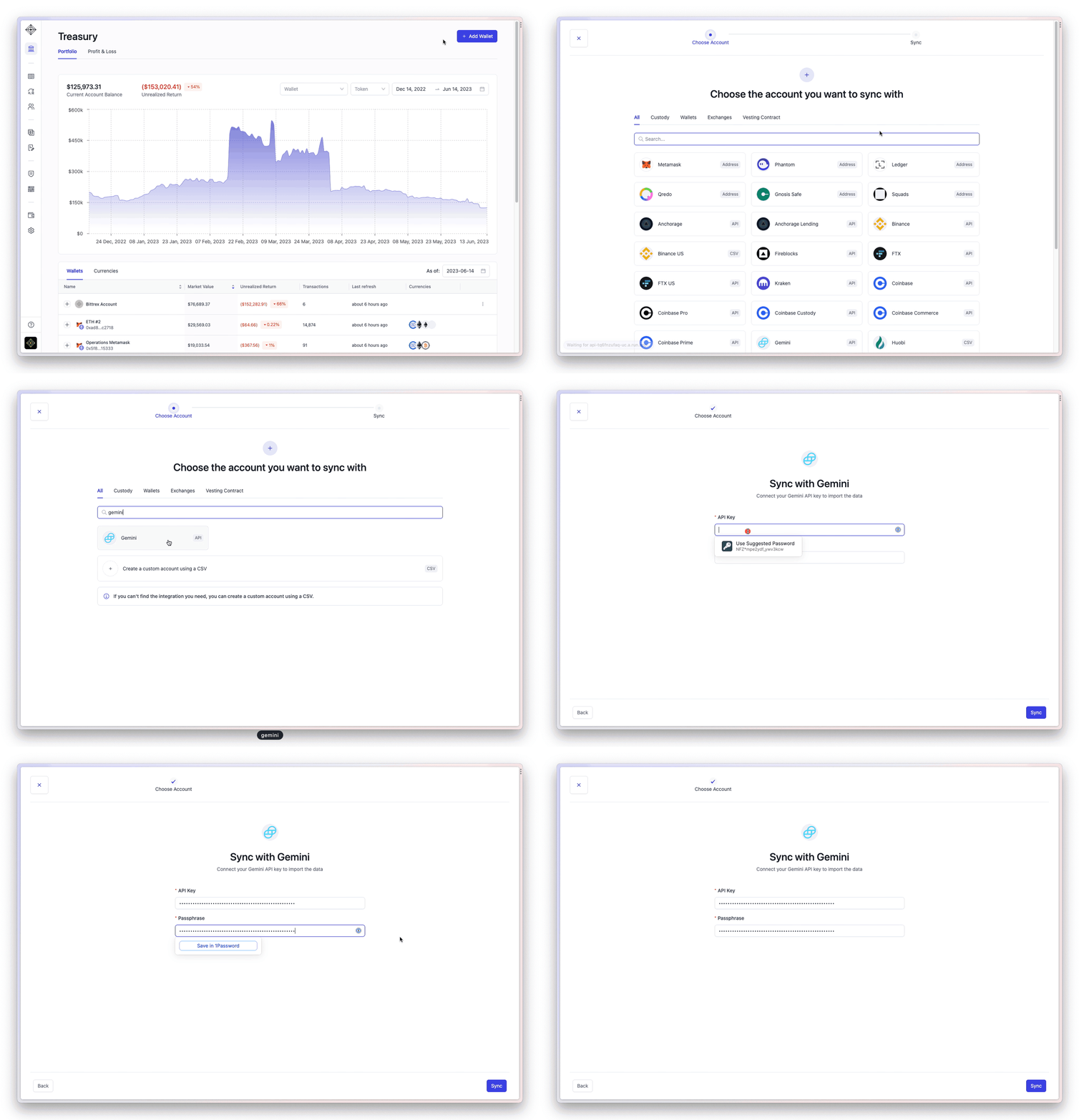
+WalletSearch for Gemini and click on the corresponding icon (link)
Paste in your API key and API Passphrase
Ensure to include "Account-" from the beginning of your API key
Click "Sync"
It may take a few minutes for all your transactions to load into Integral. You can see transactions trickle in from the Bookkeeping page.
Transactions are done loading when your Unrealized Gain/Loss and Transaction Count appear in the Treasury page.