
Bookkeeping V1
Can I move more than 100 txn to different bookkeeping status?
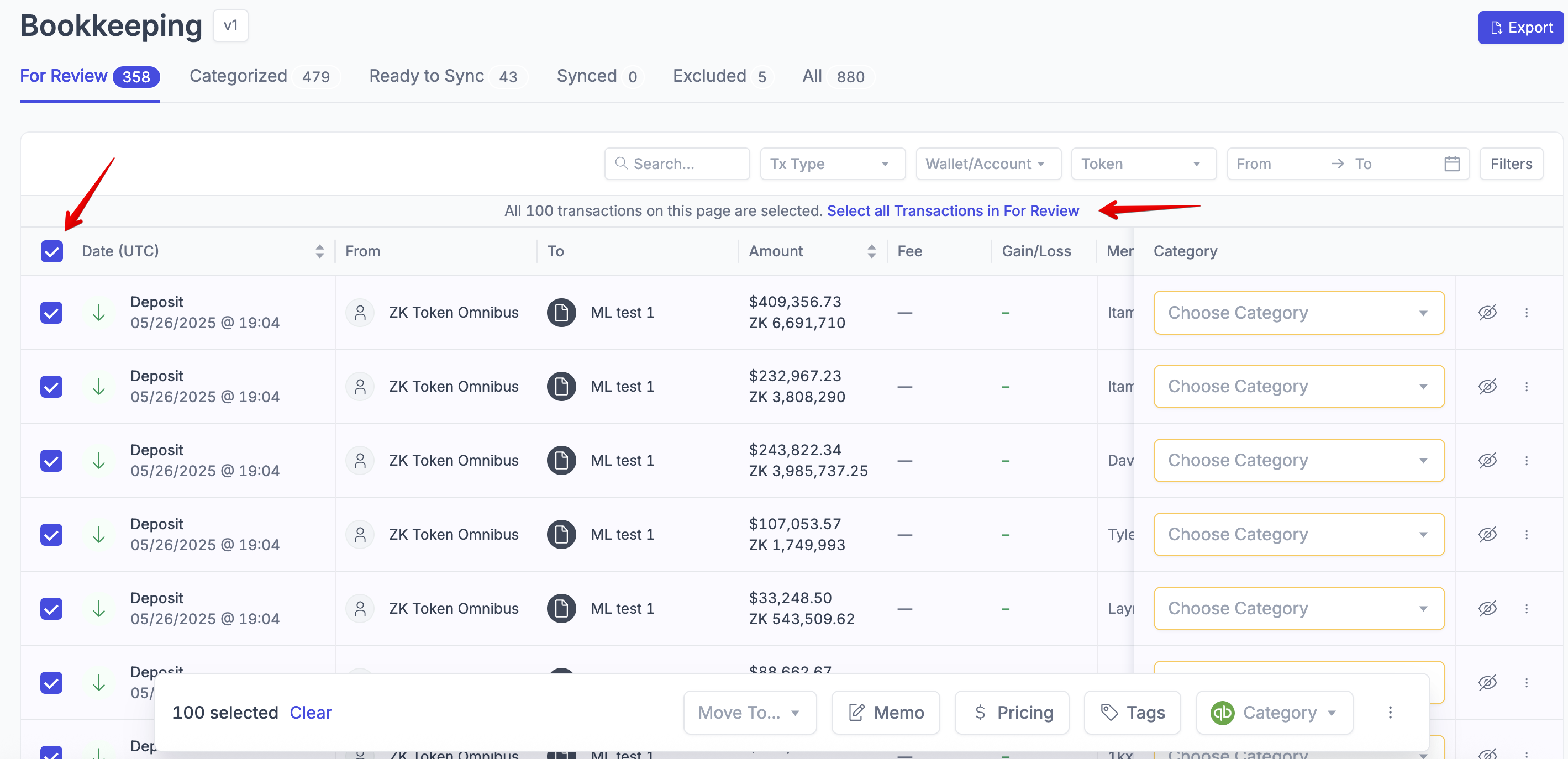
Yes! Select all using the checkboxes on the left, then click on "Select all transactions" in the banner that appears at the top. This will action on all transactions in your current filter.
What is the difference between the statuses in Bookkeeping V1?
The goal of Bookkeeping is to categorize transactions so you have a clear picture of how your money is flowing, and have it sync to your ERP.
For Review: any transaction that need you to assign a category
Categorized: all transactions assigned a category, but none of these will sync to your ERP
Ready to Sync: all transactions in this tab will sync to your ERP. If you don't use an ERP, this tab has no impact for you.
Synced: all transactions that have been synced to your ERP as journal entries appear here
Excluded: spam and transactions you don't want to consider for bookkeeping live here. It has no impact on cost basis or gains/losses.
All: to see all transactions irrespective of category or sync status, except Excluded ones
How do I move transactions between different statuses?
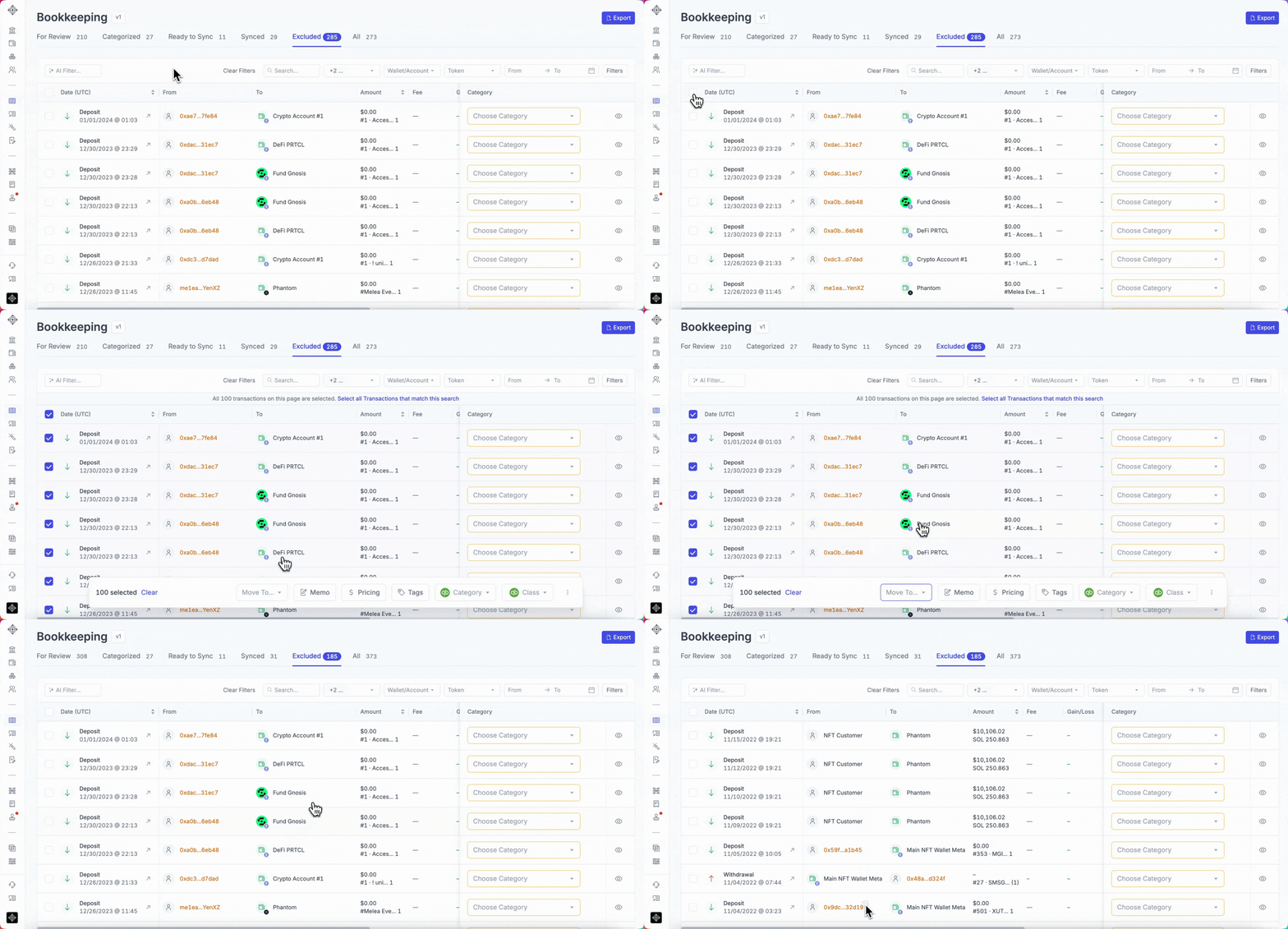
To move a transaction or group of transactions between different bookkeeping statuses, simply select the checkbox beside a transaction and click on Move To in the bottom bar. In the example below, you can see how a page of excluded transactions is being moved back to categorized:
How can I search for a specific transaction in Bookkeeping V1?
Copy-paste the transactions hash into the search bar in bookkeeping. It should not include the block explorer url, only the transaction identifier itself.
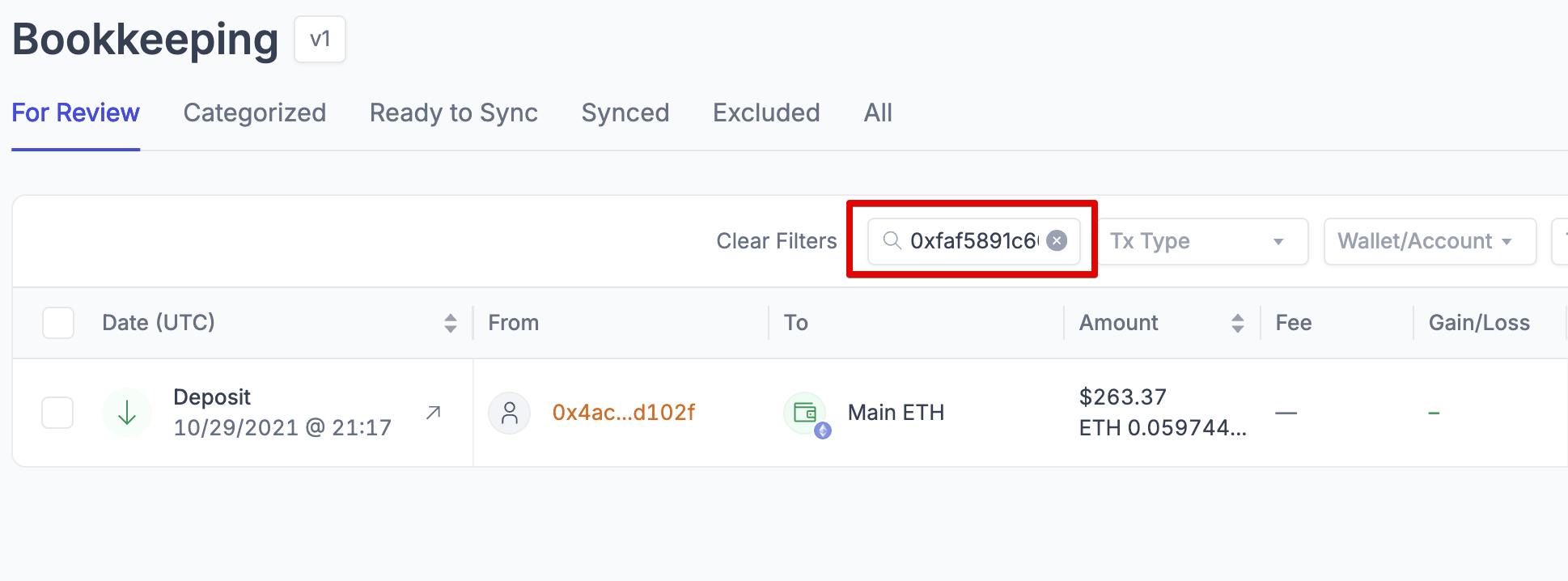
You may need to navigate to the All tab to be sure to search across all transactions, otherwise the transaction may not appear at first.