
Managing Contacts
The page details managing wallet-address-linked contacts in Integral. It includes adding contacts from bookkeeping or via CSV for easier transaction tracking and ERP synchronization.
Memorizing wallet addresses is impossible. It's much better to assign a name to the address. Integral has two main ways to assign contacts to wallet addresses: (1) Add a single contact from Bookkeeping; or (2) Upload a CSV of your contacts.
Add a Contact from Bookkeeping
Creating a new contact from the Bookkeeping page is easy. Whenever you come across a transactions from/to an address you know, simply hover over the address and select Add Contact.
Link Contact
Integral imports your customers and vendors from your ERP (QuickBook/Xero). Linking an address to an existing contact, or to an ERP customer/vendor automatically imports all their information so everything stays in sync. This is also required to push customers/vendors as part of journal entries. This is the preferred method.
A single contact can have multiple addresses across chains associated with them. You can link an existing contact to additional wallet addresses.
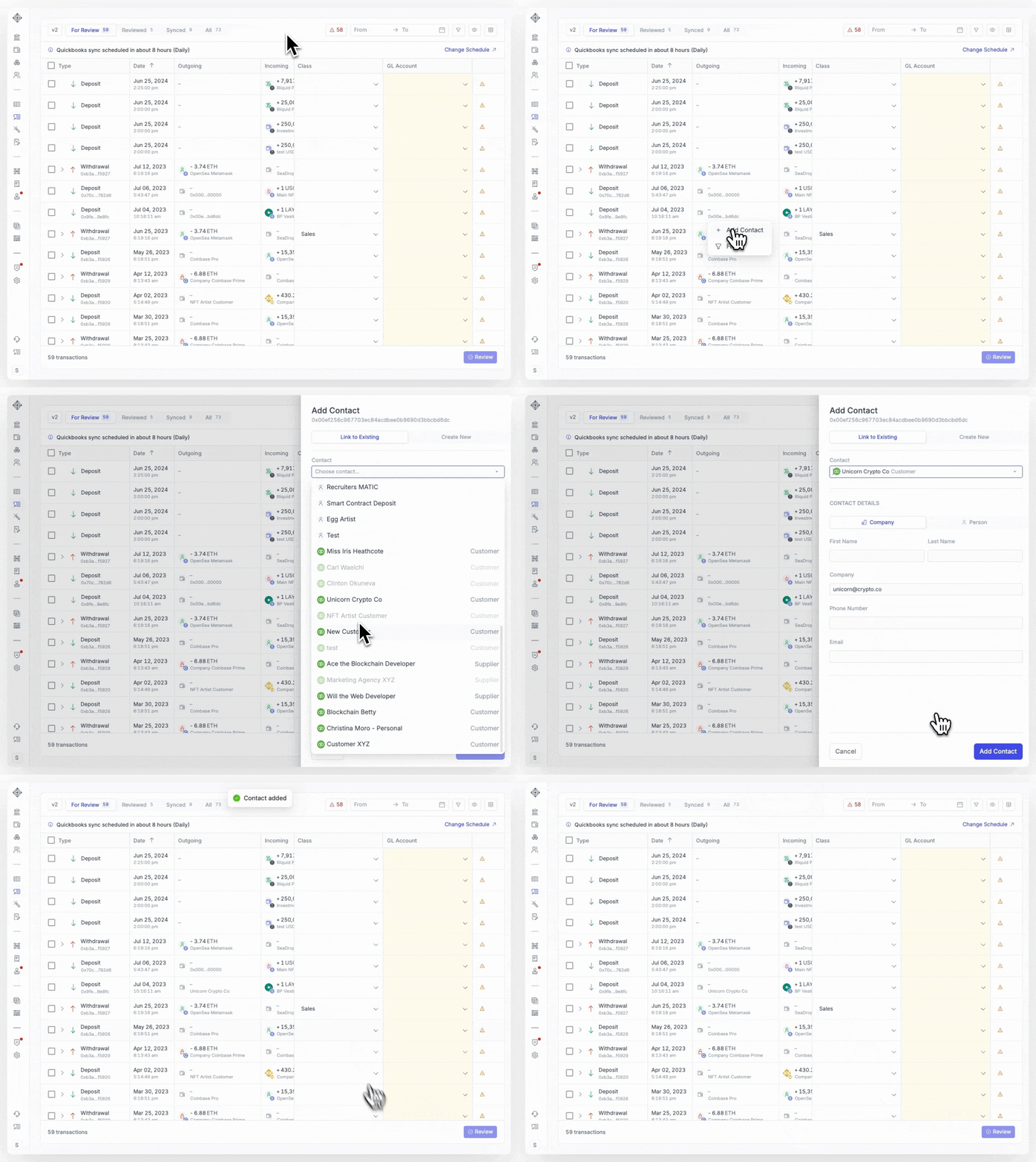
Add Contact
This creates a new contact in Integral. You must associate the address with a contact name, and optionally Company and Email. At this time, Integral does not publish customers or vendors to your ERP.
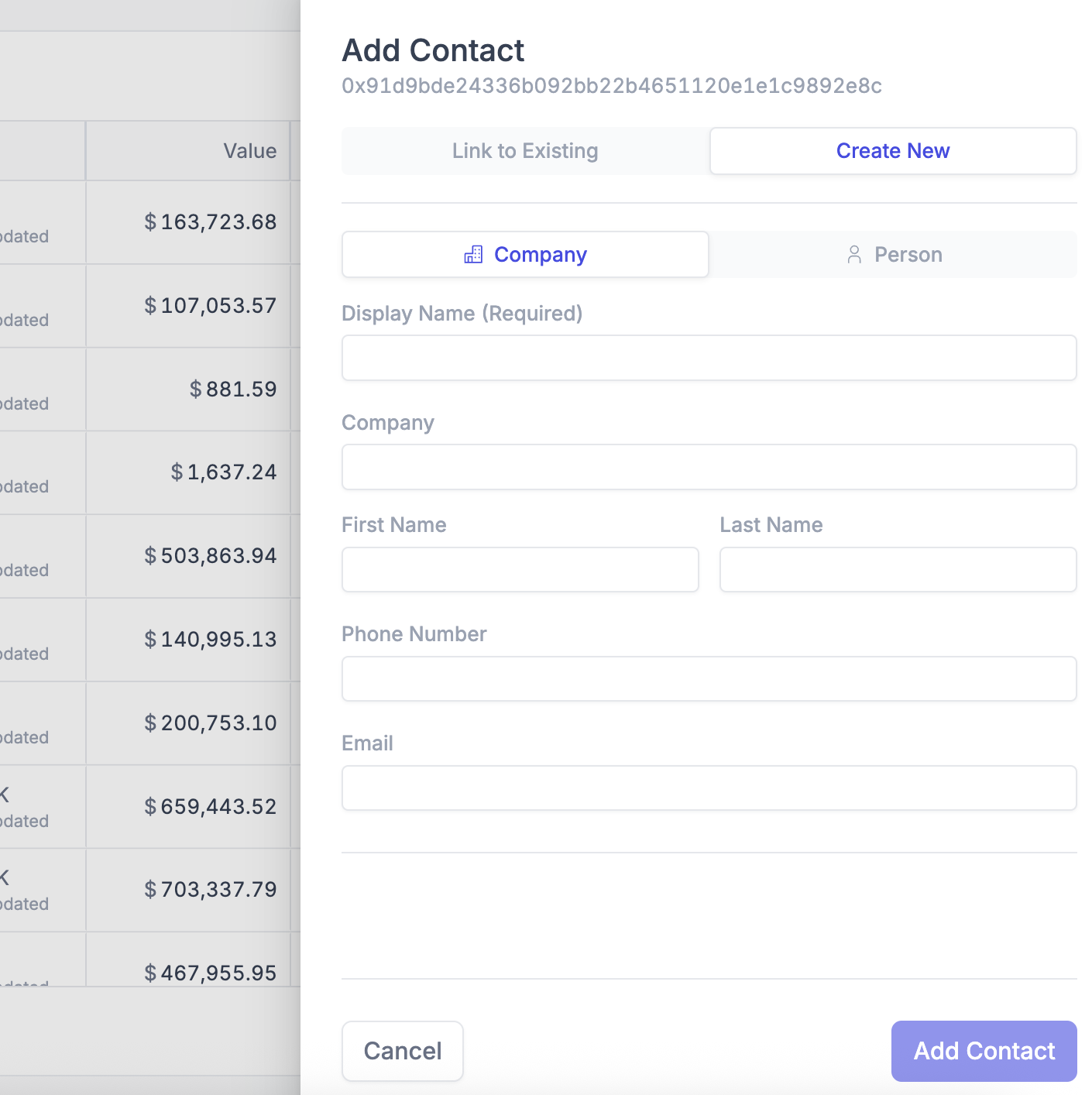
Add Contacts in Bulk Using a CSV
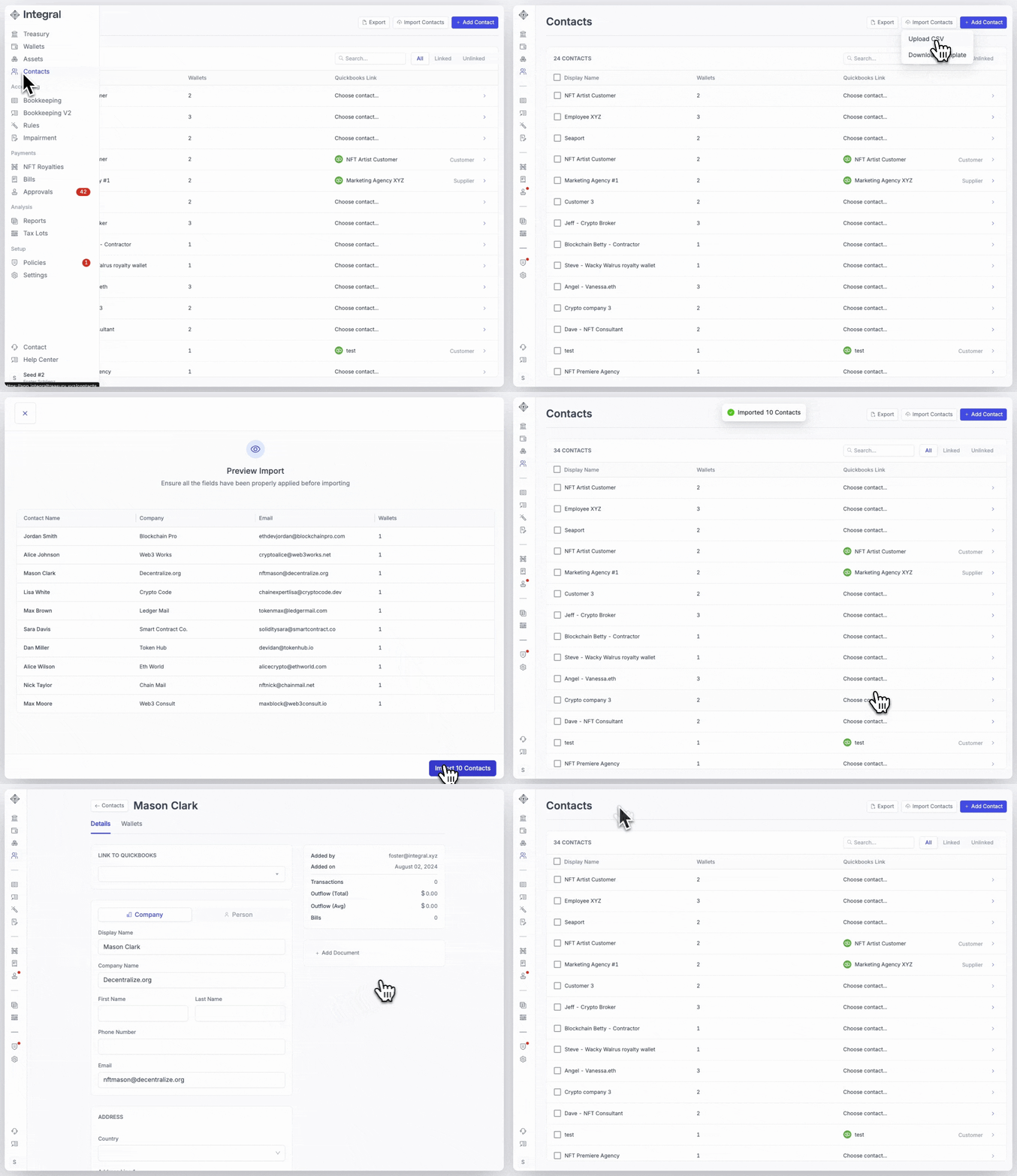
If you prefer to import contacts you already have documented:
Navigate to the Contacts page
Download the template by clicking
"Import Contacts">"Download Template"in the top-right cornerFill in the information (address, chain, and name are required* fields)
Click on
"Import Contacts">"Upload CSV"in the top right corner to select your fileReview the preview to make sure the information is correct, then click
"Import X Contacts"
That's it! All your contacts have been imported, and your transactions updated with their names.
Delete a contact or a contacts wallet
To delete a contact and remove it from any transactions, navigate to the Contacts page. From here, you can either delete a contact entirely or simply delete one of the contacts' wallets.
Select the customer(s) you want to delete using the checkboxes on the left.
Click
"Delete"in the bulk actions bar at the bottom of the page.
To delete a wallet of a contact but not the contact itself:
Click on the contact and then Wallets
Click the edit button beside the wallet you want to delete, and then
"Remove".
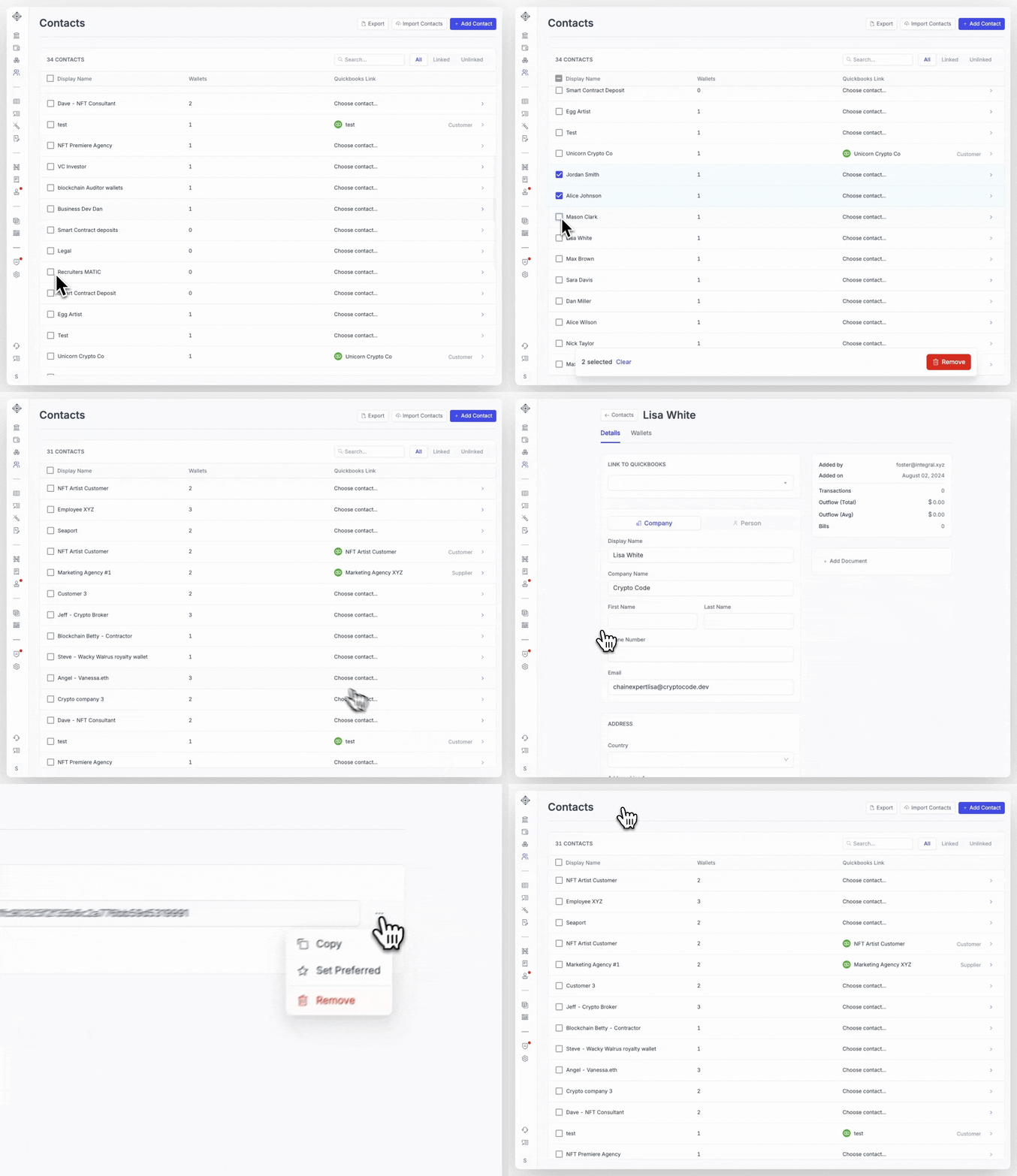
Delete a contact or wallet of a contact
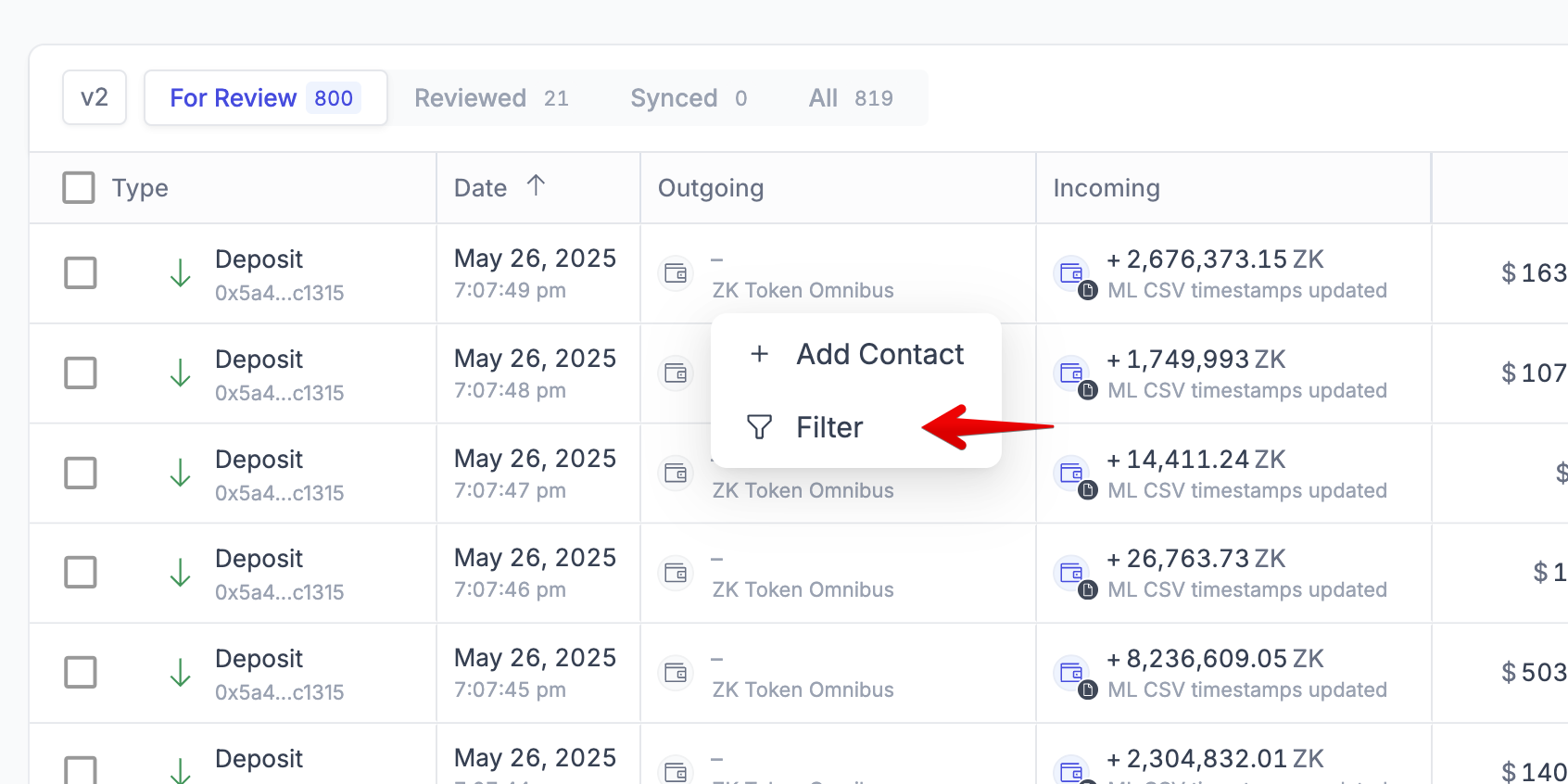
Filter a contact in Bookkeeping (V2)
To filter to only see transactions that interact with a specific contact in Bookkeeping:
Go to Bookkeeping
Find a transaction related to the contact
Click on the contact name and hit
"Filter"Only transactions that are To or From that contact will now appear in the Bookkeeping view
To filter a contact in Bookkeeping V1, copy-paste the wallet address or contact name into the Bookkeeping search bar to surface transactions related to that contact.