Mark transactions as Ready to Sync
Once your transactions have been categorized (see them in Bookkeeping), you will need to mark them as Ready to Sync. This will move the transactions to the Ready to Sync tab in Bookkeeping.
Option 1
Individually select transactions to sync (Bookkeeping V1)
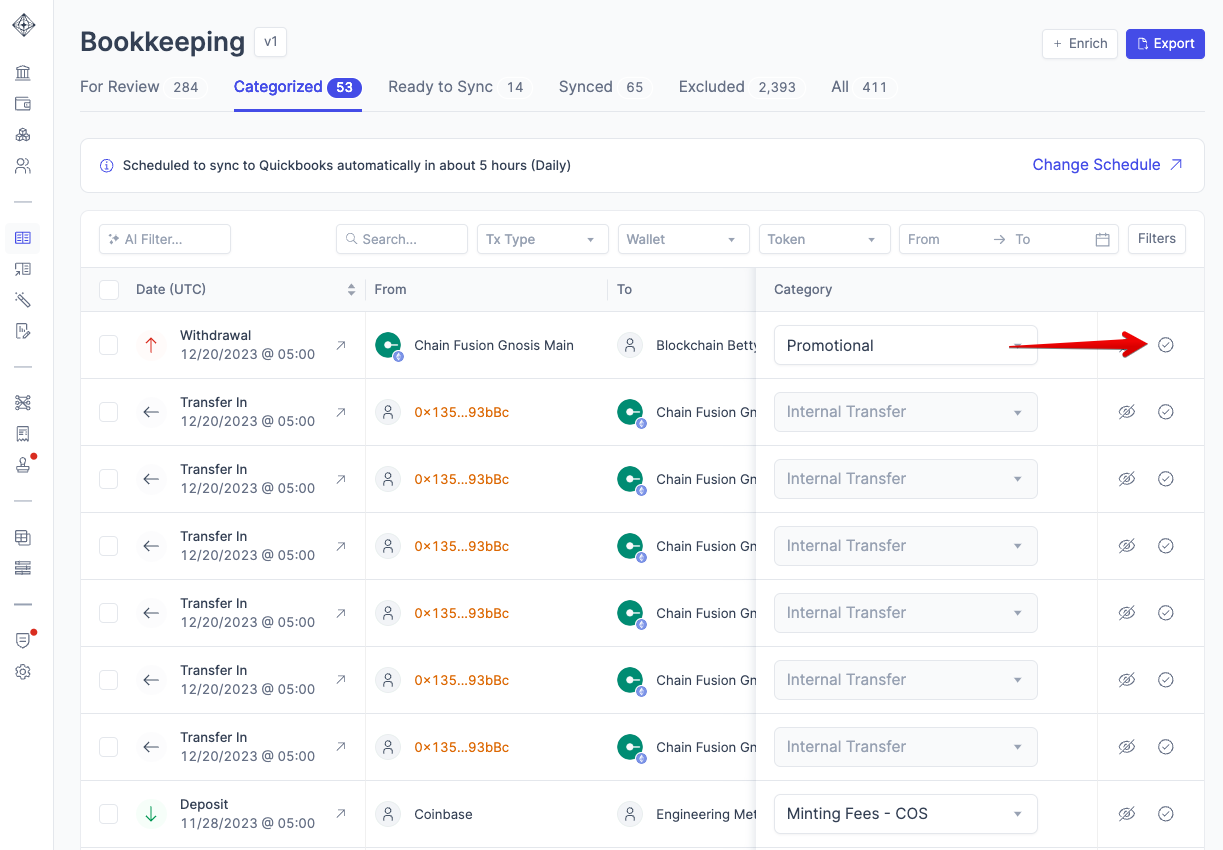
Click on the checkmark (✔️) icon on the right of a transactions under Categorized to set it as “Ready to Sync”.
Option 2
Use Bulk Actions to mark as Ready to Sync (Bookkeeping V1)
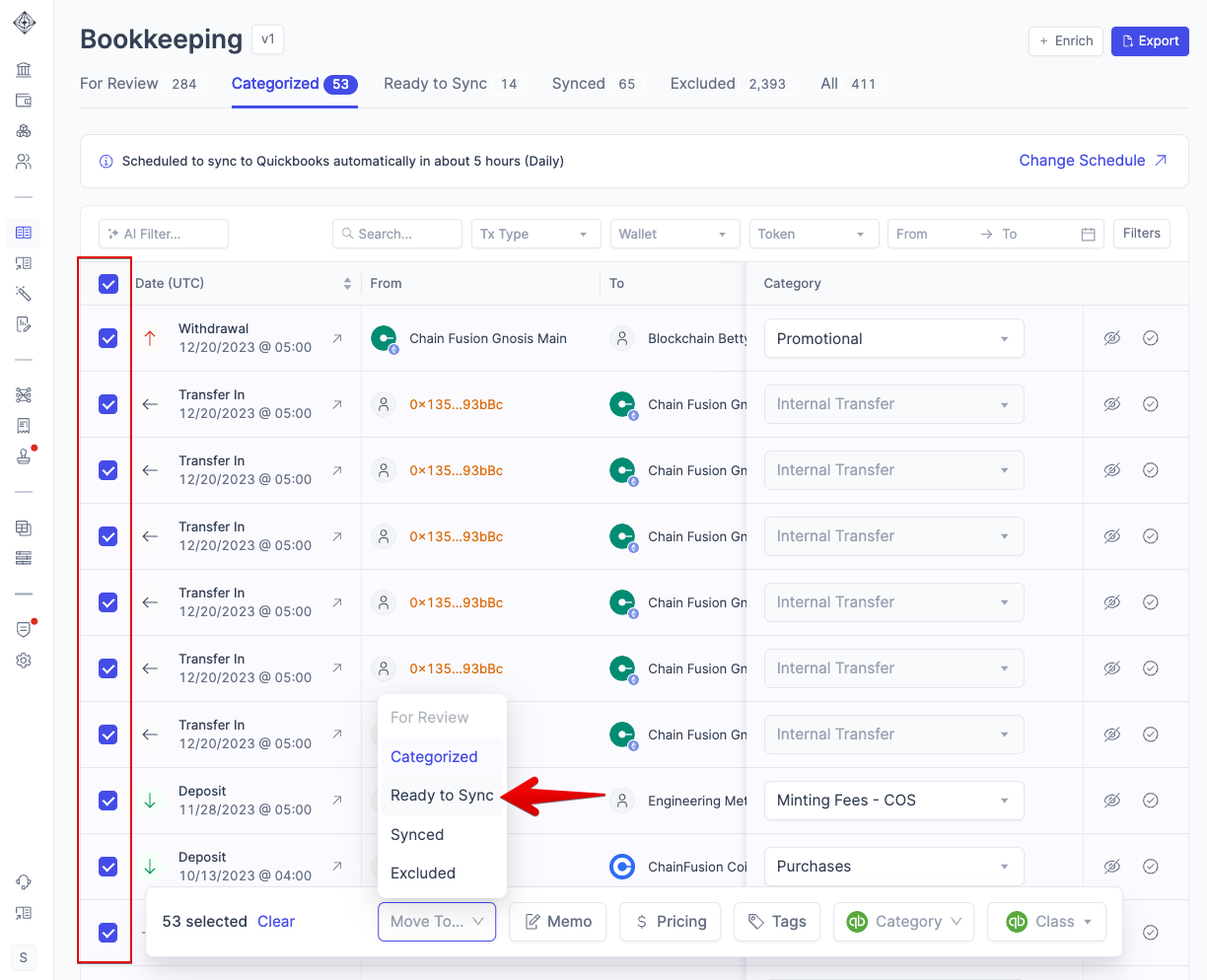
While on the Categorized tab, use the bulk-select boxes on the left of the transactions table to mark multiple transactions on a page as “Ready to Sync”. You will need to do this for each page.
Option 3
Automatically set transactions as Ready to Sync through Rules
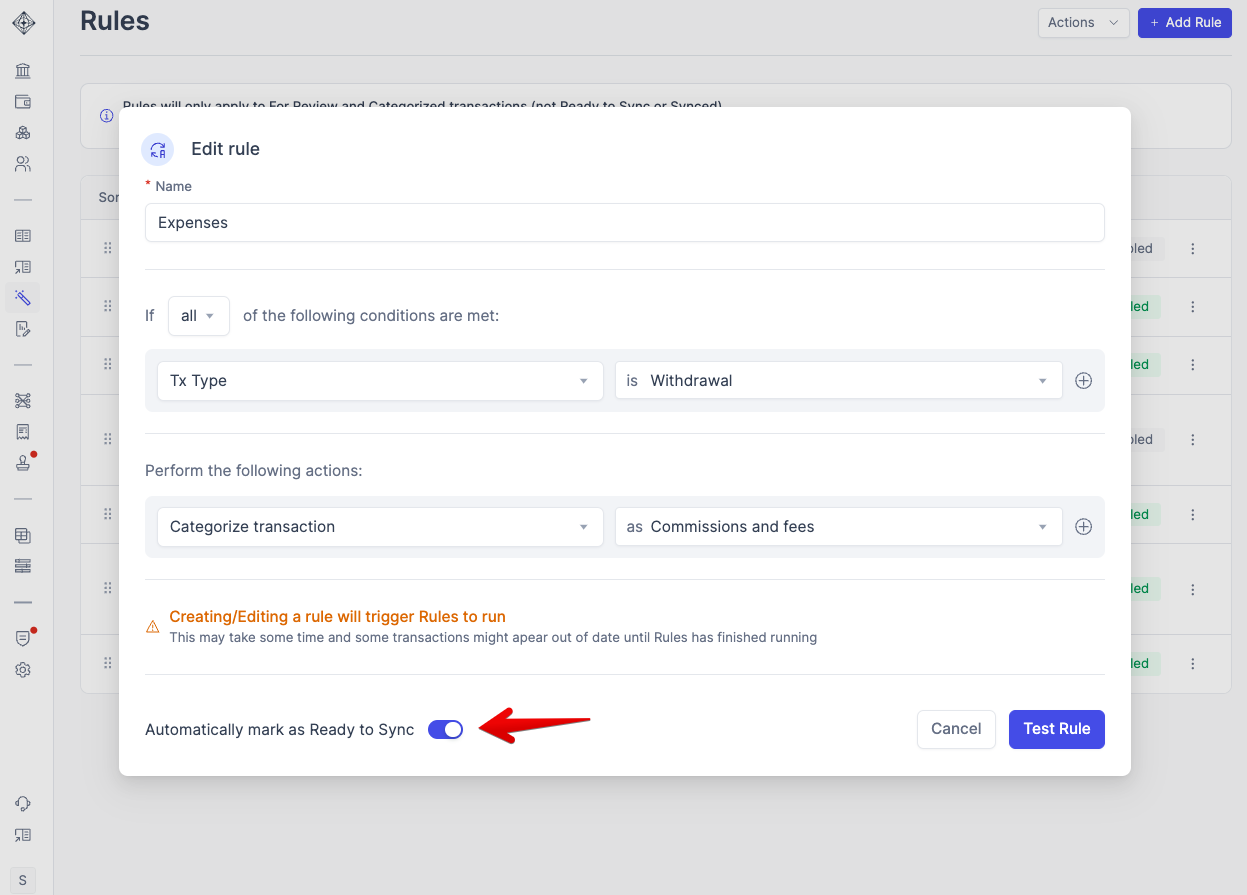
To automatically set transactions as “Ready to Sync”, toggle the option in the relevant rule found in the Rules page.
Marking transactions as ready in Bookkeeping V2
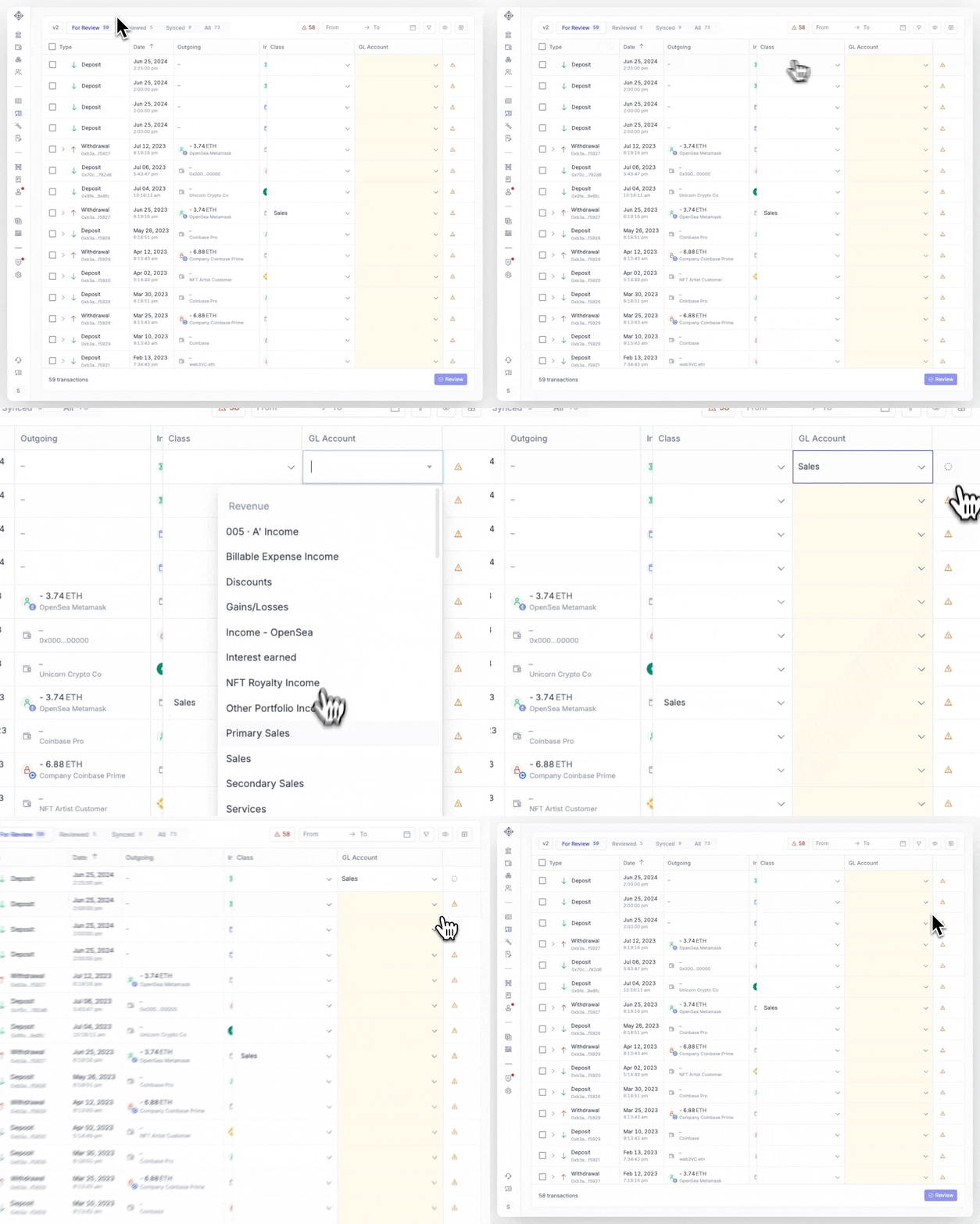
In Bookkeeping V2, you'll notice that the tabs are slightly different than Bookkeeping V1. To mark a transaction as ready to sync in V2, simply categorize your transactions in For Review.
Once they are categorized, they will move to Reviewed - where you can click on Sync "X" Tx on the bottom right-hand corner: