Sync transactions
There are two way that you can sync to your connected ERP: automatically through Daily or Monthly intervals, and manually through your Bookkeeping page.
Manual Journal Entry Sync (Bookkeeping V2)
To initiate a sync to your ERP in V2, click "Sync x Txns" in the bottom-right corner of the Bookkeeping page. Once a sync to your ERP is initiated, every transaction that is categorized in the Reviewed tab will be posted as journal entries according to the bundling option specified. Once the sync is complete, the transactions are moved to the Synced Bookkeeping tab.
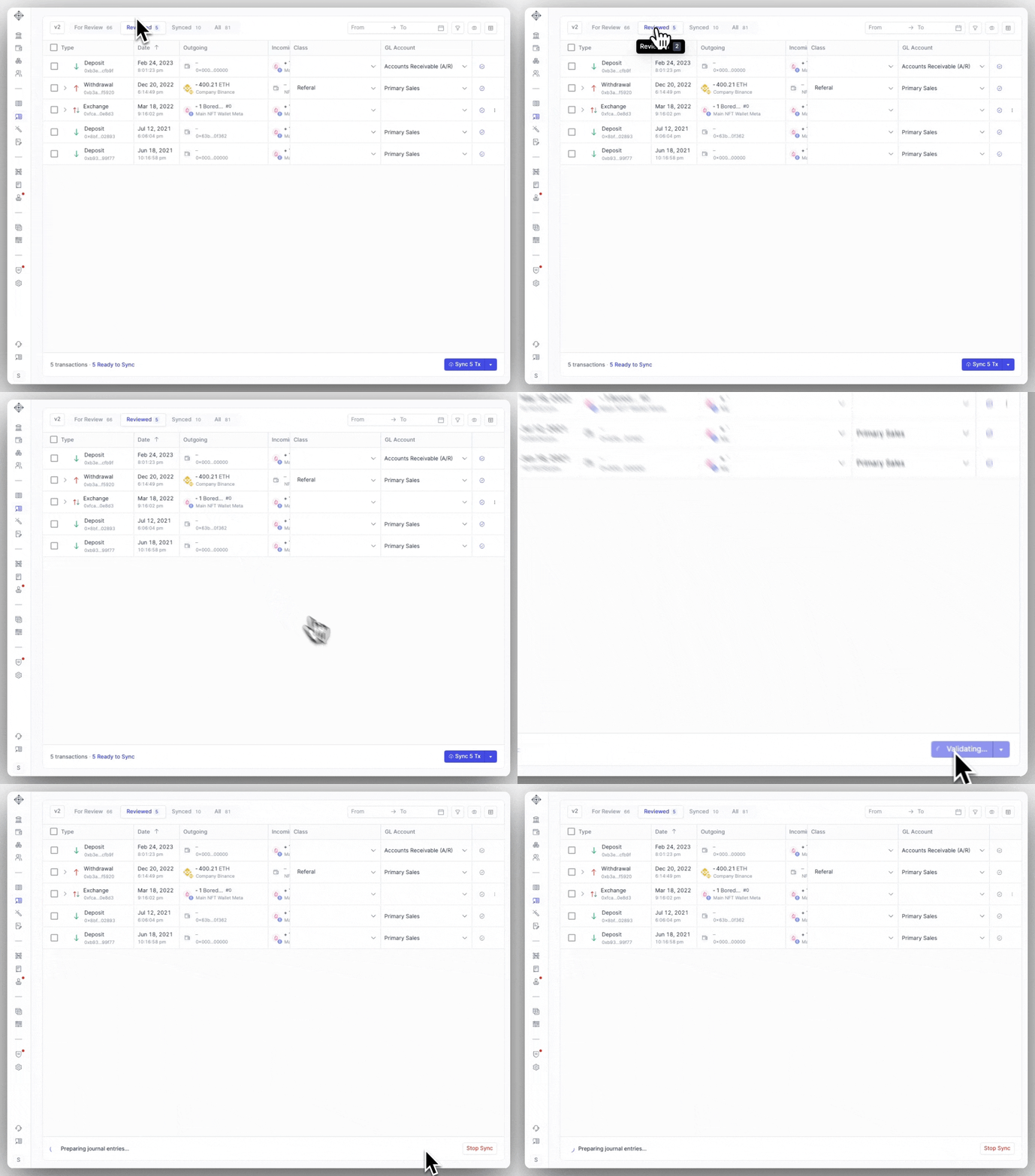
Demo of an end-to-end syncing workflow in V2 and what to expect.
Manual Journal Entry Sync (Bookkeeping V1)
To initiate a sync to your ERP, click "Sync to QBO/Xero" in the top-right corner of the Bookkeeping page. Once a sync to your ERP is initiated, everything marked Ready to Sync will be posted as journal entries according to the bundling option specified. Once the sync is complete, the transactions are moved to the Synced Bookkeeping tab.
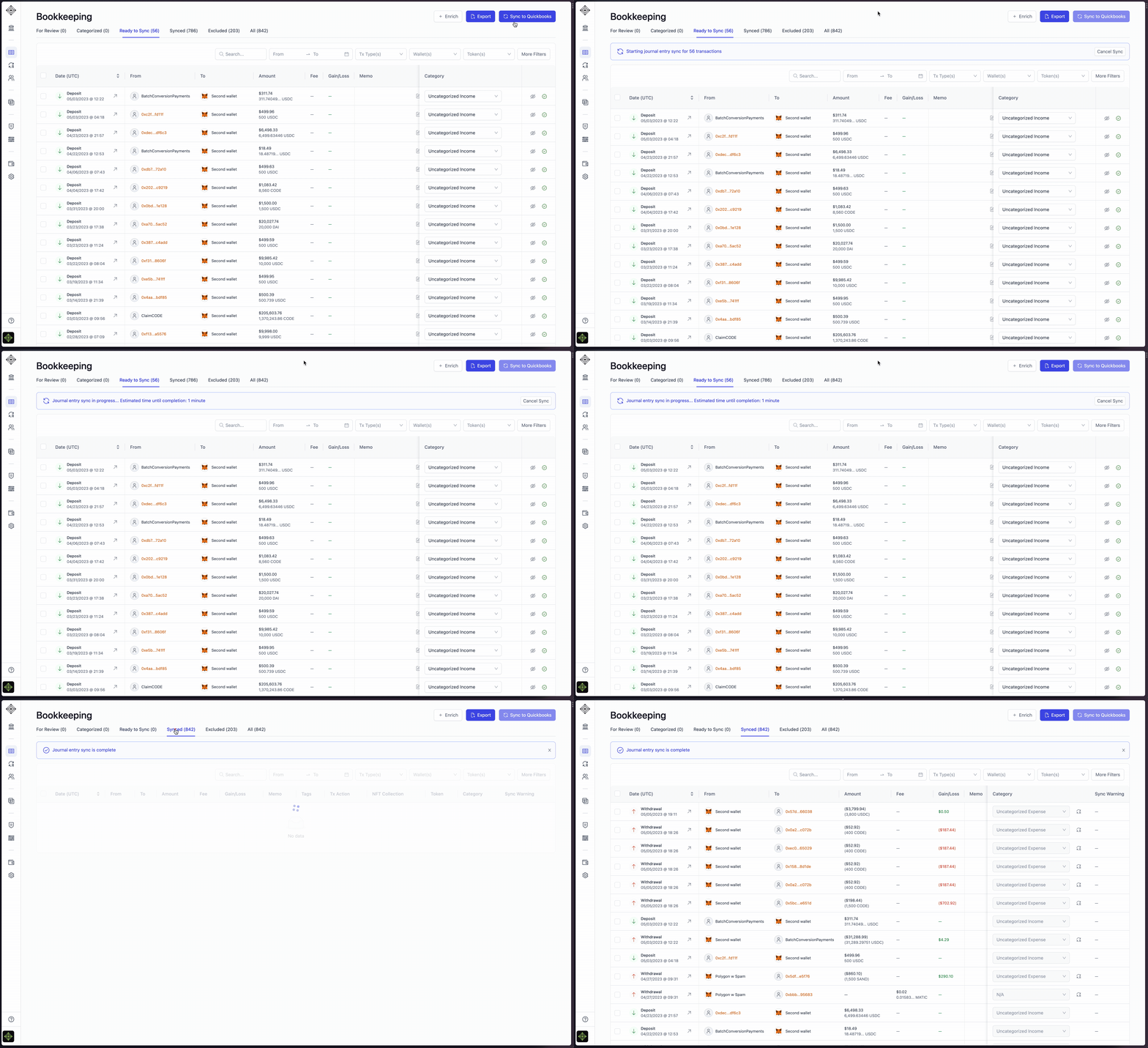
Demo of an end-to-end syncing workflow in V1 and what to expect.
Auto-Syncing Journal Entry
What is auto-syncing?
Automatic Syncing of Journal Entries will sync any transactions in Ready to Sync (BKV1) or Reviewed (BKV2) directly to your connected ERP for you.
To enable Auto-Sync for Journal Entries, follow these steps:
Login to your Integral account
Go to Policies -> Accounting
Scroll down and Enable Automatic Journal Entry Syncing
Select to sync Every Day, or Every Month (on the last day)
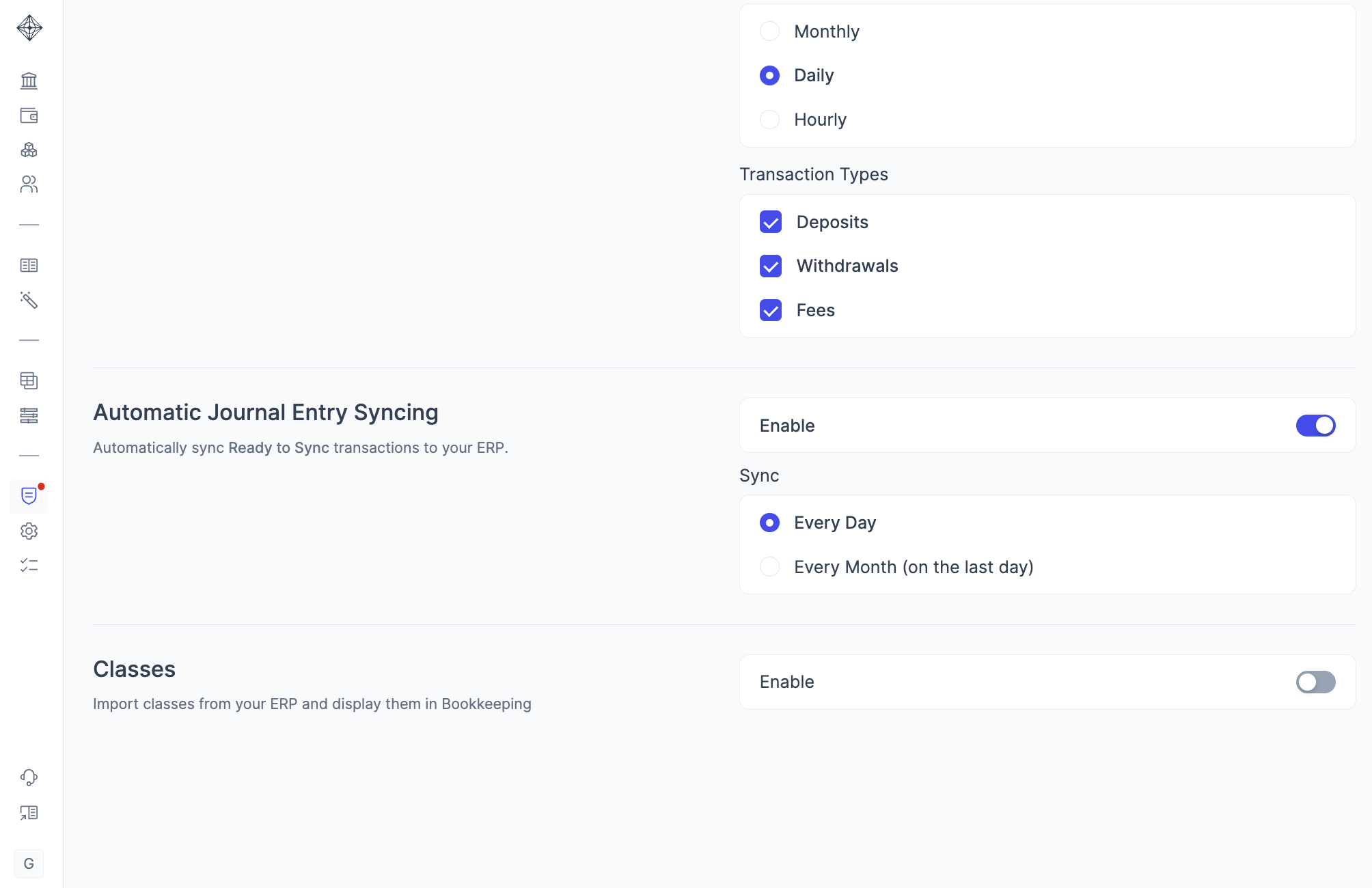
TIP: Enabling Auto-Sync for Journal Entries along with rules that automatically mark transactions as Ready to Sync is a great time saver!
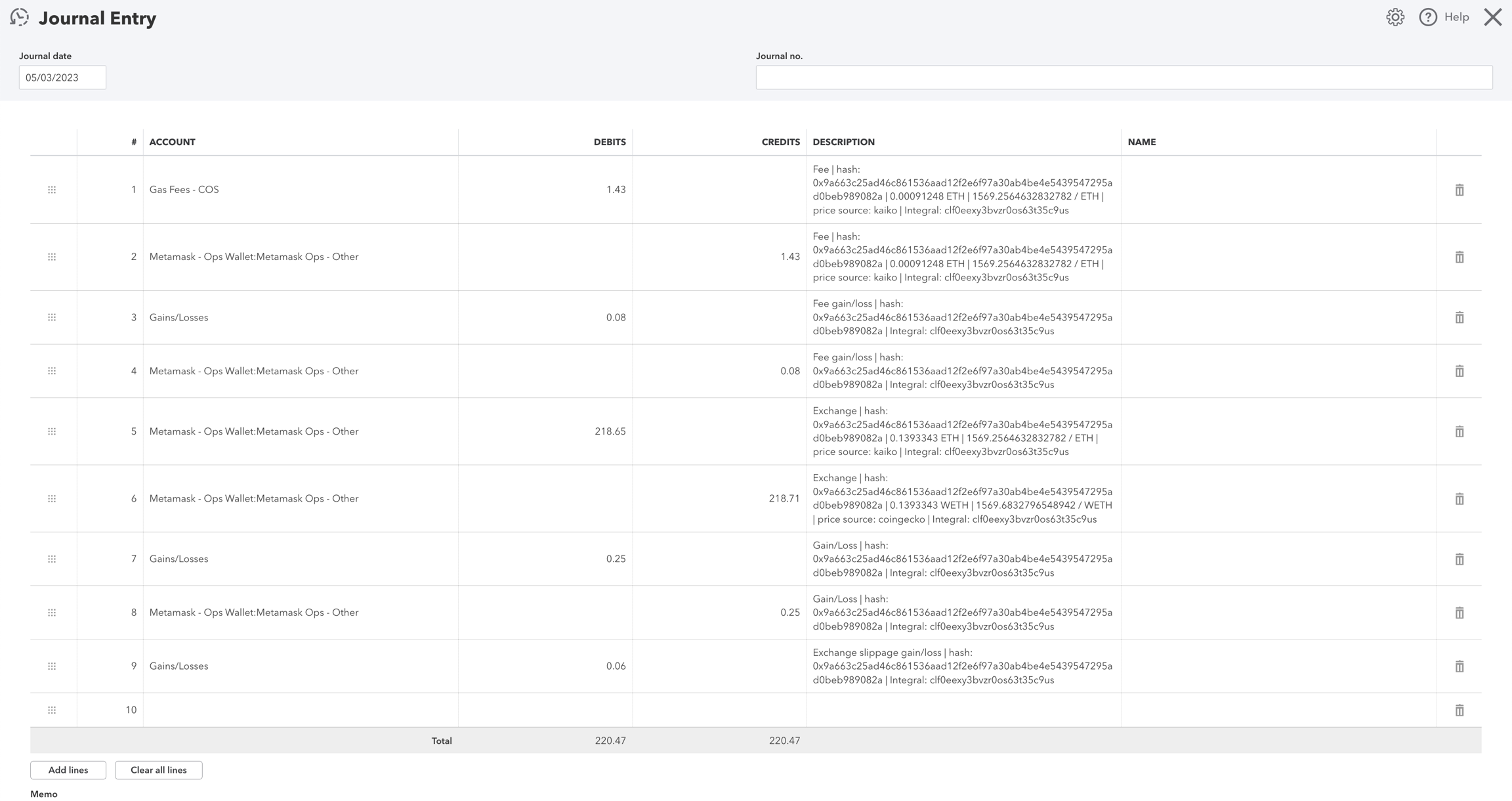
Quickbooks Journal Entry Example
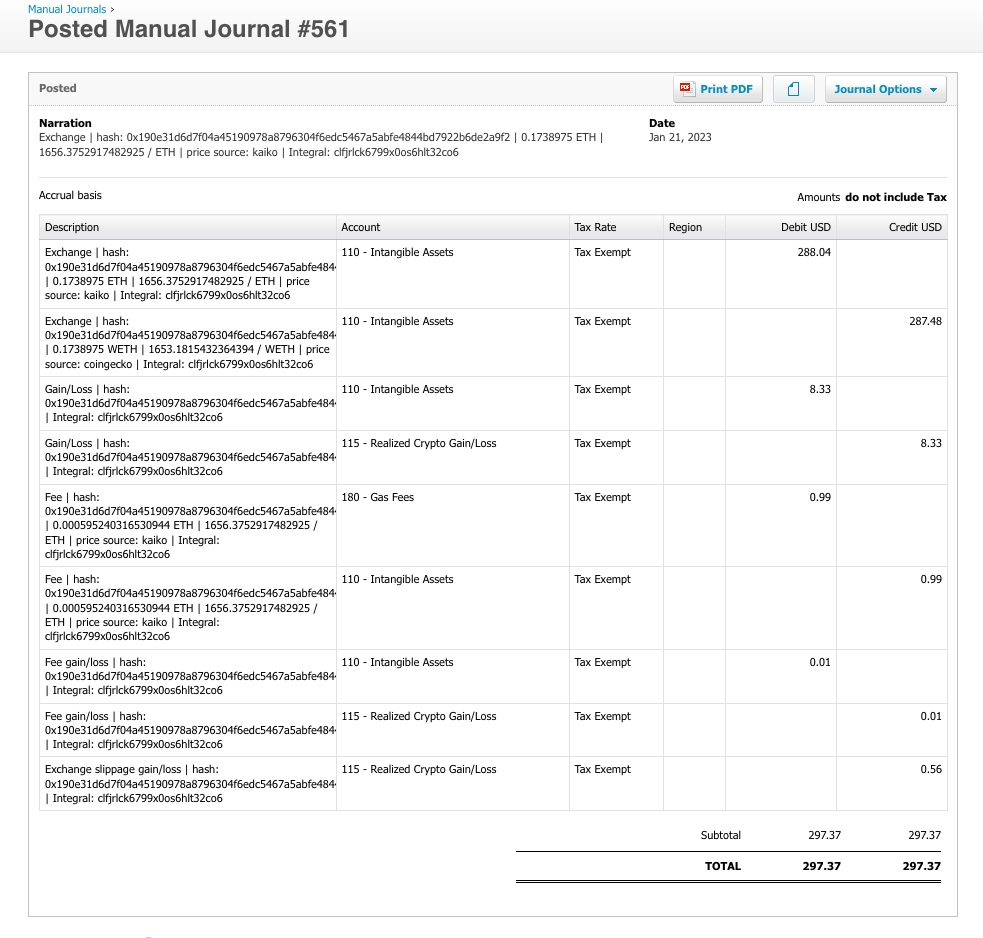
Below is an example of a token swap journal entry posted to Quickbooks. In the Journal Entry, there are individual lines for the: Swapped amounts, Fee, Gain/Loss on the amount, Gain/Loss on the fee, and slippage (where relevant).
Xero Journal Entry Example
Below is an example of a token swap journal entry posted to Xero. In the Journal Entry, there are individual lines for the: Swapped amounts, Fee, Gain/Loss on the amount, Gain/Loss on the fee, and slippage (where relevant).