
Bill Payments
Integral streamlines crypto bill payments, from invoice intake to multi-step approvals, secure execution, and automated reconciliation. Follow these steps to manage your entire bill payment workflow, directly within your Integral account.
Integral does not execute payments on behalf of users, nor does the system have access to or the ability to execute transactions from any connected wallets. Integral simply sends a payment request to the connected wallet (such as a browser extension like MetaMask or Gnosis), where you must complete the required steps to authorize and execute the payment.
1. Manage and Review Existing Bills
Access All Bills:
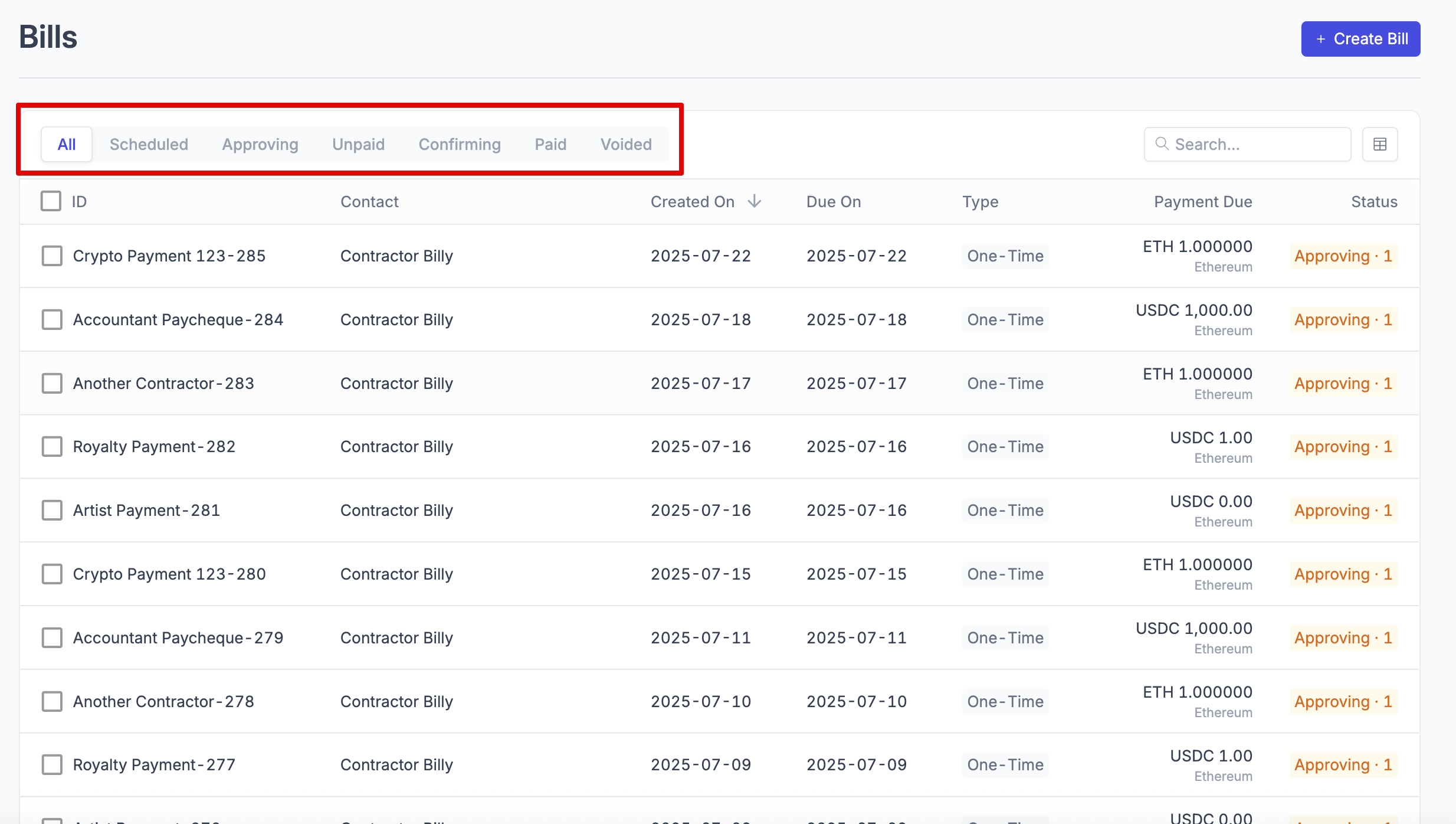
Go to Manage Bills to view every bill, including unpaid, Approving, or completed payments.
Filter by Status:
Use filter options to track bills by type, status (e.g., pending, approved, paid), and due dates for transparency and timely action.
2. Create and Submit a New Bill
Create a new Bill: Head to Create a new Bill.
Upload Invoice: Import invoices directly - Integral's AI can parse invoice details to save you time.
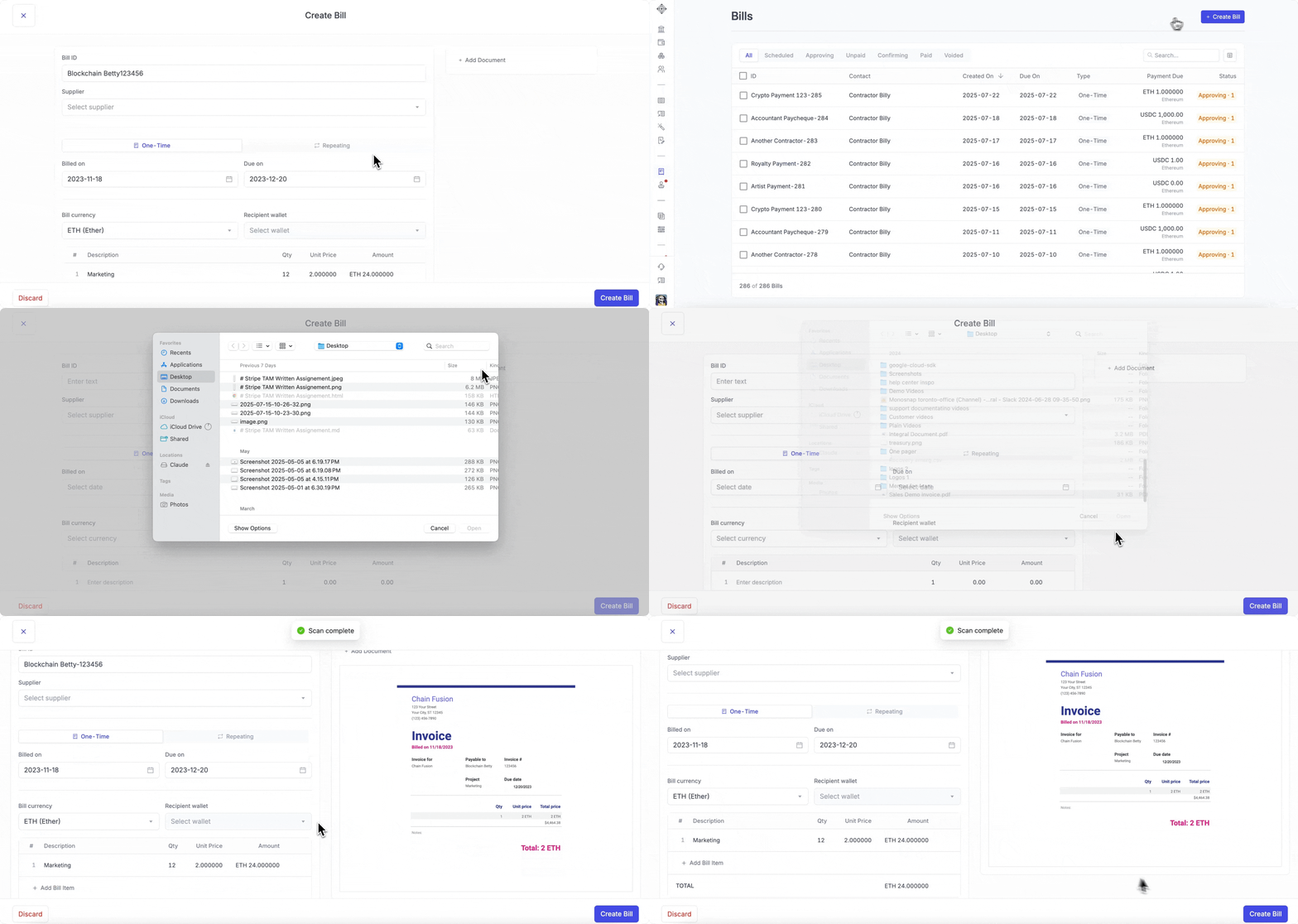
If you want to manually input the Bill details:
Enter payee/vendor name, and map to a QBO/Xero contact if applicable
Set invoice and due dates.
Add amount (in USD or crypto; Integral will handle conversions).
Assign to the correct GL/accounting category.
Select the crypto asset and wallet for payment (e.g., USDC, ETH, Gnosis Safe).
Add Approvers (if required):
Assign internal approvers or team members for bills above set thresholds.Submit for Approval:
Mark the bill as ‘Ready for Approval’ to move it into the approval queue.
To manage approvers and approval thresholds, head to the Bill Approvals page
4. Make a Payment
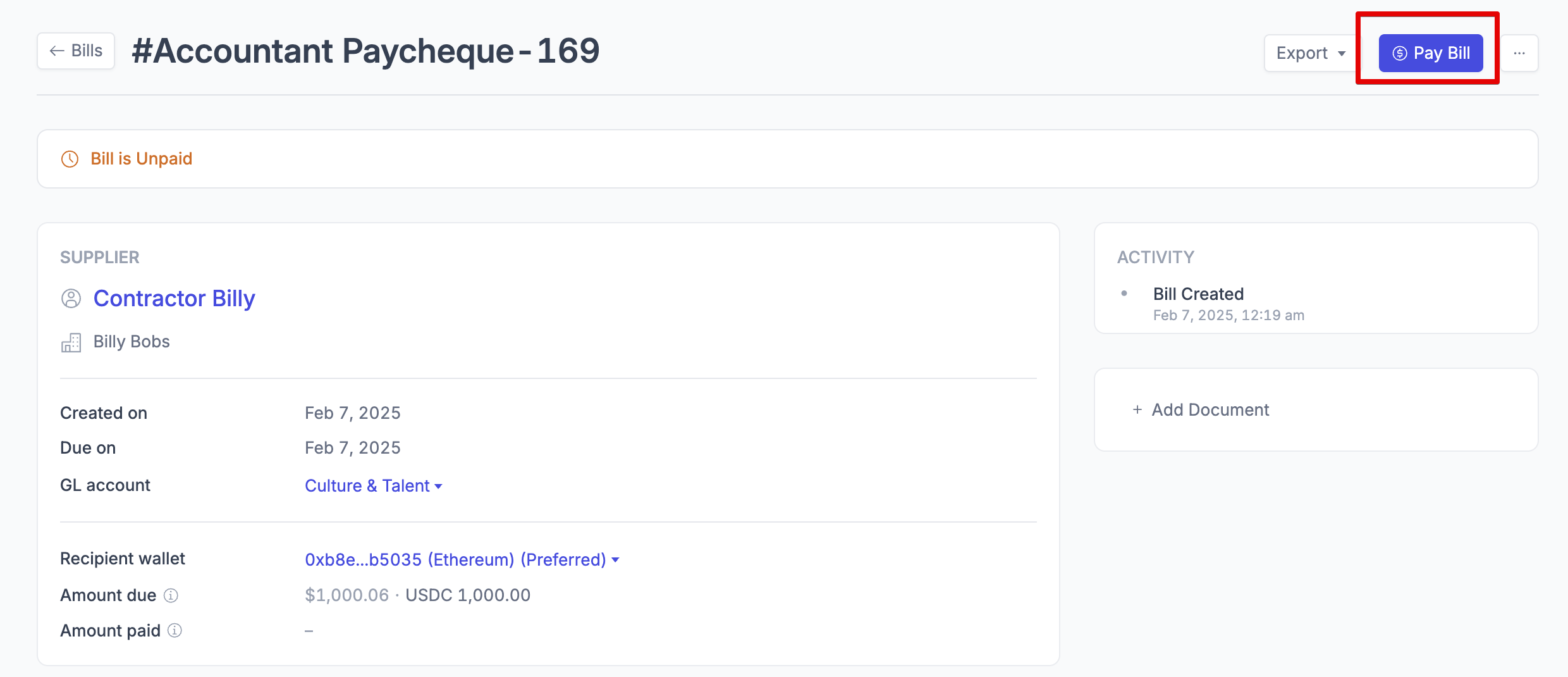
Ready for Signing: Once approved, the bill appears in Unpaid section.
To initiate a payment, click on the Pay Bill button in the top right-hand corner:
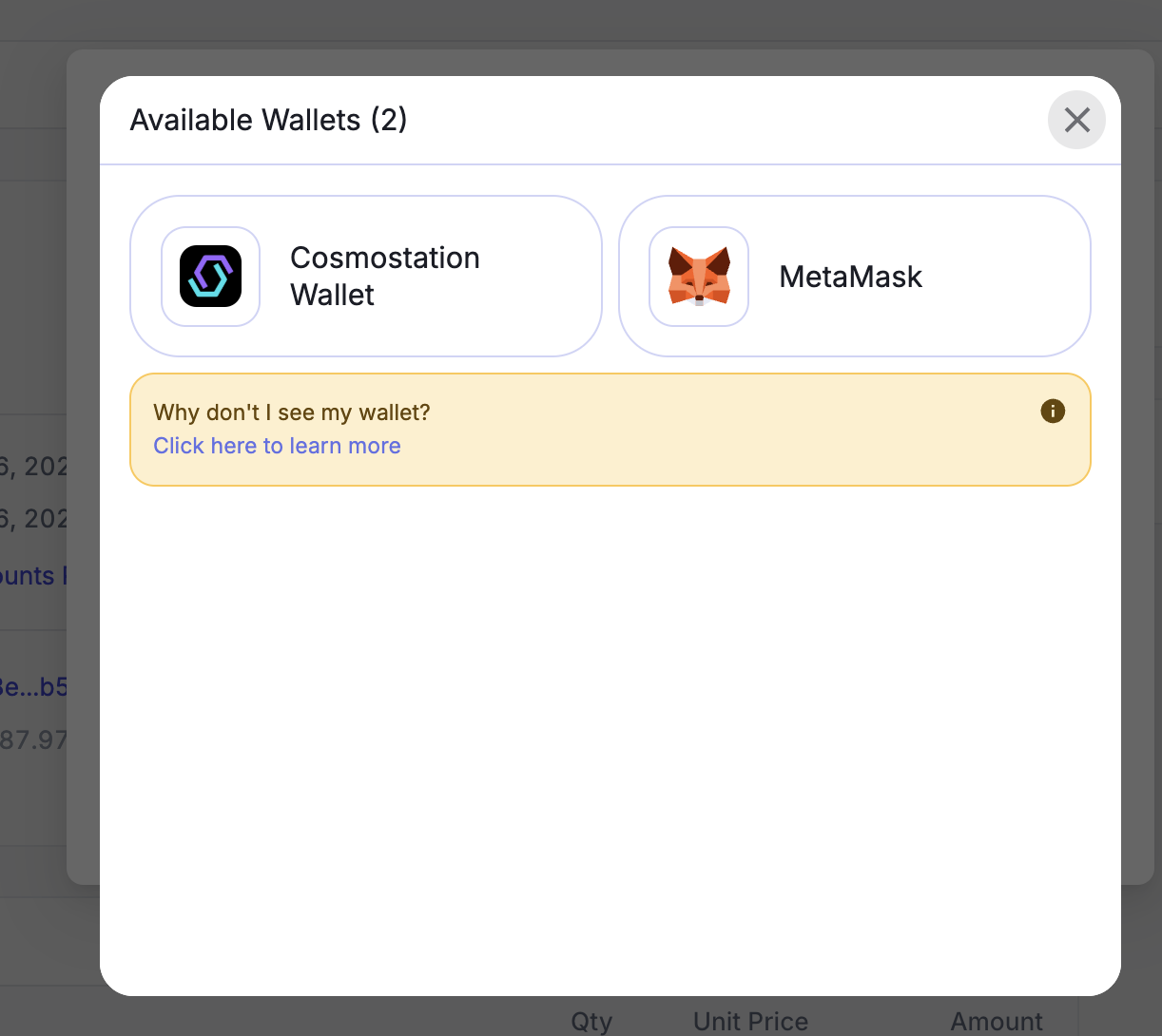
You will be prompted with a modal to select the wallet you want to pay from. Use compatible wallets (ex: Gnosis Safe, MetaMask are common types of wallets) to initiate the bill payment:
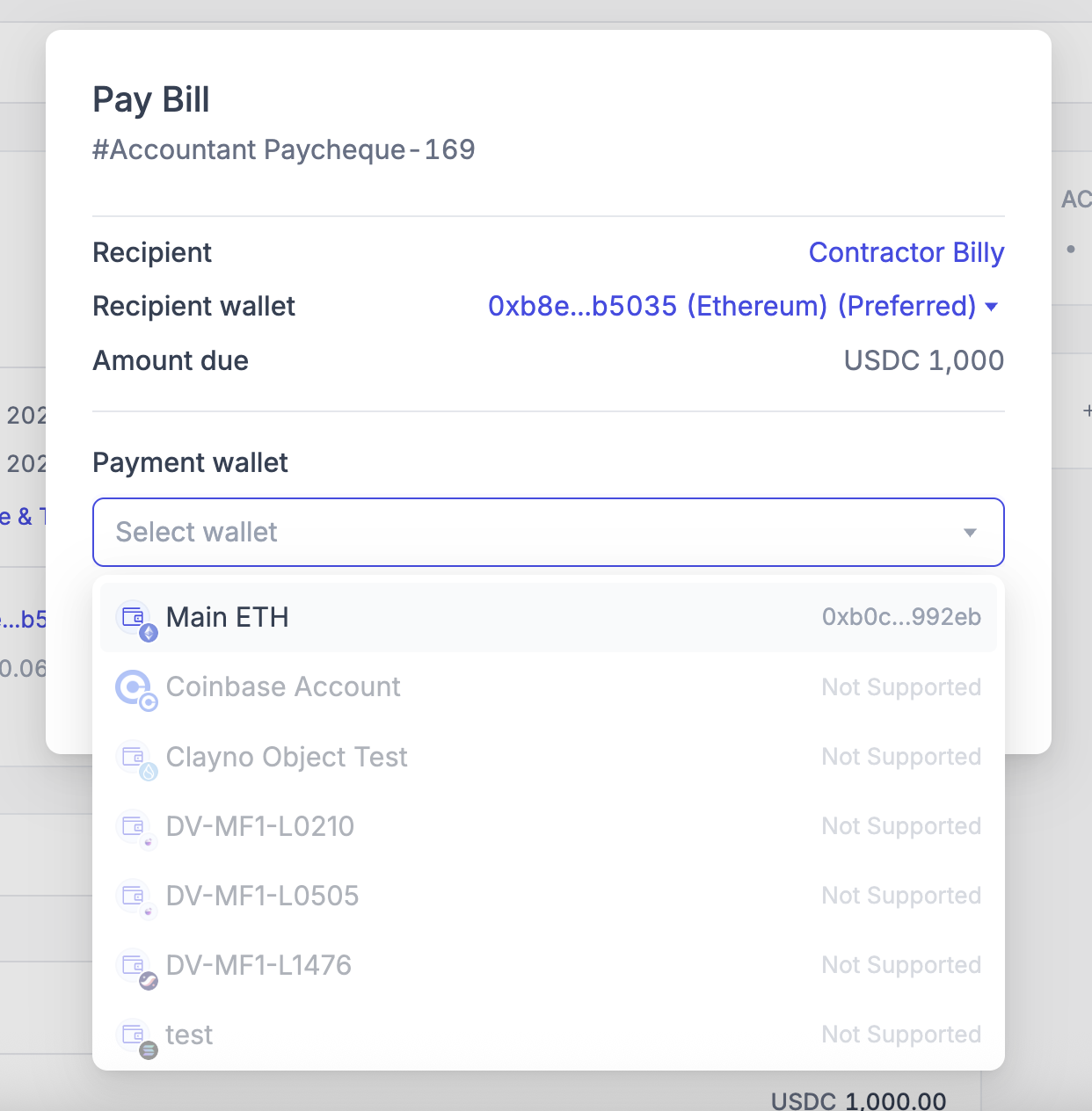
Once select, click on Connect Wallet and follow the normal transaction signing workflow for on-chain transactions:
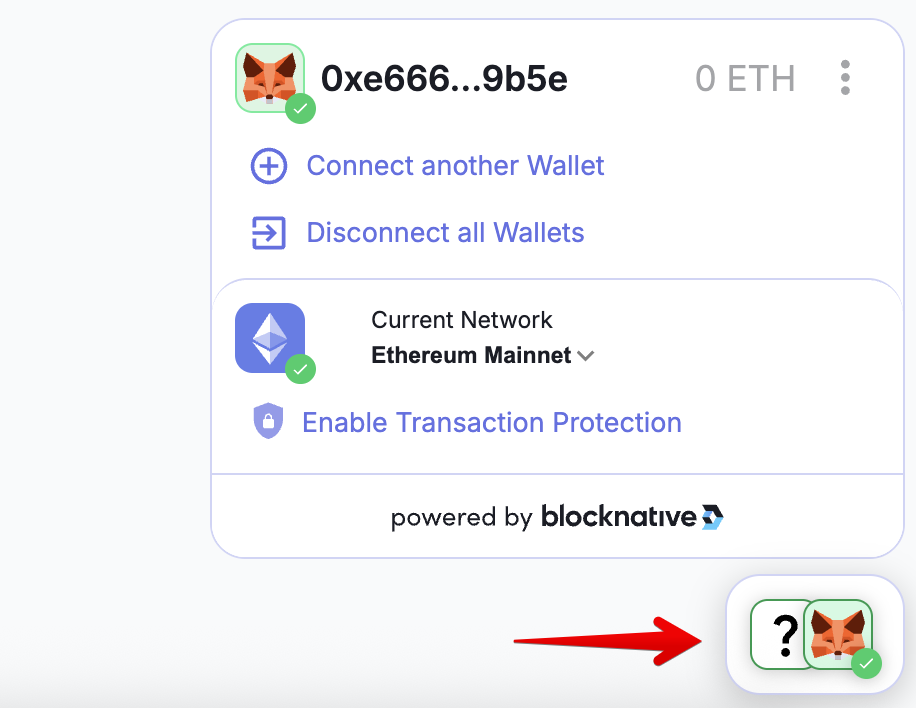
To view the current wallet connect, click on the Blocknative button in the bottom right-hand corner of the page:
Transaction Tracking: Payments are recorded on-chain and automatically linked to the originating bill for reconciliation.
5. Automated Reconciliation & Bookkeeping
Real-Time Sync: All bill payments and their statuses are visible in the Manage Bills dashboard.
Automated Matching: Integral matches transactions to corresponding invoices and entries with no manual work required, improving accuracy and saving time.
Audit-Ready: Full transaction history, supporting documents, and audit trails are available for accounting and compliance purposes.
Tips and Best Practices
Bulk Actions: Use bulk uploads for multiple invoices or payroll at once. (See Bulk Payments help page)
Policy Customization: Regularly review and update approval rules as your organization grows or requirements change.
Security: Take advantage of multi-signature controls for payments using Gnosis Safe, and always verify signers before executing large transactions.