
Impairment Testing
What is Impairment Testing?
Impairment testing helps you comply with accounting standards when your cryptocurrency investments lose significant value. Instead of waiting until year-end to discover major write-downs, you can proactively identify and address asset impairments throughout the year.
Why this might matter to you:
Avoid surprise accounting adjustments at reporting time
Maintain accurate financial records for stakeholders
Meet regulatory compliance requirements
Make informed decisions about your crypto portfolio
Getting Started: Setting Up Your First Impairment Policy
Step 1: Navigate to Impairment Settings
1. Go to the Impairment page in your Integral dashboard
2. Click "Enable" to set up your impairment testing policy
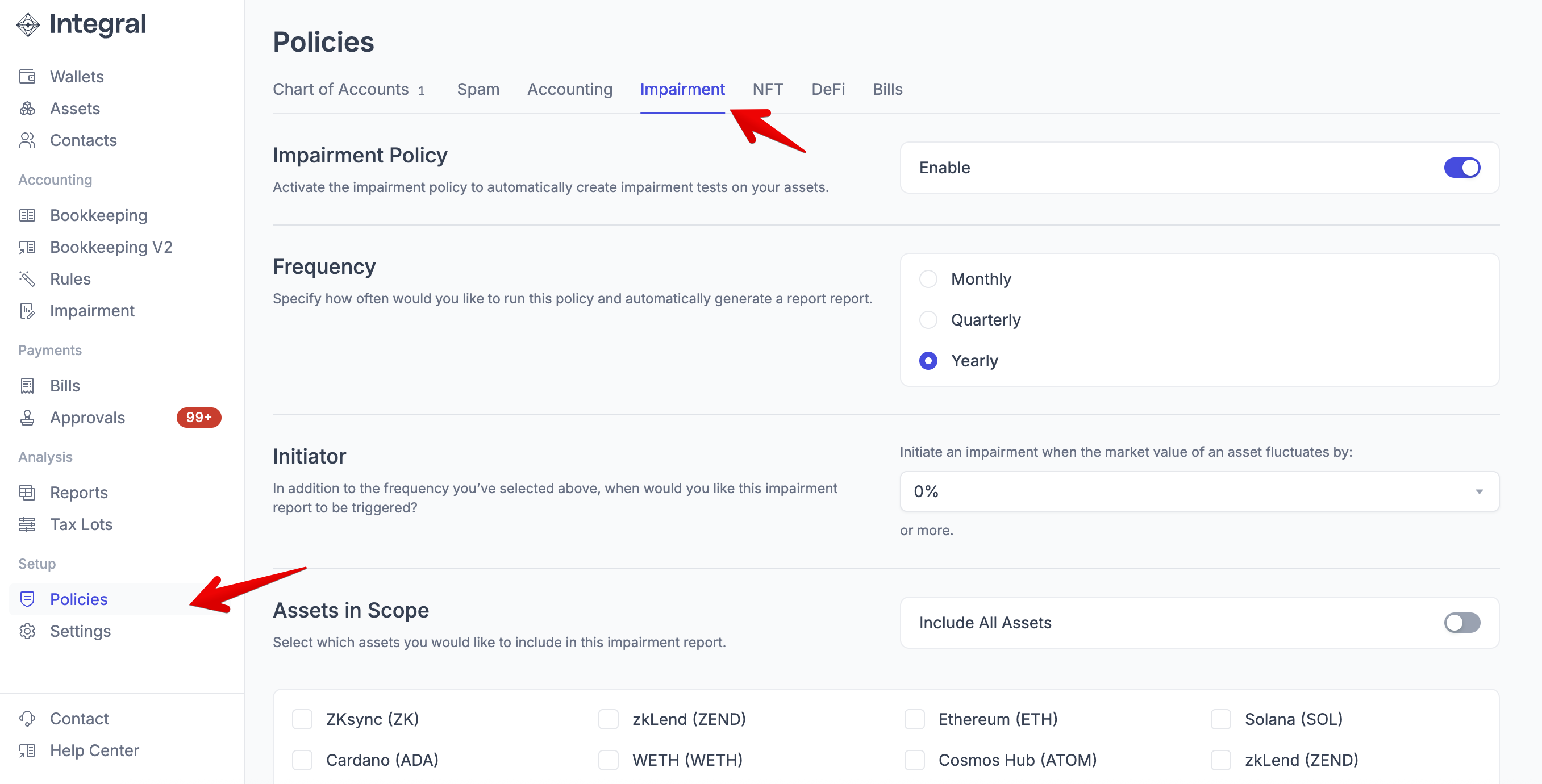
Why start with one-time: This lets you see how impairment testing works with your specific portfolio before committing to recurring tests.
Step 2: Configure Your Threshold
1. Set your impairment threshold
2. Select which cryptocurrencies to include in testing
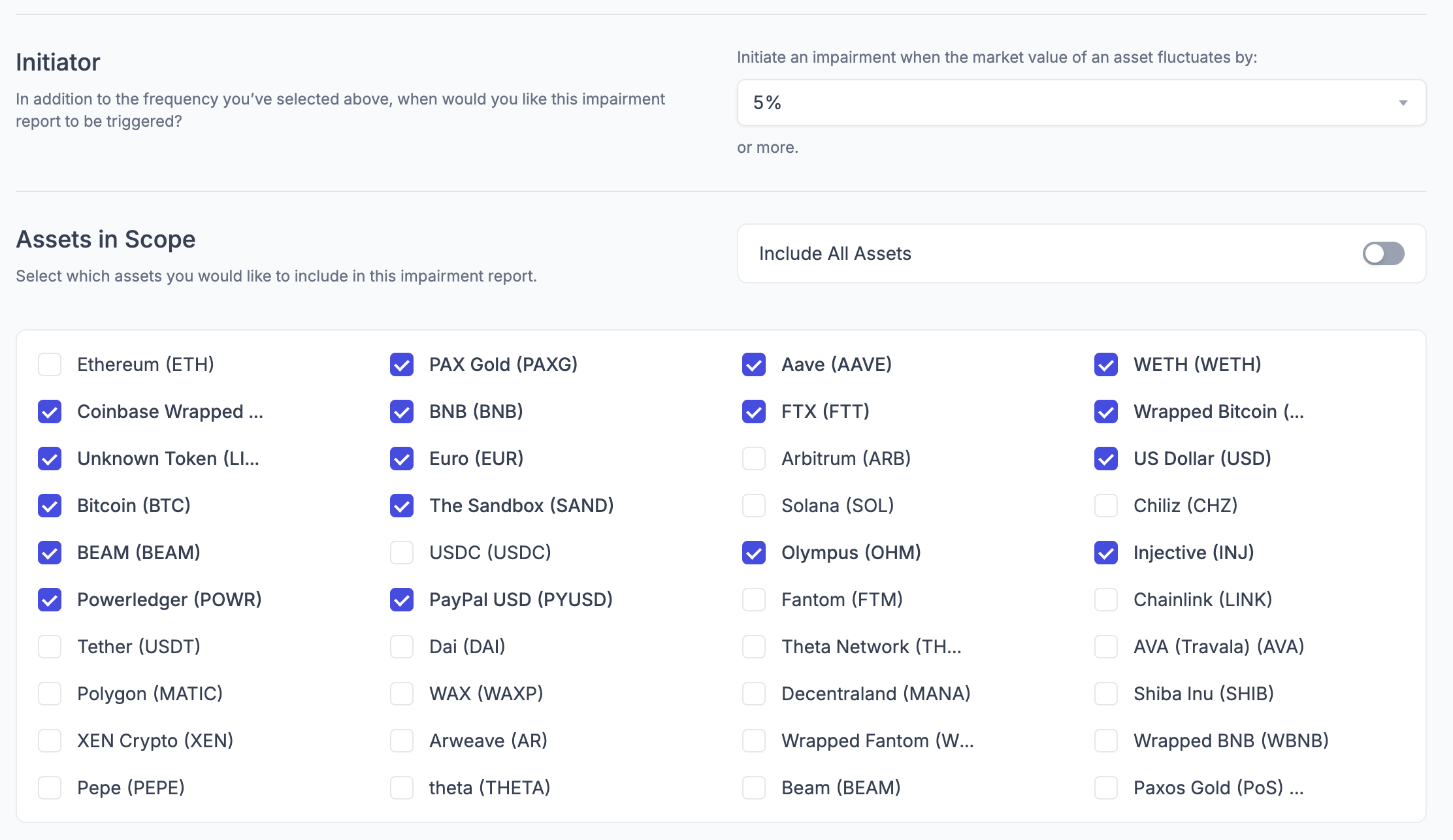
Why thresholds matter: A 20% threshold means you'll only test for impairment when an asset drops 20% or more below its purchase price. This focuses on significant declines while avoiding minor market fluctuations. Please consult your accountant/tax advisor when applying thresholds.
Step 3: Define Your Test Period
Once you've created your policy, you can run your first impairment test.
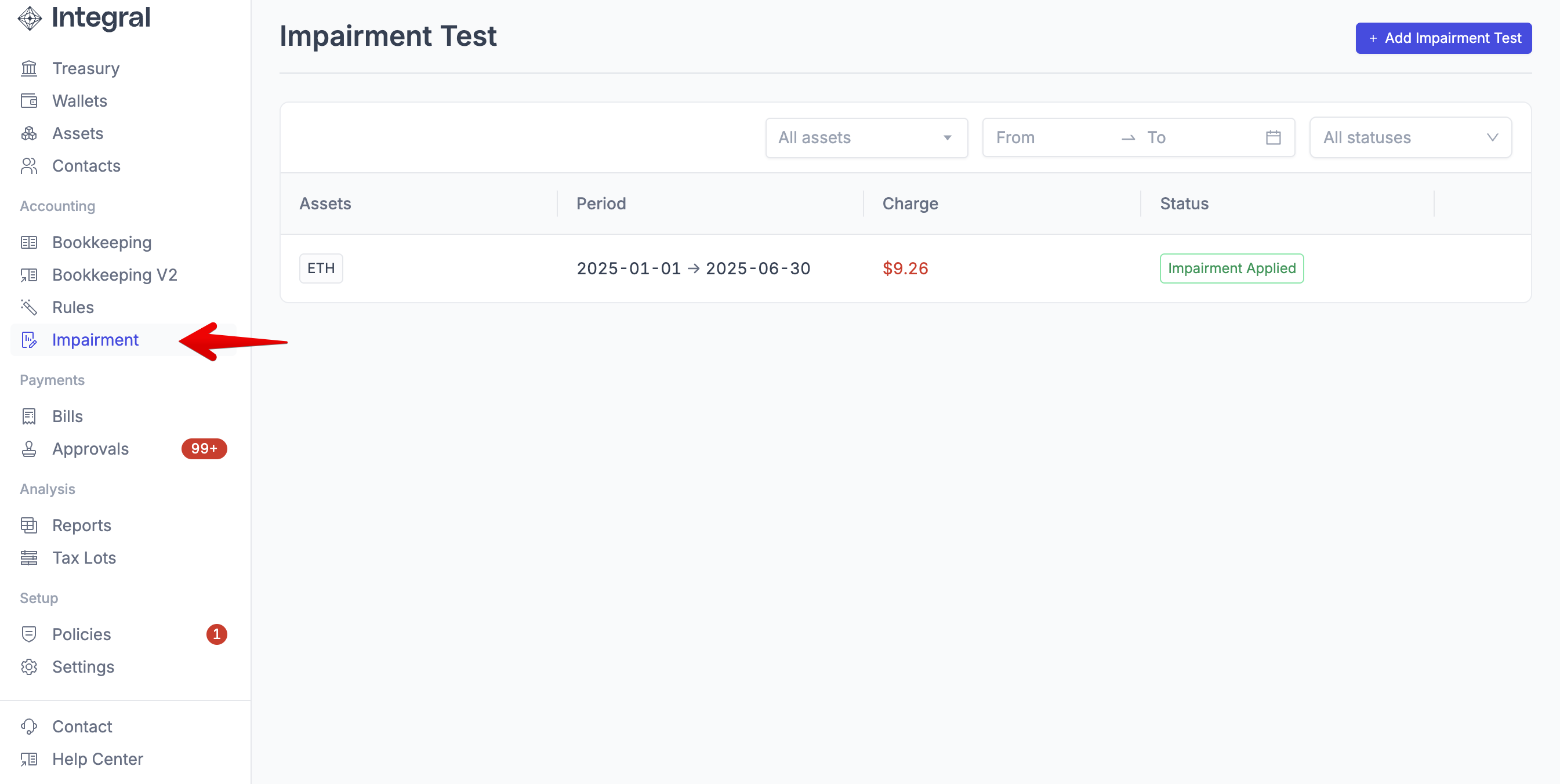
Head to the Impairment page and select "+Add Impairment Test"
Select start and end dates for your impairment test
Choose a recent period that you'd like to run the impairment for
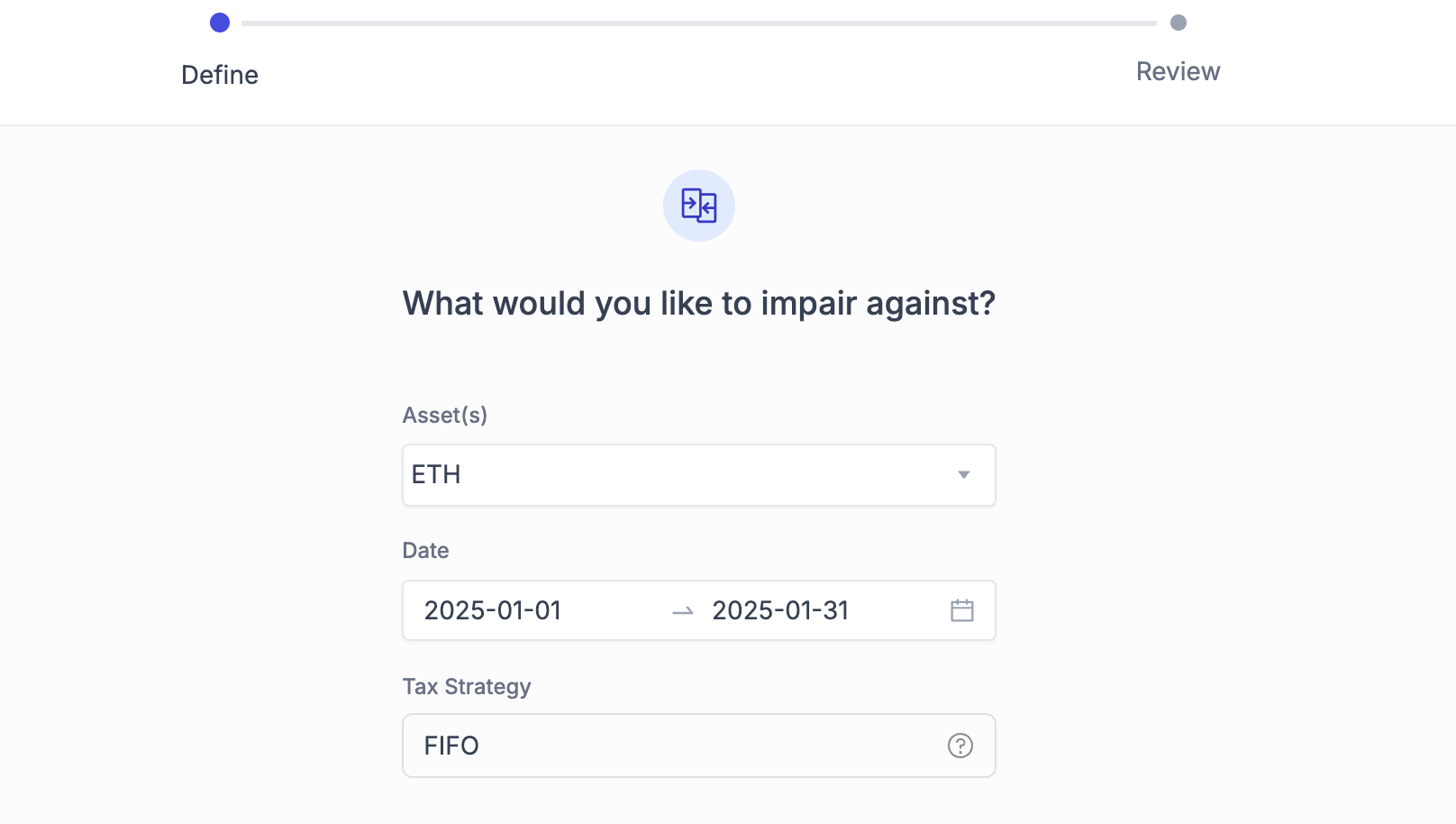
Why date ranges are important: The system looks for the lowest price during this period to determine if impairment is needed. A longer period gives more comprehensive results but may take longer to process.
Step 4: Launch the Test
Click "Review" to start the impairment analysis
Monitor the status - it will show as "Calculating Impairment..." while processing
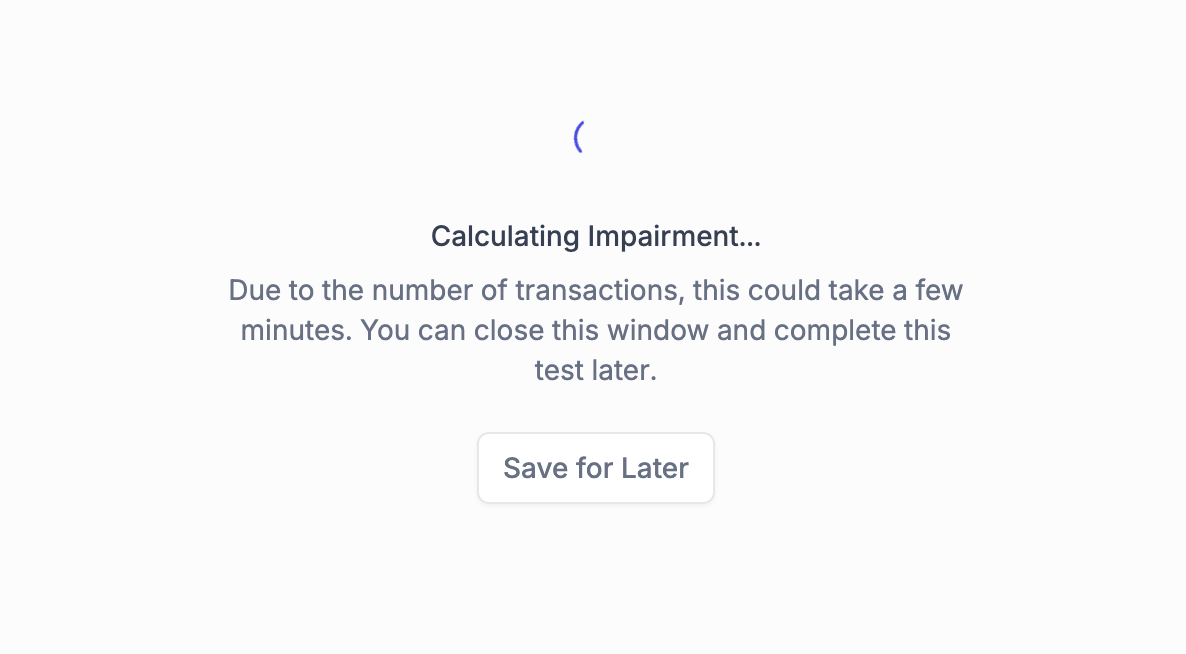
What happens during testing: Integral analyzes each of your tax lots, compares current values to original cost basis, and identifies which assets have declined beyond your threshold.
Step 5: Analyze Your Test Results
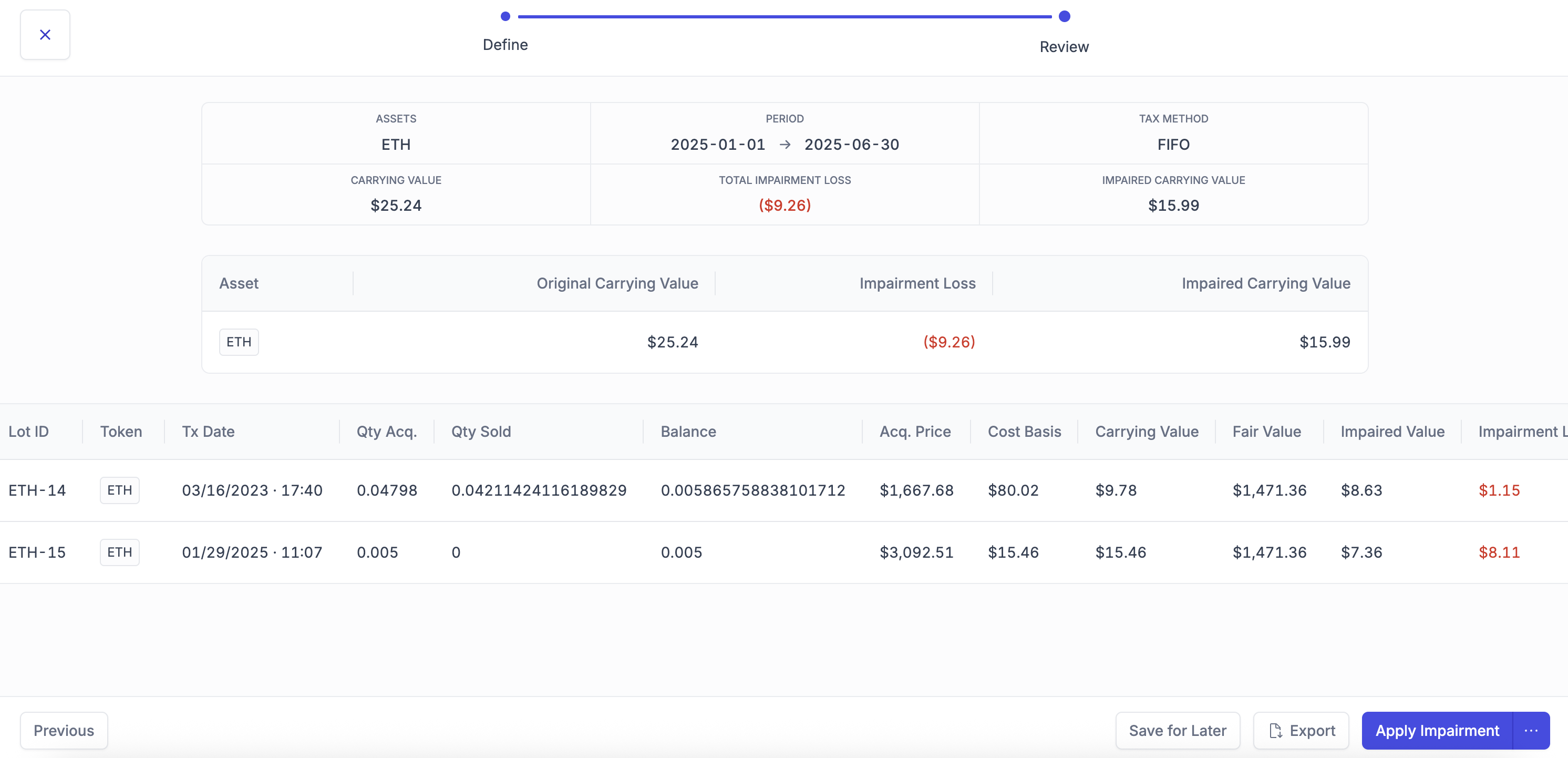
1. Click on your completed test to view detailed results
2. Review the summary showing total potential impairment amounts
3. Examine individual tax lots that would be affected
4. Check the impairment calculations for the token(s)
Step 7: Make Your Decision
You have two options for each completed test:
Option A: Apply the Impairment
1. Click "Apply" if you agree the impairment is necessary
2. Review the confirmation showing which tax lots will be updated
3. Confirm the action - this permanently updates your cost basis
If you have any questions on if you should apply impairment or not, please note that Integral cannot provide impairment or tax advice. Consult your accountant or tax advisor if you have any specific questions.
Option B: Discard the Impairment
1. Click "Discard" if you believe impairment isn't required
2. Document your reasoning for audit trail purposes
3. Confirm the action - no changes will be made to your books