
Journal Entry Sync Errors
What Are Journal Entry Sync Errors?
Journal entry sync errors occur when Integral cannot successfully push your transactions to QuickBooks Online (QBO) or Xero. These errors happen during the sync process when there are configuration issues, missing account mappings, or platform-specific restrictions that prevent your journal entries from being created in your ERP.
Understanding and resolving these errors quickly ensures your financial data stays accurate and up-to-date across both Integral and your ERP.
How Journal Entry Syncs Works
Before troubleshooting errors, it's helpful to understand the sync process:
1. Entry Generation: Integral creates journal entries from your transactions
2. Pre-Sync Validation: System checks for configuration issues before attempting sync
3. Pushing Entries: Journal entries are sent to QBO/Xero via your connected API
4. Reconciliation: System confirms entries were successfully created
5. Status Updates: Sync status is updated in Integral
This guide will help you resolve any errors that occur, step-by-step.
If there are any journal entry sync errors and Integral is unable to sync to QBO or Xero, an error message will be displayed describing the issue in the Bookkeeping tab.
Missing Account Mappings
What this means: Integral cannot sync transactions because some wallets or assets don't have corresponding Asset Accounts mapped in Chart of Accounts
Why it happens:
New wallets added without setting up account mappings
New crypto assets that haven't been mapped to an Asset Account yet
Deleted accounts in QBO/Xero that were previously mapped
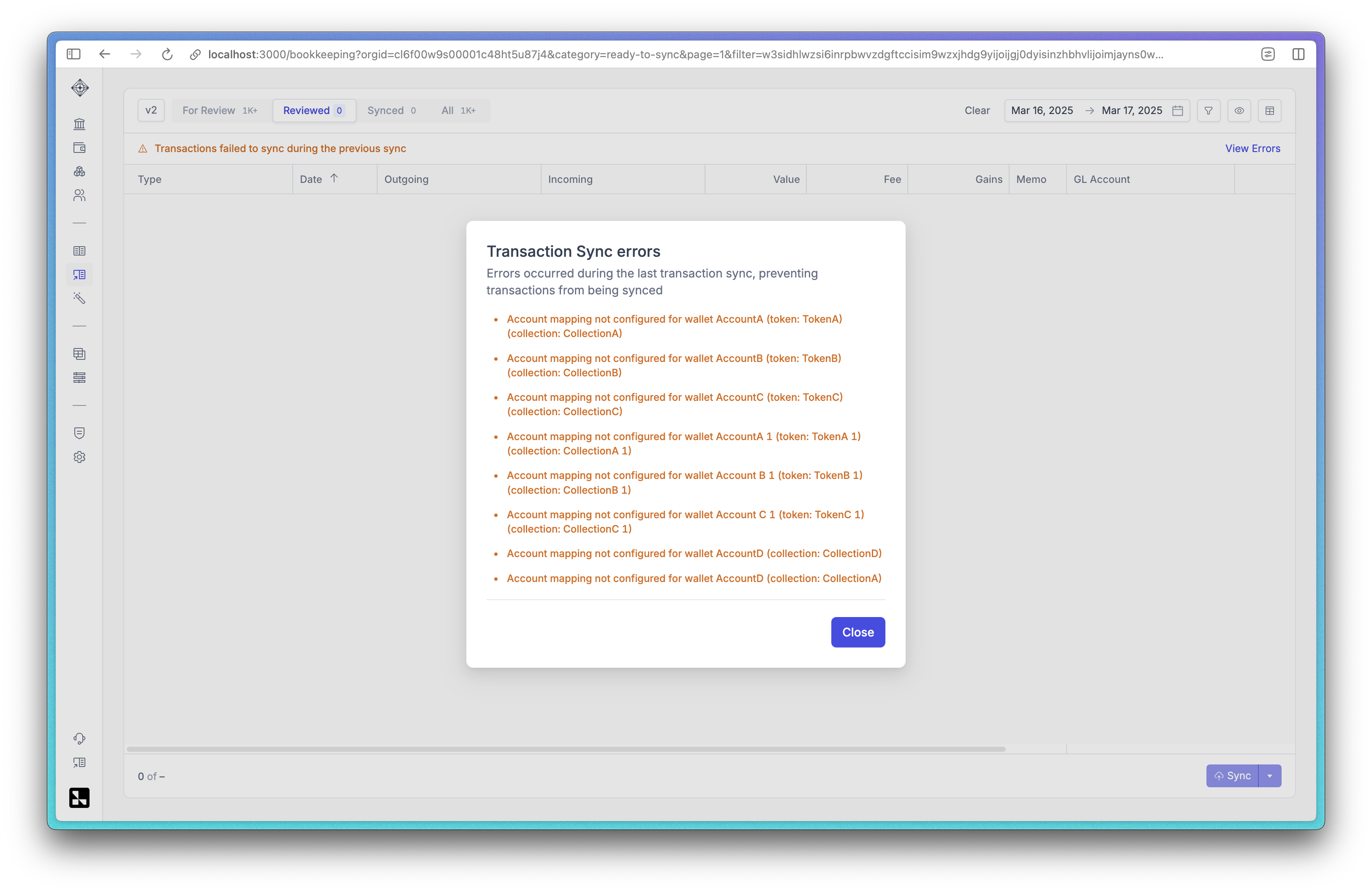
How to fix it:
1. Go to your Chart of Accounts page in Integral
2. Review the error details to see which specific wallets or assets are missing mappings
3. For missing wallet or asset mappings:
Select the appropriate account from your QBO/Xero chart of accounts
Choose an account that matches the wallet's purpose (e.g., "Crypto Wallet - ETH" for a Ethereum wallet)
4. Head back to Bookkeeping and retry the sync
Prevention: Set up account mappings immediately when adding new wallets or when new crypto assets appear in your portfolio.
Disabled or Archived Accounts
What this means: Some accounts mapped in Integral have been disabled, archived, or deleted in your QBO/Xero system.
Why it happens:
Accounts were archived during chart of accounts cleanup
Accounts were accidentally deleted in QBO/Xero
Account status changed after initial mapping
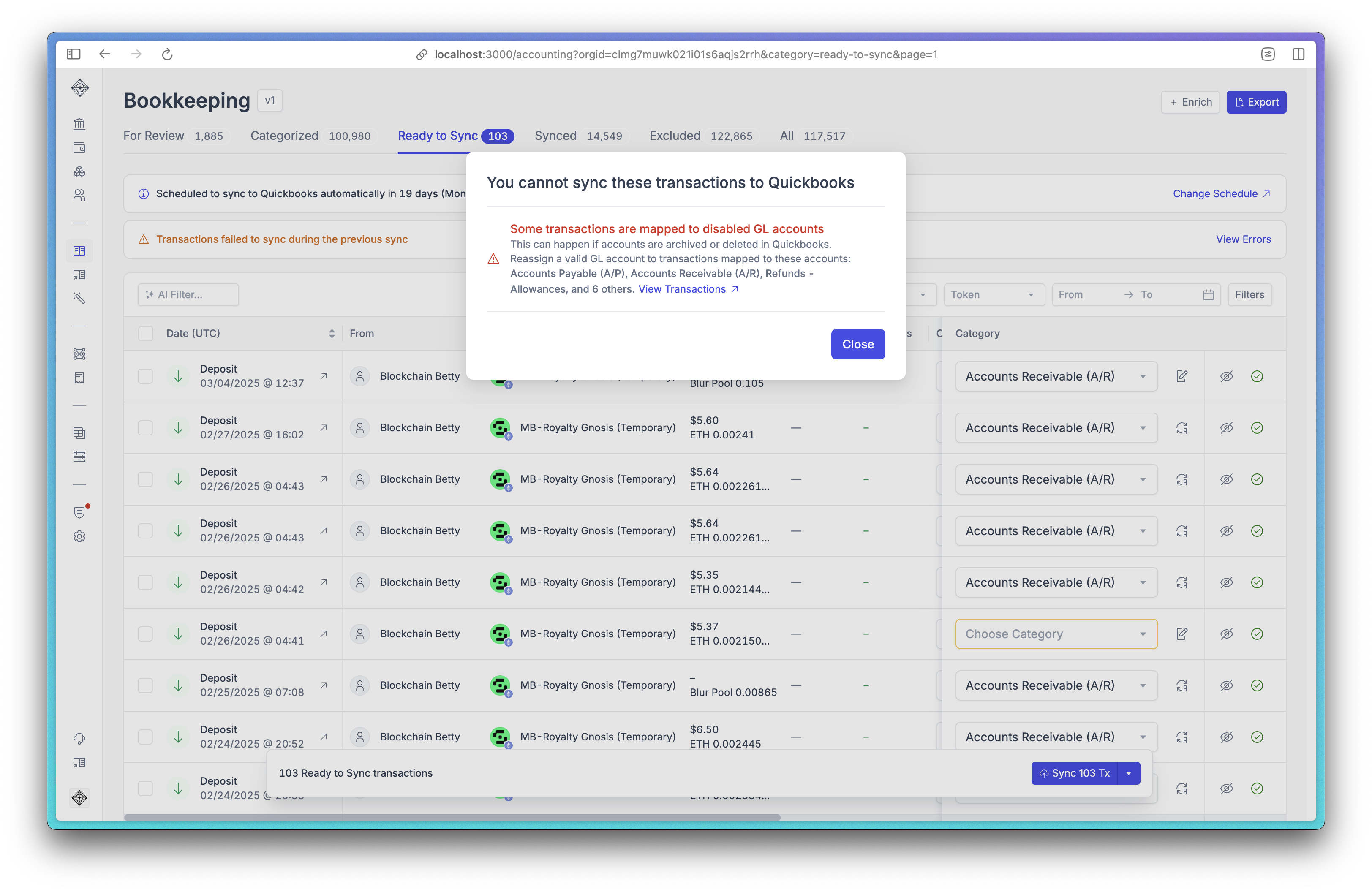
How to fix it:
1. Log into your QBO/Xero account
2. Go to your Chart of Accounts
3. For each disabled account mentioned in the error:
Option A - Reactivate the account:
Find the account in your inactive/archived accounts
Click "Make Active" or "Unarchive"
Verify the account appears in your active chart of accounts
Option B - Remap to a different account:
Go back to Integral's Policies page -> Chart of Accounts
Find the wallet or asset that is mapped to the disabled account
Change the mapping to point to an active, similar account
4. Retry the sync
Prevention: Coordinate with your accounting team before archiving accounts to ensure they're not being used inside of Integral.
Currency Mismatch Issues
What this means: Your QuickBooks/Xero Chart of Accounts either has a non-USD home currency or multi-currency is disabled. Integral requires USD support.
Why it happens:
QuickBooks company was set up with a different currency
Multi-currency feature is disabled in QuickBooks
How to fix it:
1. Log into QuickBooks or Xero
2. Check the Currency settings of your Chart of Accounts:
If home currency is not USD: You'll need to enable multi-currency support
If multi-currency is disabled: Turn on "Multicurrency" feature and select USD
We recommend checking QuickBooks or Xero help center for specific instructions to change your Chart of Accounts currencies to USD
5. Return to Integral and retry the sync
Prevention: Set up QuickBooks/Xero with USD as home currency or enable multi-currency from the start.
Missing Default Accounts
What this means: Integral requires specific default accounts for fees and realized gains/losses, but these haven't been configured.
Why it happens:
Initial accounting setup was incomplete
Default accounts were deleted or changed in QBO/Xero
Account mappings were cleared during system updates
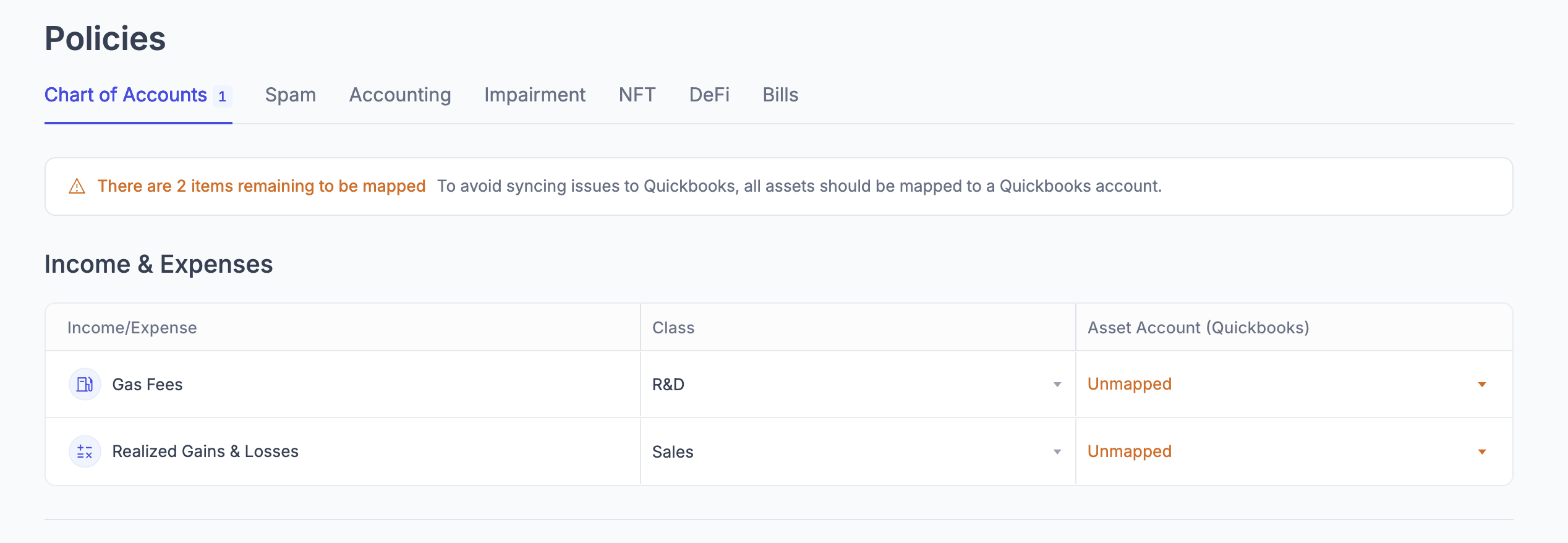
How to fix it:
1. Go Policies -> Chart of Accounts
2. Set up the missing accounts:
Default Gas Fee Account: Choose an expense account for transaction fees (e.g., "Crypto Transaction Fees")
Default Gain/Loss Account: Choose an income/expense account for realized gains and losses (e.g., "Crypto Gains and Losses")
3. If these accounts don't exist in QBO/Xero:
Create them first in your accounting software
Use appropriate account types (Expense for fees, Other Income/Expense for gains/losses)
Return to Integral once updated
4. Retry the sync with the newly added default Accounts
Prevention: Complete the full accounting setup process when first connecting QBO/Xero to Integral.
Large transaction volumes
What this means: You're trying to sync too many individual transactions, and your running into API limits that will require bundling transactions together.
Why it happens:
Trying to generate journal entries with a high volume of transactions
QBO/Xero platform API limits
How to fix it:
1. Go to Policies -> Accounting
2. Find "Journal Entry Bundling"
3. Enable bundling:
Choose "Summed up" to combine all transactions from the same day
Or choose "Bundle by Week/Year" for even more consolidation
Select if you'd like to rollup withdrawal, deposits and fees or all
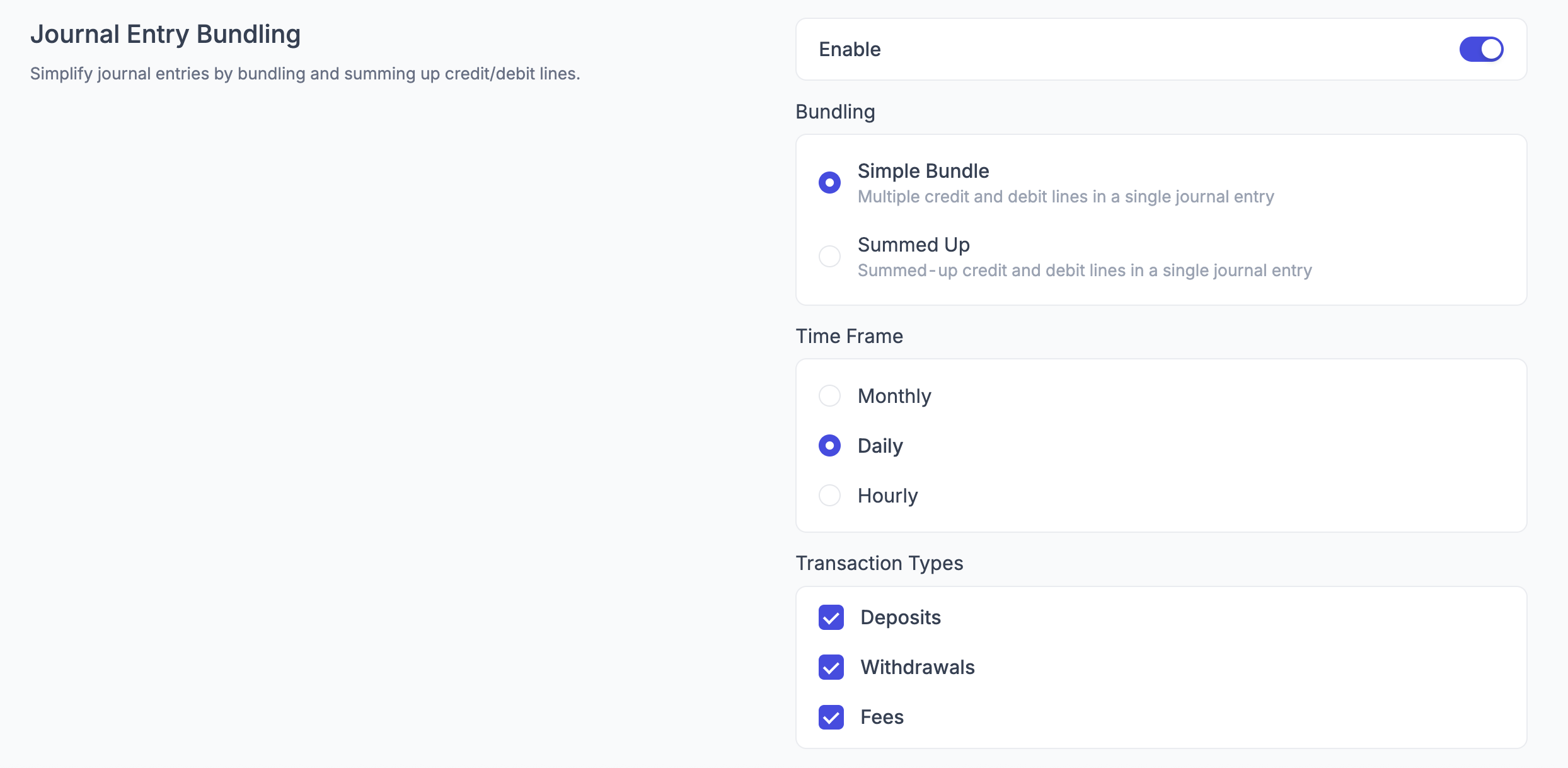
If you select Summed up, Integral will generate Journal Entry lines with the total value of the deposits/withdrawals/fees for the given time frame. Individual transaction data, such as hash and counterparties, are not included when Journal Entry bundling is set to Summed up.
5. Head back to Bookkeeping, and retry the sync
Alternative approach:
Sync smaller date ranges at a time
Focus on recent transactions first, then sync historical data in batches
Prevention: Enable transaction bundling from the start if you expect high transaction volumes.
Books Closed
What this means: Some transactions you're trying to sync have dates that fall before your accounting period closure date in QBO/Xero.
Why it happens:
Accounting periods have been closed in QBO/Xero
Historical transactions are attempting to sync after period closure
Transaction dates were corrected to earlier dates after closure
How to fix it:
1. Check the error details to see which transactions have problematic dates
2. Log into your QBO/Xero account
3. Review your period closure settings
4. Choose your approach:
Option A - Temporarily unlock the period:
Change the closure date to allow the transactions
Complete the sync in Integral
Re-lock the period in QBO/Xero
Option B - Exclude historical transactions:
In Integral, filter your sync to only include transactions after the closure date
Sync only the allowed transactions
5. Coordinate with your accountant before unlocking closed periods
Prevention: Complete all crypto transaction syncing before closing accounting periods.
Partially Synced Transfers
What this means: Some internal transfers, exchanges or bridges are only partially synced to QuickBooks/Xero. This means one side of the grouped transaction have been synced while the other side hasn't creating an incomplete journal entry line.
Why it happens:
A new wallet was added to Integral after part of the transfer had already been synced to QuickBooks/Xero
Manual changes were made to transaction sync status in the middle of a transfer sync
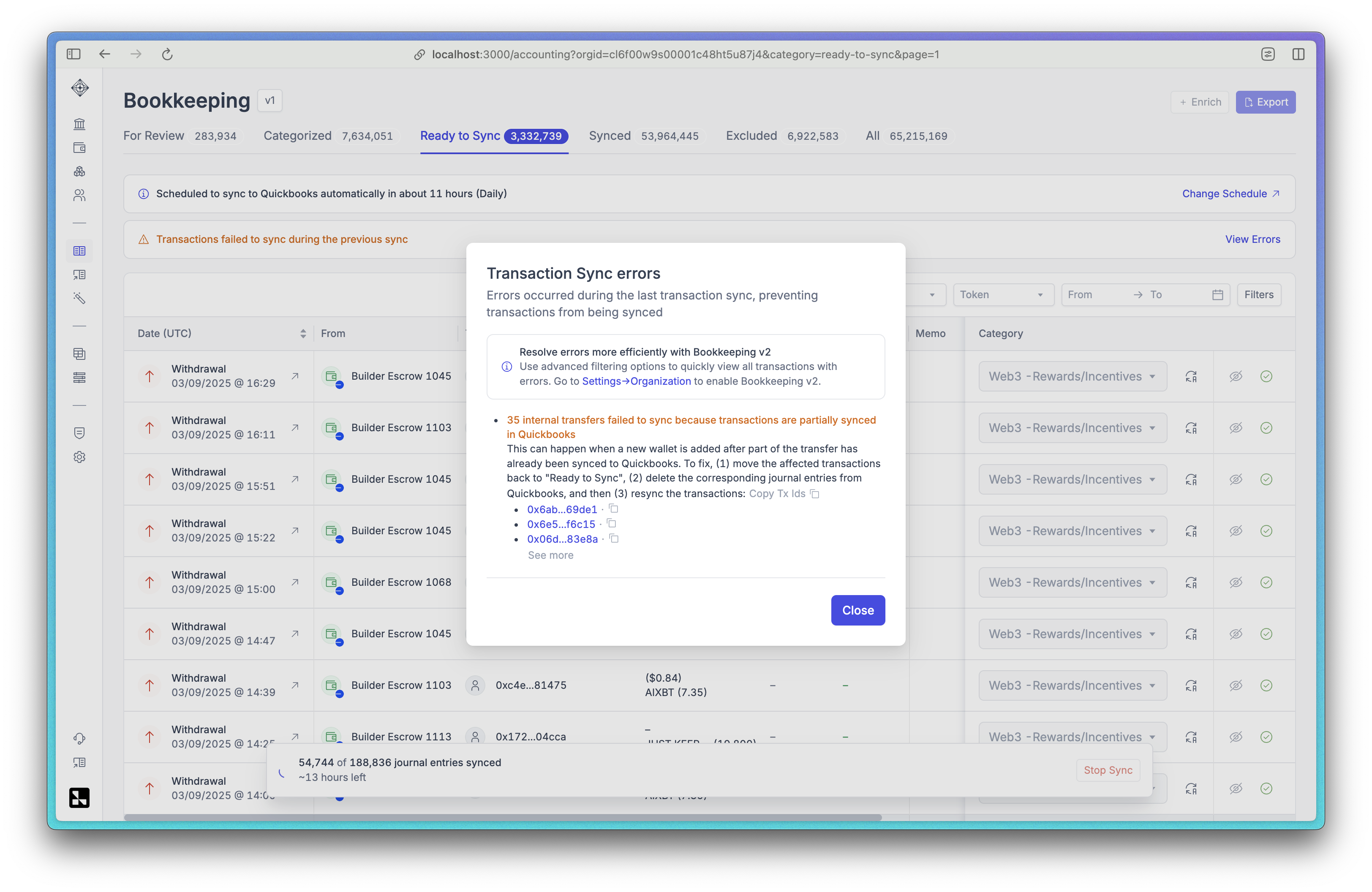
How to fix it:
1. Navigate to your Bookkeeping page in Integral
2. Locate the affected transactions (the error message will list the affected transactions)
3. Move the affected transactions back to "Reviewed" status (for Bookkeeping V2) or "Ready to Sync" status (for Bookkeeping V1)
4. Log in to your QuickBooks or Xero account
5. Find and delete the corresponding journal entries that were already created for this transfer
To find the the corresponding journal entry ID is for the transactions, click on the transaction details in Bookkeeping and then Sync:
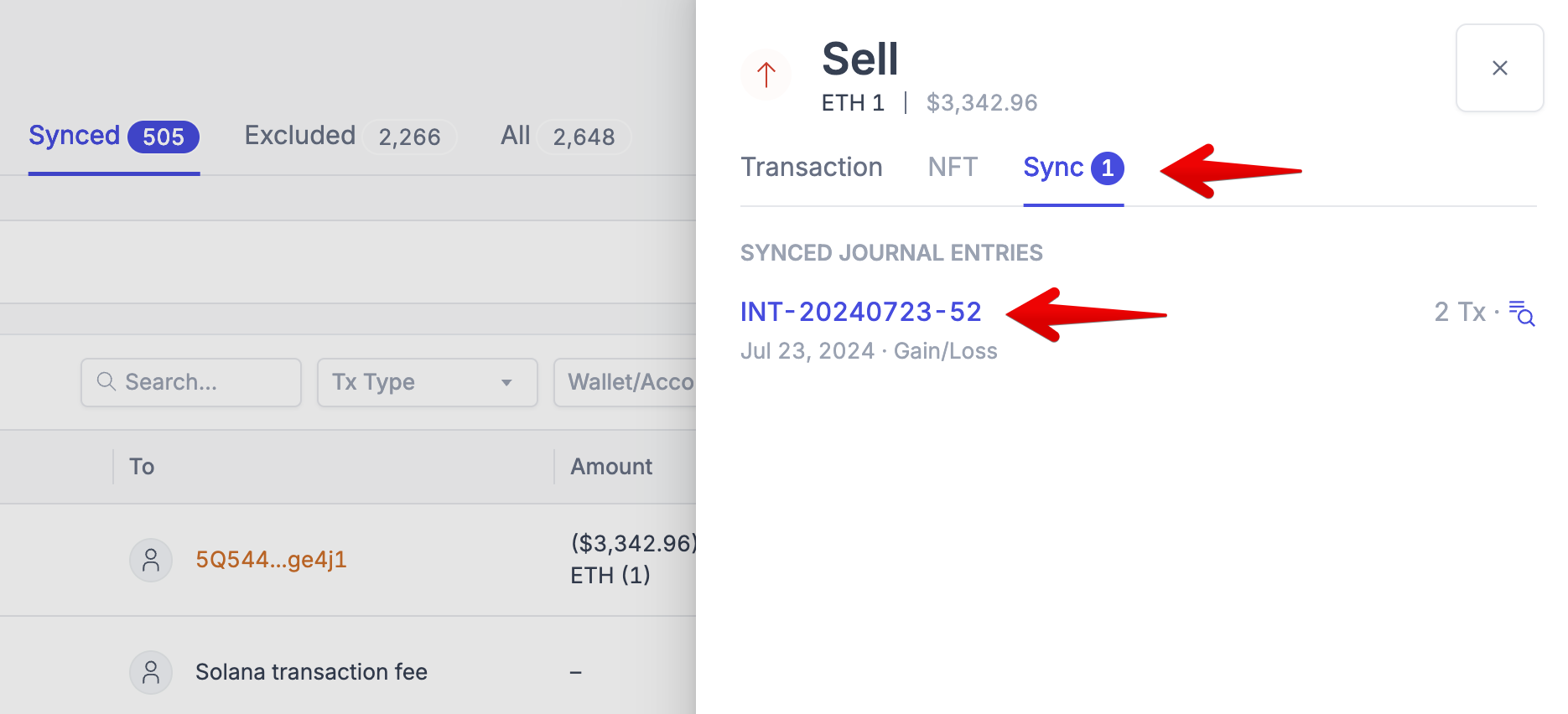
6. Return to Integral and resync the transactions - this time the complete transfer will sync as a single unit
7. Verify that all parts of the transfer appear correctly in QBO/Xero
Prevention: Avoid adding new wallets or making configuration changes while transfers are in the process of being synced. Complete all sync operations before making structural changes to your Integral setup.
Monitoring and Prevention
Best Practices for Journal Entry syncing
1. Regular Account Mapping Reviews
Monthly review of all wallet and asset mappings
Immediate mapping setup for new wallets or assets
Coordination with accounting team on Chart of Accounts changes
2. Proactive Configuration Management
Set up default accounts during initial onboarding
Enable transaction bundling if you expect to have high volumes
Configure currency settings appropriately from the start in QBO/Xero
3. Sync Scheduling
Sync regularly (weekly or monthly) rather than letting transactions accumulate over the course of a year
Complete syncing before closing accounting periods
4. Error Monitoring
Check sync status after each sync attempt
Keep documentation of your account mapping decisions
Understanding Sync Status
Validation - Integral is reviewing initial Journal Entry settings
Creating - Integral is generating journal entries from your transactions
Syncing - Entries are being pushed to QBO/Xero
Finished - Sync completed successfully
Errored - Sync failed and needs attention
Cancelled - Sync was stopped before completion
When to Contact Support
Contact Integral support if you encounter:
Persistent errors after following all troubleshooting steps
Technical issues with the sync process itself
Questions about complex account mapping scenarios
Problems with API connections to QBO/Xero
Getting Help
In-App Resources
Check the sync status or errors for detailed error information
Review account mapping pages for configuration issues
Use the help documentation within our help center
Support Channels
Contact Integral support for sync issues, at help@integral.xyz
Consult your accountant for accounting-specific questions
Check QBO/Xero documentation for platform-specific limitations (if applicable)
Documentation
Keep records of your account mapping decisions
Document any custom sync configurations
Maintain notes on resolved error scenarios for future reference