
Reports and Auditability
Integral generates financial reports directly from categorized, on-chain and off-chain transaction data—no manual spreadsheet work required. Every report is audit-ready because every number traces back to a verified transaction source: a blockchain transaction hash, exchange API record, or bank import. This eliminates reconciliation friction and gives your auditors direct, verifiable confidence in your financial position.
Available Report Types
Integral organizes reports into two categories: Summary Reports and Detailed Reporting. Each report is generated on-demand and can be filtered by date range and account.
Summary Reports
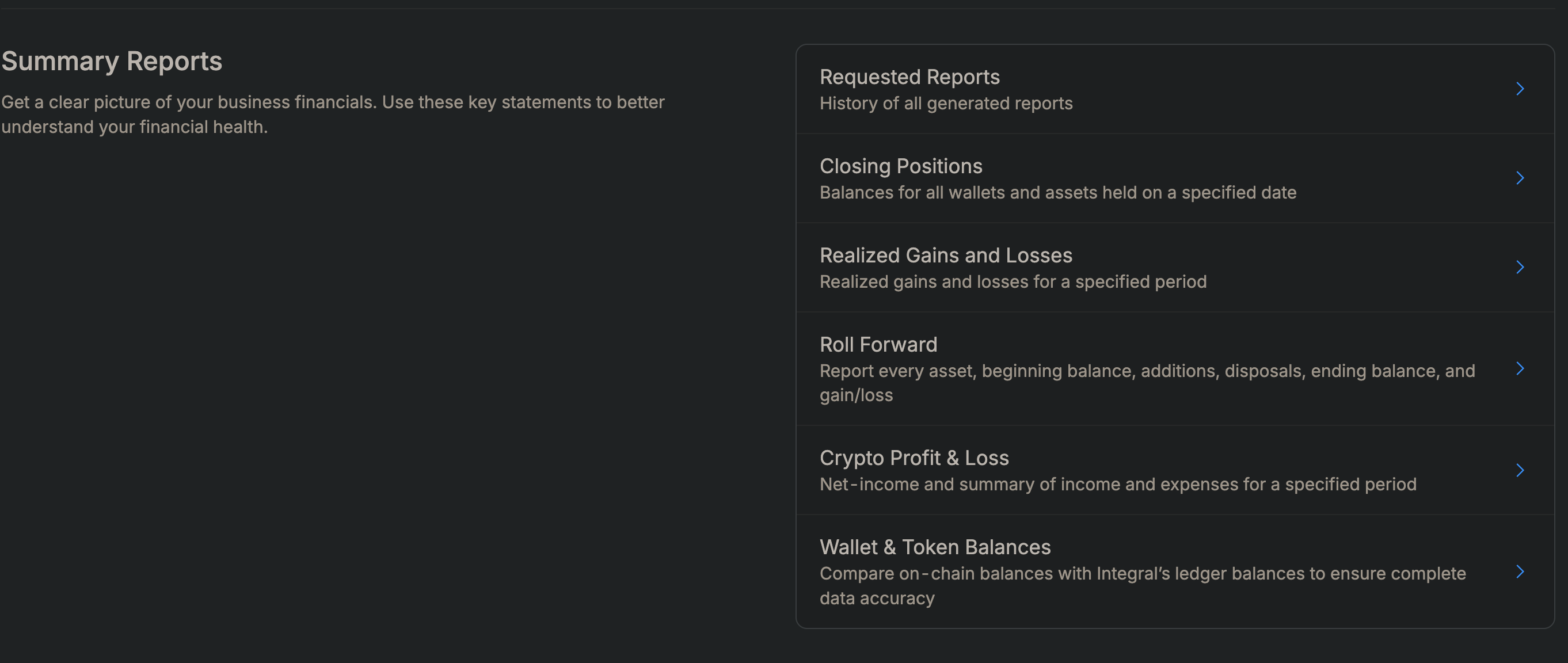
Requested Reports History of all reports generated in your account. Use this to track which reports have been pulled and when, useful for audit documentation.
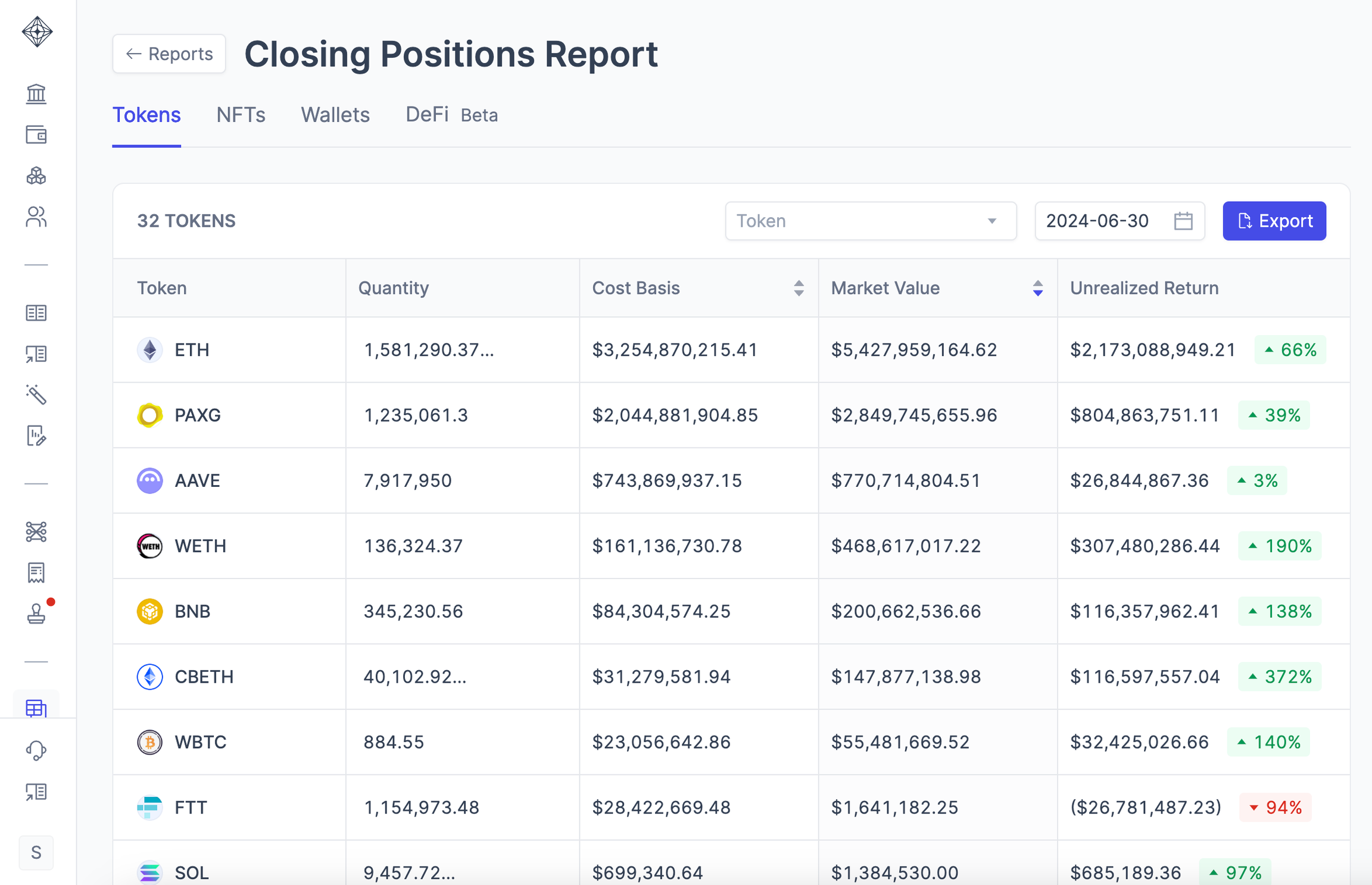
Closing Positions Point-in-time snapshot of balances for all wallets and assets held on a specified date. Shows total holdings per asset and total portfolio value across all connected accounts. Use this for month-end and year-end balance sheet preparation.
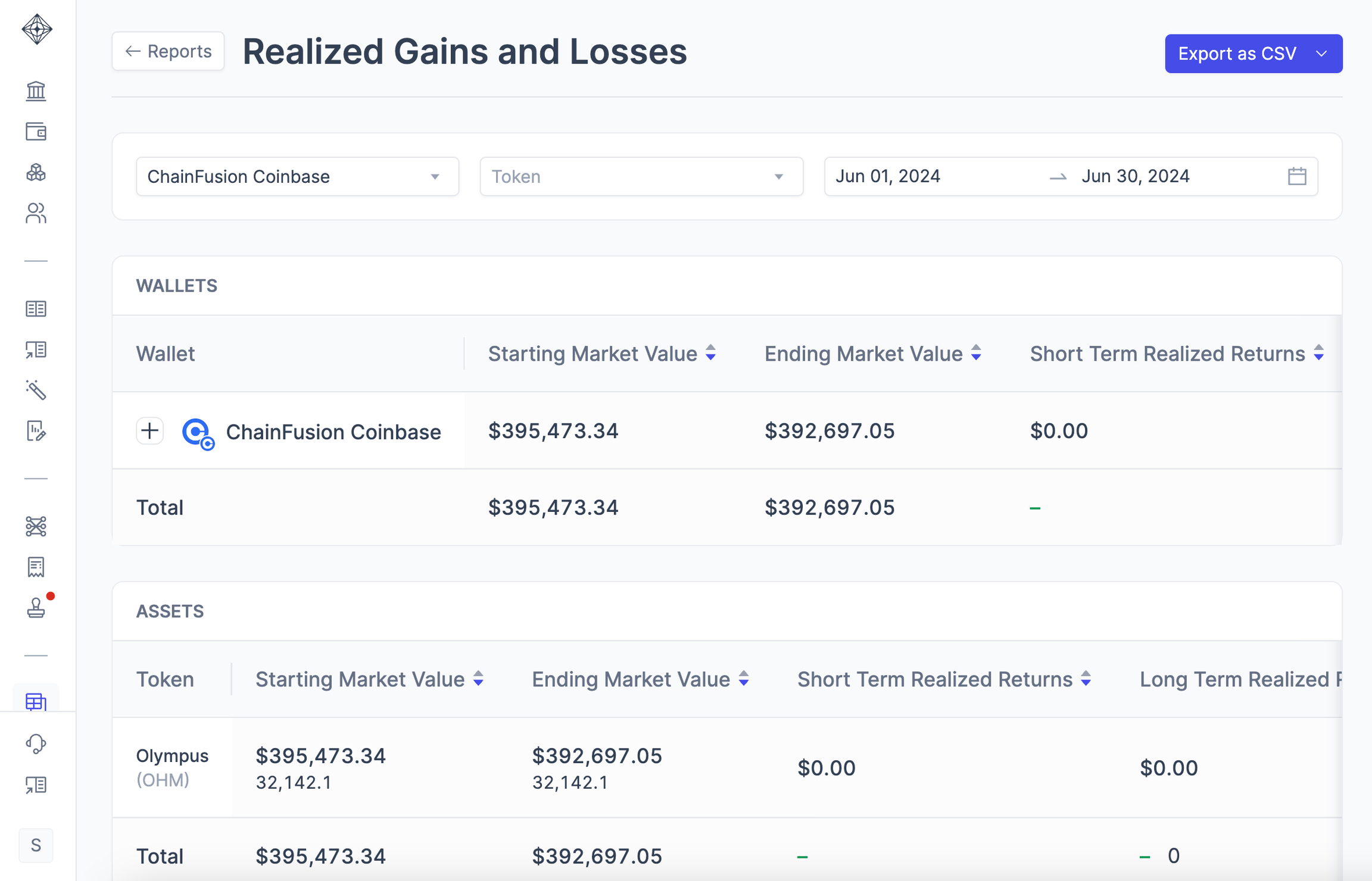
Realized Gains and Losses Tracks realized gains and losses per asset and per transaction, calculated using the cost basis method specified in your Chart of Accounts. Exports with transaction date, quantity, cost basis, sale price, gain/loss amount, and holding period. Essential for tax reporting.
Roll Forward Summary report for every asset showing: beginning balance, additions (purchases/deposits), disposals (sales/withdrawals), ending balance, and realized gain/loss for the period. Useful for reconciliation and financial statement narrative.
Crypto Profit & Loss Net-income summary showing all income and expenses for a specified period. Aggregates by source (staking, lending interest, yield farming, fees, etc.). Use this for income tax scheduling and verification against Form 1099-K or similar filings.
Wallet & Token Balances Verification report that compares on-chain wallet balances with Integral's ledger balances to ensure complete data accuracy and identify any sync issues. Run this regularly to confirm data integrity across all connected wallets.
Detailed Reporting
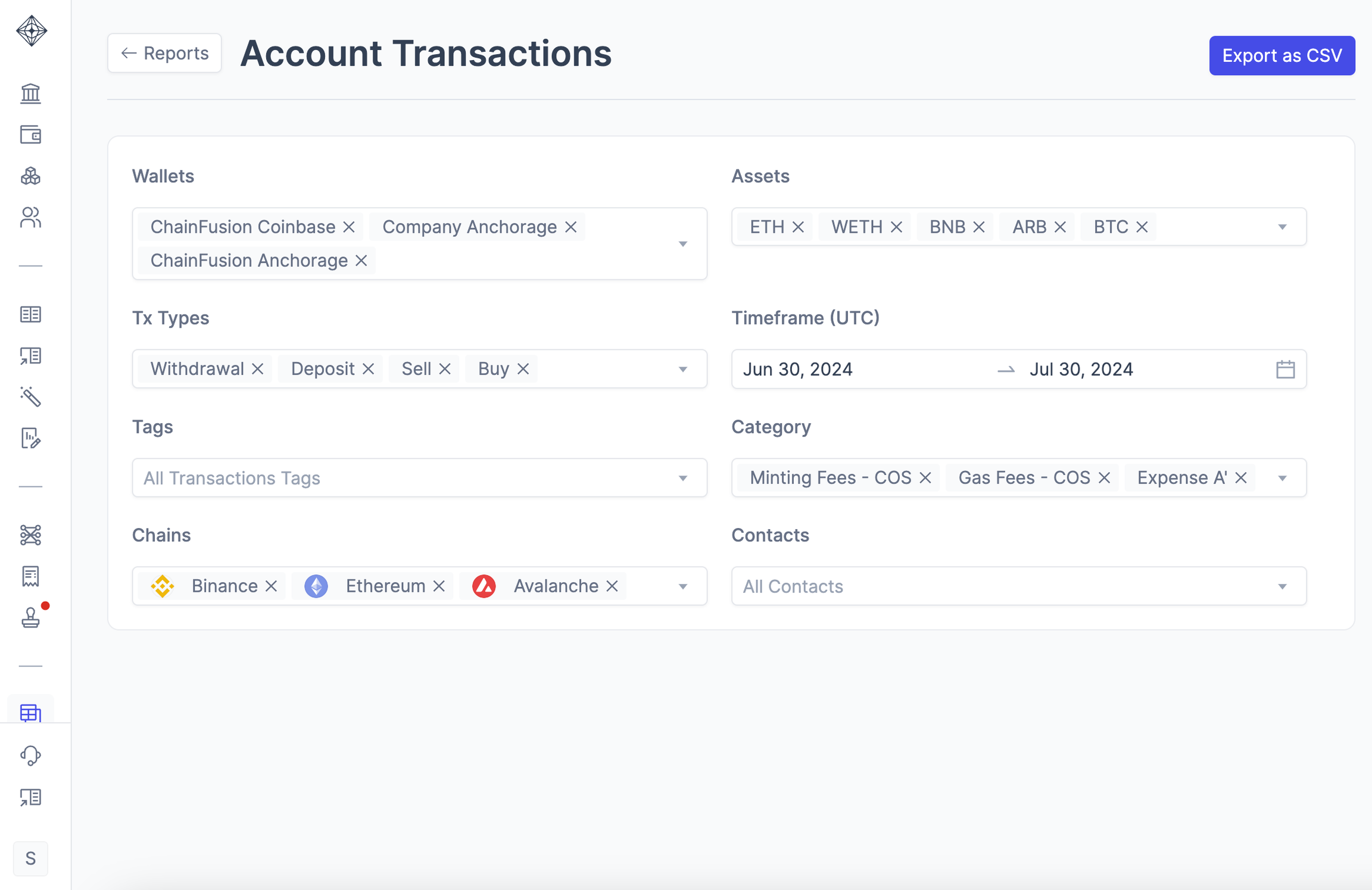
Account Transactions (General Ledger) Complete ledger export of all transactions connected across your wallets, exchanges, and custodians. Each row includes: transaction type (trade, transfer, withdrawal, deposit, etc.), asset, amount, date and time, counterparty or destination, GL account, and the source reference (blockchain tx hash or exchange order ID). Use this as your primary audit export.
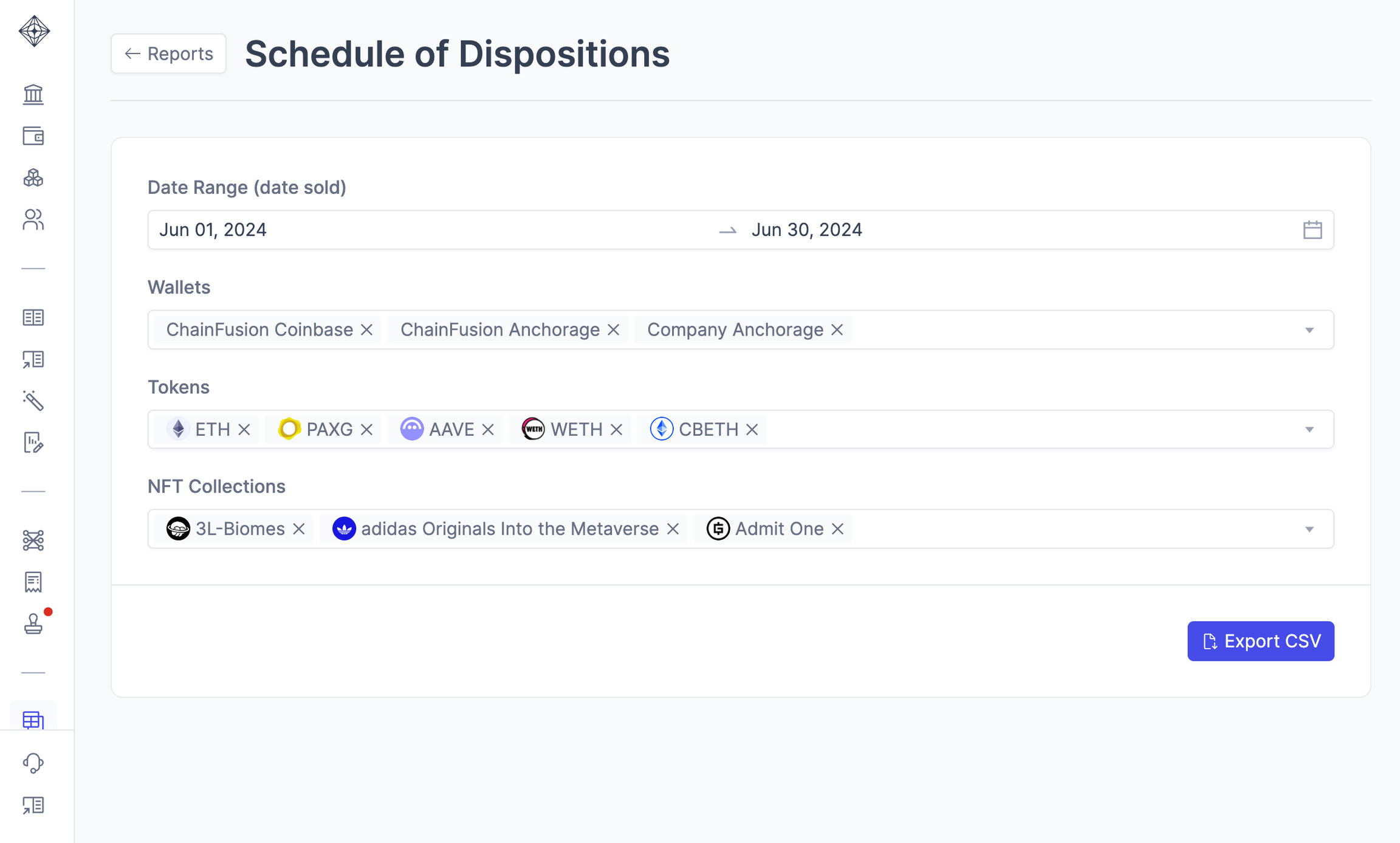
Schedule of Dispositions Comprehensive report of all withdrawals and disposals (asset sales), including realized gains/losses and associated tax lot information. Organized by asset and transaction date. Required for tax filing and audit documentation.
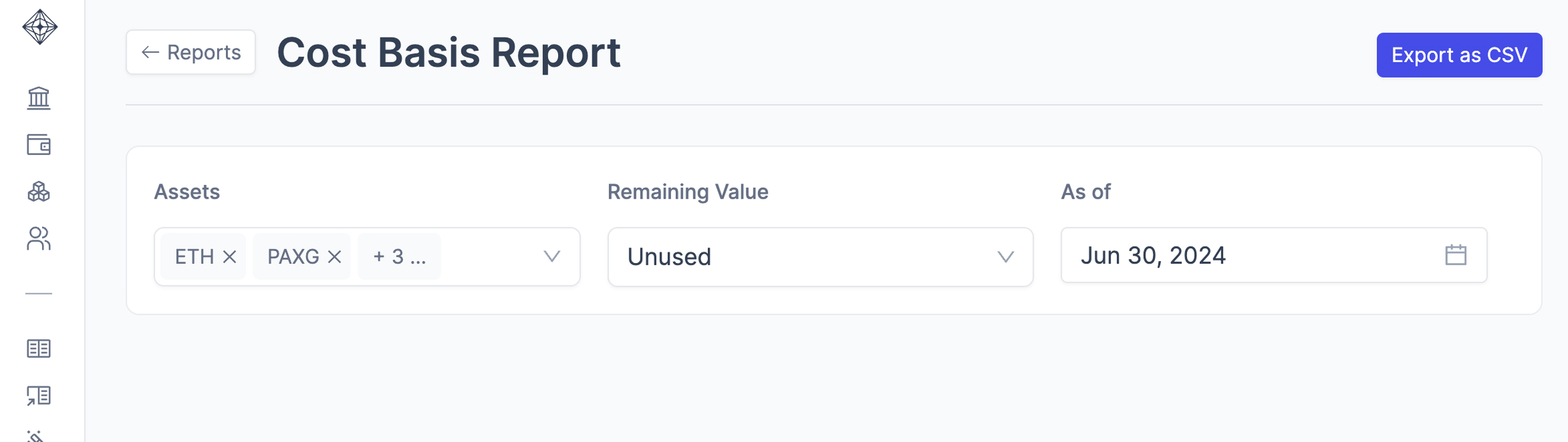
Cost Basis Report Detail of all tax lot deposits and their cost basis. Shows purchase date, quantity, unit cost, and total cost basis per lot. Essential for tax compliance and audit verification of acquisition cost.
Journal Entry Report Complete record of all journal entries generated in Integral, including account, debit/credit amounts, description, and the source transaction or categorization change that triggered the entry. Every journal entry links back to its originating transaction or manual adjustment. Use this for ERP import or audit validation.
How to Run a Report
From the main navigation, go to Reports.
Browse Summary Reports or Detailed Reporting and select the report type you need. Each report card displays a brief description of what the report contains.
Click on the report to open its configuration panel.
Set your date range:
Select the date range for the period you want to report on
(If applicable) Filter by:
Wallet/Exchange — Select specific connected accounts (e.g., "Binance Trading Account", "Ethereum Mainnet Wallet"). Leave blank to include all.
Asset — Filter to a single asset or leave blank for all assets.
Click Export.
Audit Trail
Every number in Integral has a verifiable source. Here's how Integral maintains auditability:
Transaction Source Verification Every transaction imported or connected includes its original source reference:
On-chain transactions show the blockchain transaction hash, which you can verify on any block explorer.
Exchange transactions reference the exchange order ID or trade ID, which you can cross-reference in your exchange statement.
Bank transfers reference the Plaid transaction ID or your CSV import record.
Journal Entry Traceability Every journal entry generated by Integral or manually entered links back to a source transaction, categorization rule, or documented business purpose. The journal entry report shows this traceability with debit/credit detail.
Categorization Audit Log Every time a transaction is categorized or recategorized, the change is logged with a timestamp and user identifier. You can view this history to confirm that categorizations remain consistent and reflect your accounting policy.
Wallet/Exchange Reconciliation Integral regularly reconciles your connected wallets and exchange accounts against their live balances. Any discrepancy is flagged, ensuring data integrity.
Using Reports for Tax and Audit
For Tax Filing Export the following reports for your tax preparer or CPA:
Realized Gains and Losses — For Schedule D (capital gains/losses) or similar tax scheduling.
Schedule of Dispositions — Detailed withdrawal and disposal activity with tax lot traceability.
Crypto Profit & Loss — Net-income summary for Schedule C or Form 1065 (business income).
Cost Basis Report — Supports substantiation of acquisition costs for each holding.
These reports are designed to map to tax schedules and IRS substantiation requirements. Provide transaction-level detail to your preparer; they can map these to your specific tax situation.
For External Audit Provide your auditors with a complete audit package:
Account Transactions (General Ledger) (full period, all accounts) — This is your primary audit trail showing every transaction source.
Journal Entry Report — Demonstrates how Integral categorizes and records transactions into your GL accounts.
Closing Positions (as of audit date) — Supports your balance sheet assertions for asset balances.
Wallet & Token Balances — Reconciliation report showing on-chain balances versus Integral's ledger, confirming data accuracy as of the close date.
Cost Basis Report — Supports valuation and cost of goods sold assertions.
All reports should be exported to CSV and include date ranges that align with your fiscal year or audit period.
For Month-End and Year-End Close At the end of each period:
Generate Closing Positions (as of the last day of the period) for your balance sheet.
Generate the Journal Entry Report to confirm all transactions have been recorded and categorized.
Run Account Transactions (General Ledger) filtered by the period to verify completeness.
Run Wallet & Token Balances to confirm on-chain and ledger balances are in sync.
Troubleshooting
Closing Positions or Wallet & Token Balances shows incorrect balances
Verify all wallets and exchanges are fully synced. Check Settings → Integrations to confirm each connection shows a green status indicator.
Confirm the date in your report matches your intended close date. Use Wallet & Token Balances to verify on-chain and ledger amounts are in sync; any discrepancy indicates a sync issue.
Run the Account Transactions (General Ledger) report for the same period to identify which transactions may be out of sync.
Missing transactions in export
Confirm the wallet, exchange, or custodian is connected and active. Disconnected or archived accounts will not appear in reports.
Check the asset filter — if a filter is applied, transactions in other assets will not appear.
Verify the date range includes the period when the transaction occurred. Some exchanges may report execution time differently than settlement time.
If a transaction was imported via CSV, verify the import succeeded in Settings → Data Imports. Failed imports will not appear in reports.
Date range not matching expectations
All dates in Integral are stored in UTC. If your transactions occurred in a different time zone, the transaction date may appear to be one calendar day off. Verify the transaction time component in the Account Transactions (General Ledger) report.
Some exchanges and blockchains report transaction completion time differently. For example, a transaction may show as "initiated" on one date but "confirmed" on another.
Report shows zero balances or no transactions
Verify at least one wallet, exchange, or custodian is connected. Check Settings → Integrations to confirm you have active connections.
Check your date range. If the dates are in the future or before any transactions occurred, the report will be empty.
If using filters, remove them temporarily to verify data exists in the unfiltered report.
Reach out to your Integral onboarding contact or email help@integral.xyz
Last updated: April 2026